

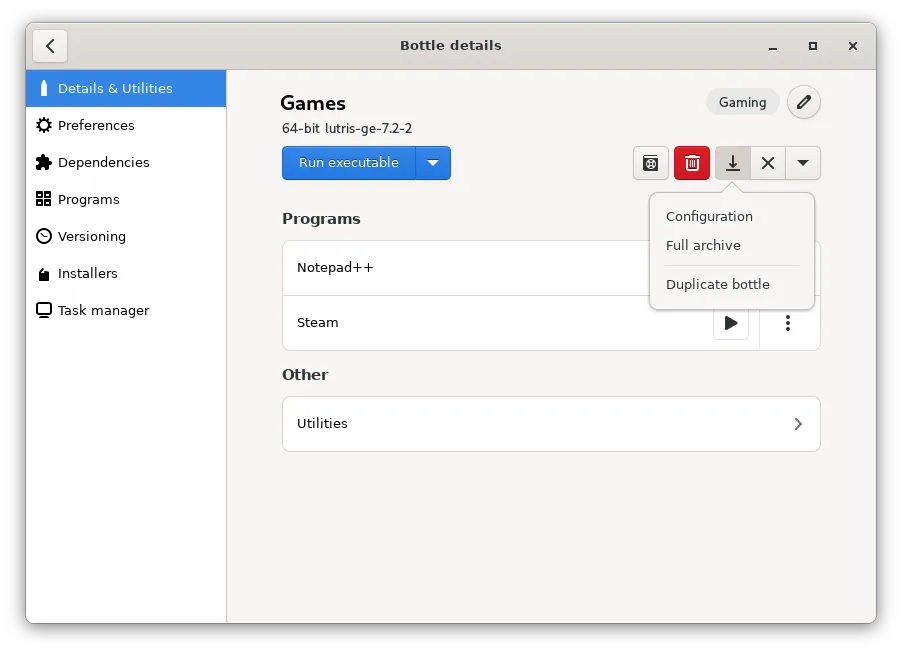
Open the backup menu
- 1. Open the details view for the bottle you want to back up.
- 2. Press the backup button at the top right of the bottle.
- 3. Select the backup method you want to use.
Choose an option
Configuration: Copies the bottle’s configuration file, bottle.yml, from the bottle root. You can share this configuration with another user to replicate the configuration, or attach it to a problem report. This option copies the configuration rather than the full bottle directory.
Full archive: Creates an archive containing a complete copy of the bottle directory, including its configuration and files. You can choose where to store the archive.
Duplicate bottle: Creates a duplicate with a different name. For a reusable template, configure a bottle and add the dependencies you need, then duplicate it to reuse that environment in a new bottle.
Importing a backup
Bottles supports importing a bottle backup through its Importer. This guide covers the backup menu and export choices, not the Importer’s detailed steps or failure recovery.
Sources & references
Content responsibility: FrameTinker editorial desk. Source authors and software maintainers are credited separately below; this is not a claim of hands-on testing.
Published .
Bottles: bottles — backups — official gaming software documentation https://raw.githubusercontent.com/bottlesdevs/documentation/master/bottles/backups.mdRetrieved Nov 13, 2026Something doesn’t match your setup?
Suggest a correction