

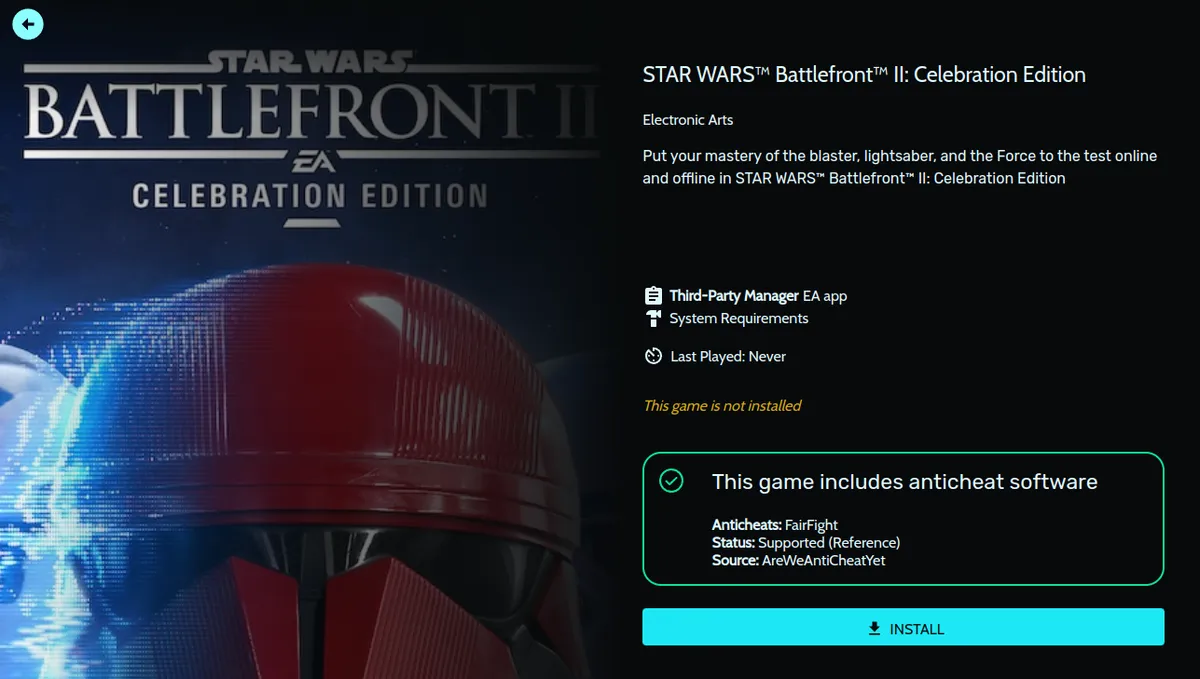
Start with your purchase source
The documentation says Heroic manages the EA application for EA games purchased through Epic. For games purchased directly from EA, it instead describes sideloading the EA application.
Preparation
- - Have Heroic Games Launcher installed.
- - Download the Windows EA App installer from https://www.ea.com/ea-app#downloads.
- - Have a Proton-GE version available to select in Heroic's Wine settings.
Documented installer sequence
- 1. Open Heroic Games Launcher and choose Add Game.
- 2. Enter EA App in the Game/App Title field.
- 3. Open Show Wine Settings and select a Proton-GE version. The documentation suggests the latest numbered version but does not name a specific release.
- 4. Choose RUN INSTALLER FIRST.
- 5. Select the EAAppInstaller.exe file downloaded from EA.
- 6. When the EA application reaches its login screen, exit the application.
- 7. Choose Set Executable and navigate to the prefix folder.
Recovery notes
If the EA App stops working after an update, the documentation directs users to rerun the EA installer. The supplied evidence does not include the detailed repair procedure.
The documentation identifies an “Invalid Name” error as a sign that the EA App was not installed properly in the prefix or bottle.
Evidence and publication details
Sources & references
Content responsibility: FrameTinker editorial desk. Source authors and software maintainers are credited separately below; this is not a claim of hands-on testing.
Published .
Heroic Games Launcher: How to install EA Games on Linux — official gaming software documentation https://raw.githubusercontent.com/wiki/Heroic-Games-Launcher/HeroicGamesLauncher/How-to-install-EA-Games-on-Linux.mdRetrieved Nov 8, 2026Something doesn’t match your setup?
Suggest a correction