

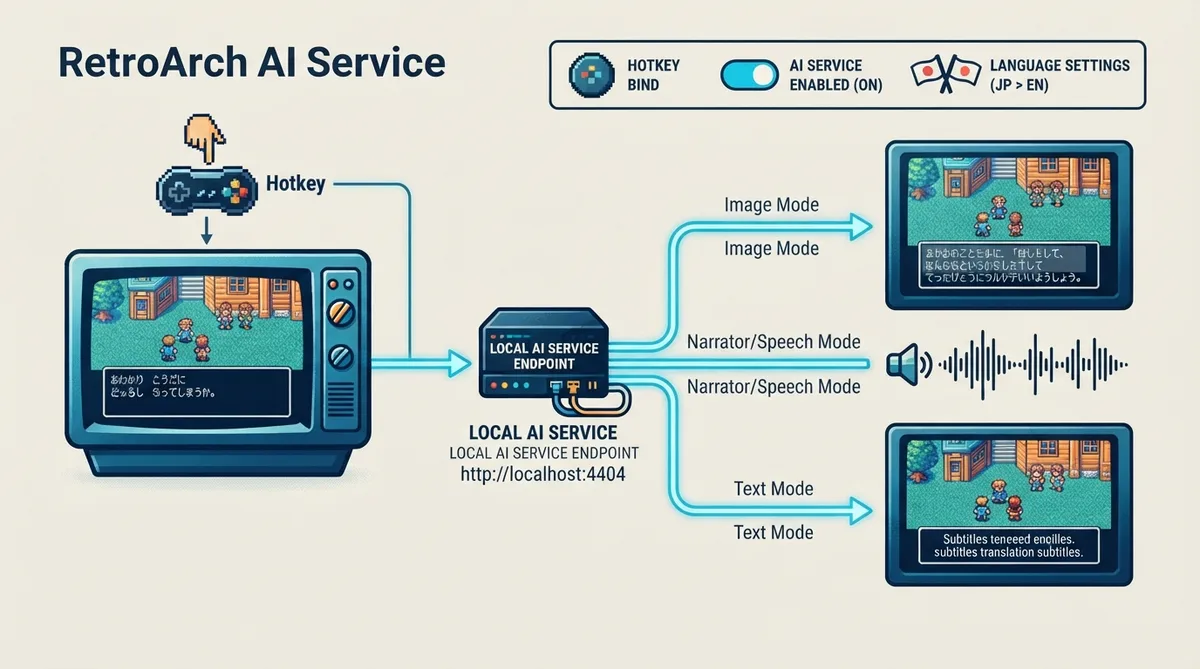
The RetroArch AI Service lets you capture the current game screen and send it to a configurable endpoint for processing. Using techniques such as OCR (optical character recognition), a service can return a live translation, text-to-speech narration, or other output, either on demand or automatically.
When you press the AI Service hotkey, RetroArch grabs the screen of the game being played and sends it to the service endpoint in the configuration. When the service returns, RetroArch displays the results according to your configuration. Pressing the hotkey again clears any content currently displayed.
Setting it up
- 1. Go to Settings -> Input -> Hotkey Binds and assign a key for the AI Service.
- 2. Go to Settings -> AI Service and modify the configuration options.
- 3. Set `AI Service Enabled` to `ON`.
- 4. Set the `AI Service URL` to the URL of the AI service you want to use (for example, `http://localhost:4404` for a local service listening on port 4404). Check the documentation of the third-party service you use to find the correct URL.
- 5. Choose an `AI Service Output` mode that matches the capabilities of the service you configured.
- 6. Optionally enable `Pause During Translation` to pause the core when the hotkey is pressed and resume it when you press the hotkey again.
- 7. Optionally set `Source Language` and `Target Language` for OCR-based translation or text-to-speech.
Output modes
`AI Service Output` controls how processed content is displayed. Your selection should match whatever capabilities the configured service offers. `Image Mode` expects the service to return an image overlaid on the game feed, useful for drawing information such as a translation over the original text box. `Narrator Mode` expects text that is spoken on your machine using native text-to-speech capabilities. `Speech Mode` expects an audio file and can be used as an alternative when native text-to-speech is unavailable. `Text Mode` expects text displayed on top of the screen, like subtitles. A combined mode such as `Text + Narrator` provides both the on-screen text and text-to-speech.
Text placement and padding
`AI Service Text Position Override` controls where subtitles appear when `AI Service Output` is set to `Text Mode`. By default, services can choose whether a given subtitle appears at the top or bottom of the screen; the override ignores the service hint and forces a placement. `AI Service Text Padding` adds blank space at the bottom (for bottom-placed subtitles) or top (for top-placed subtitles) of the screen for finer control.
Language settings
When the service performs OCR translation or text-to-speech and `Source Language` is set to `Don't care`, the service attempts to auto-detect the language on screen. Setting a specific source language increases accuracy and restricts translation to that language. If `Target Language` is set to `Don't care`, the translation is provided in English; otherwise the selected language is used.
Automatic mode
By default the AI Service runs in manual mode: you press the hotkey to process one screen, receive the result, press the hotkey again to dismiss it, and move on. Some services can run automatically, but this can only be enabled by the service itself and is mostly designed for local services because of the high number of requests per second. If your service supports automatic mode, press the AI Service hotkey once to enable processing; the service is then polled at regular intervals and results are displayed automatically as you play. Pressing the hotkey a second time, or invoking the RetroArch menu, turns the AI service off.
The `AI Service Auto-Polling Delay` option in the AI Service settings controls how fast automatic requests are sent. If you experience slowdowns during play, increasing the delay lowers the reactivity of the AI service but reduces the load on your CPU.
Known services
The documentation lists a few example services. VGTranslate is a Python server you can run locally or on your network that uses Google Cloud OCR and Google Text-to-Speech APIs with Google Cloud keys you provide. ZTranslate uses a standalone client app for Windows or Linux that grabs the screen of the window in focus and displays a translated version in its client window, and also supports package-based translations for curated translations. RetroArch-AI-with-IoTEdge uses IoT Edge and Azure Cognitive Services Containers (requiring a Microsoft Azure account) to translate RetroArch screenshots and display them on a Lakka device.
Supported cores
Since RetroArch v1.8.0, all cores should be supported if your build has menu widgets. Without widgets, only software cores are supported.
For developers: request and response format
To implement your own AI service, note that RetroArch sends a POST request every time the user invokes the AI service. URL parameters include `source_lang` (optional, the language code of the current content), `target_lang` (optional, the language of the content to return), and `output` (a comma-separated list of formats the service must provide, listing sub-formats supported by the current build). Supported output formats are `sound` (raw wav audio), `text` (text read through internal text-to-speech, with `subs` specified on top of that for short subtitle-style responses), and `image` (an image for overlay in bmp, png, or png-a, all 24-bit BGR).
The request contains a JSON payload with `image` (captured frame in base64), `format` (png or bmp), `coords` (x, y, width, height within viewport space), `viewport` (width, height), `label` (a text string of the form <system id>__<content id>), and `state` (a JSON object with `paused` set to 1 or 0 and keys for retropad inputs such as a, b, x, y, l, r, l2, r2, l3, r3, up, down, left, right, start, and select).
The service responds with a JSON payload whose fields are all optional but at least one must be present: `image` (base64 image in a supported format), `sound` (base64 sound in a supported format), `text` (results as a string), `text_position` (1 for bottom or 2 for top, defaulting to bottom), `press` (a list of retropad inputs to forcibly press, plus `pause` and `unpause`), `error` (any error encountered), and `auto`. If `error` is set, the error is shown to the user and everything else, including `auto` settings, is ignored.
With `auto` set to `auto`, RetroArch automatically sends a new request after a minimum delay enforced by ai_service_poll_delay. With `continue`, RetroArch ignores the returned content and skips to the next automatic request, allowing the service to indicate that the content is unchanged; the service must still send the content, since it may need to be displayed if the user paused the AI service.
Reference table · Scroll horizontally to see all columns.
| Output mode | Expected service response |
|---|---|
| Image Mode | An image overlaid on the game feed |
| Narrator Mode | Text spoken using native text-to-speech |
| Speech Mode | An audio file |
| Text Mode | Text displayed on screen, like subtitles |
| Text + Narrator | Both text on screen and text-to-speech |
Reference table · Scroll horizontally to see all columns.
| Format | Description |
|---|---|
| sound | Raw audio to play back (wav) |
| text | Text read through internal text-to-speech; subs can be specified for subtitle-style short text |
| image | Image displayed on top of the video feed (bmp, png, png-a), all 24-bit BGR |
Sources & references
Content responsibility: FrameTinker editorial desk. Source authors and software maintainers are credited separately below; this is not a claim of hands-on testing.
Published .
RetroArch: ai service — official gaming software documentation https://raw.githubusercontent.com/libretro/docs/master/docs/guides/ai-service.mdRetrieved Oct 8, 2026Something doesn’t match your setup?
Suggest a correction