

Configuring directories in RetroArch can help you get the best experience possible. Although the defaults will suit most users, you will need to change directories if you want to configure custom BIOS files or change the save location.
What the "default" directory value means
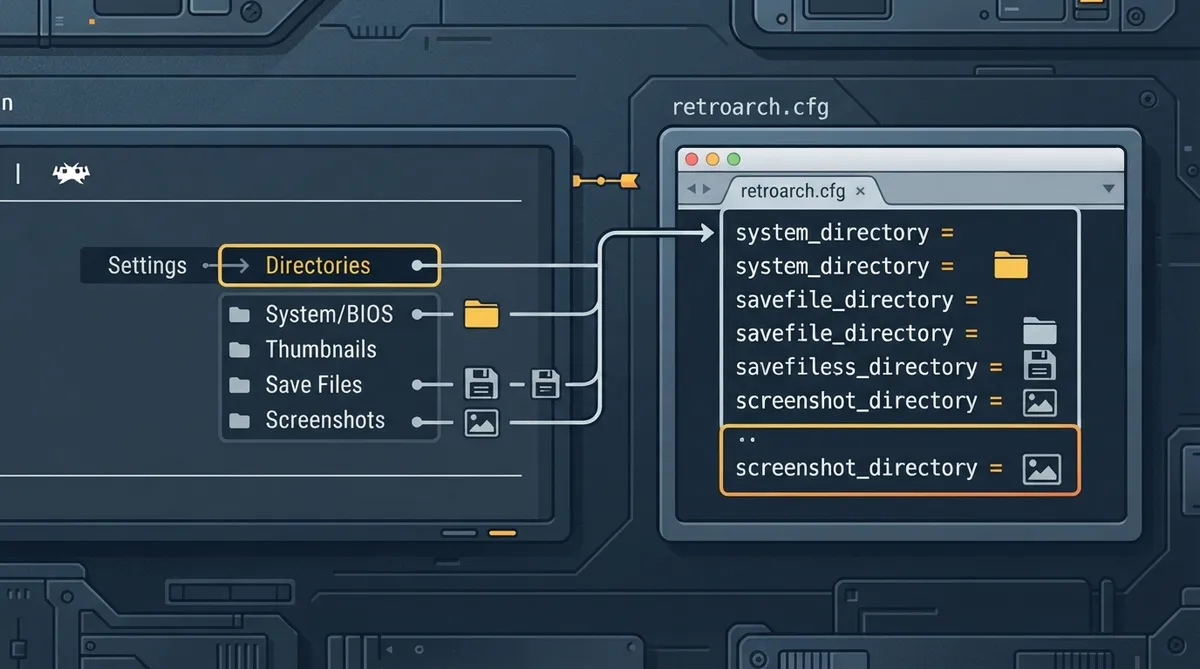
Some directory variables are set to "default" in retroarch.cfg. The value "default" represents different paths depending on the entry in Settings -> Directories. The <Content Directory> is the directory from which the game was loaded via Main Menu -> Load Content. For example, if /home/gamer/Downloads/SNES/game.sfc was loaded, and retroarch.cfg contains screenshot_directory = "default", then the screenshots will be saved in /home/gamer/Downloads/SNES/.
Changing a directory from the RetroArch interface
- 1. Open RetroArch.
- 2. Navigate to Settings -> Directories.
- 3. Click on the directory you want to change.
- 4. Navigate to the desired location using the File Browser.
Changing a directory from a text editor
- 1. Close RetroArch.
- 2. Find your retroarch.cfg file. If you are having trouble locating it, open RetroArch, navigate to Main Menu -> Configuration File -> Save Current Configuration. The on-screen notification widget will display the path, for example Saved new config to "[...]/config/retroarch/retroarch.cfg". You can also do a system-wide search for retroarch.cfg.
- 3. Open retroarch.cfg in a text editor.
- 4. After the = sign, make your changes, then save the file.
Mapping of "default" values in retroarch.cfg
system_directory = "default" maps to System/BIOS: <Content Directory>. screenshot_directory = "default" maps to Screenshots: <Content Directory>.
Paths you might want to change
Cores: this is the location for all your cores. To install cores using the user interface, this setting needs to point to a writeable directory. Note that the Ubuntu PPA does not point this to a user-writable directory because cores are modified by the package manager. If you want to change it manually, you might want to change this directory from retroarch.cfg with a text editor, since the RetroArch file browser doesn't show hidden folders by default. The setting to change in the config file is libretro_directory = . Some distributions use ~/.config/retroarch/cores/.
System/BIOS: this is where you specify the location for all your BIOS files. By default, RetroArch looks for BIOS files in your "Starting directory" folder. It is not suggested that you dump all BIOS files in the "Starting directory". Some emulators, for example PS1 and PSP, will require BIOS files to even function. It is suggested that this be changed to a folder named "system" under your RetroArch config folder. If you cannot locate this config folder (since it varies from OS), choose another location for the BIOS files. You might want to change this directory from retroarch.cfg with a text editor since the RetroArch file browser doesn't show hidden folders by default. The setting to change in the config file is system_directory = .
File Browser: this is the starting directory when you select "Load Content". It can be handy to have this set to your ROM folder. Although this probably is not needed since RetroArch has an import feature, it does not hurt to have this set anyway.
Save Files and Save States: by default, save files are placed in the same folder as your ROMs. If you care about organization, you should change these to another folder. Some platforms or distributions may use a different structure, so always verify your paths in Settings -> Directories.
Reference table · Scroll horizontally to see all columns.
| retroarch.cfg configuration | RetroArch Settings -> Directories |
|---|---|
| system_directory = "default" | System/BIOS: <Content Directory> |
| screenshot_directory = "default" | Screenshots: <Content Directory> |
 View full image
 Sources & references
Published .
RetroArch: change directories — official gaming software documentation https://raw.githubusercontent.com/libretro/docs/master/docs/guides/change-directories.mdRetrieved Oct 8, 2026Something doesn’t match your setup?
Suggest a correction