

RetroArch can be used through its graphical interfaces as well as through a command-line interface (CLI). According to the official documentation, becoming familiar with the command line helps you understand RetroArch's design principles. This guide summarizes the documented CLI usage, examples, and limitations.
Check your path style first
Before running any command, be aware of whether your system uses DOS/Windows style paths with backslashes (\) or Unix-style paths with forward slashes (/). Mixing path styles is a common source of confusion when passing core and content paths to RetroArch.
Invoking the RetroArch CLI executable on macOS
On macOS, invoke the executable directly from inside the application bundle. The documented path is:
/Applications/RetroArch.app/Contents/MacOS/RetroArchLoading a core and content from the command line
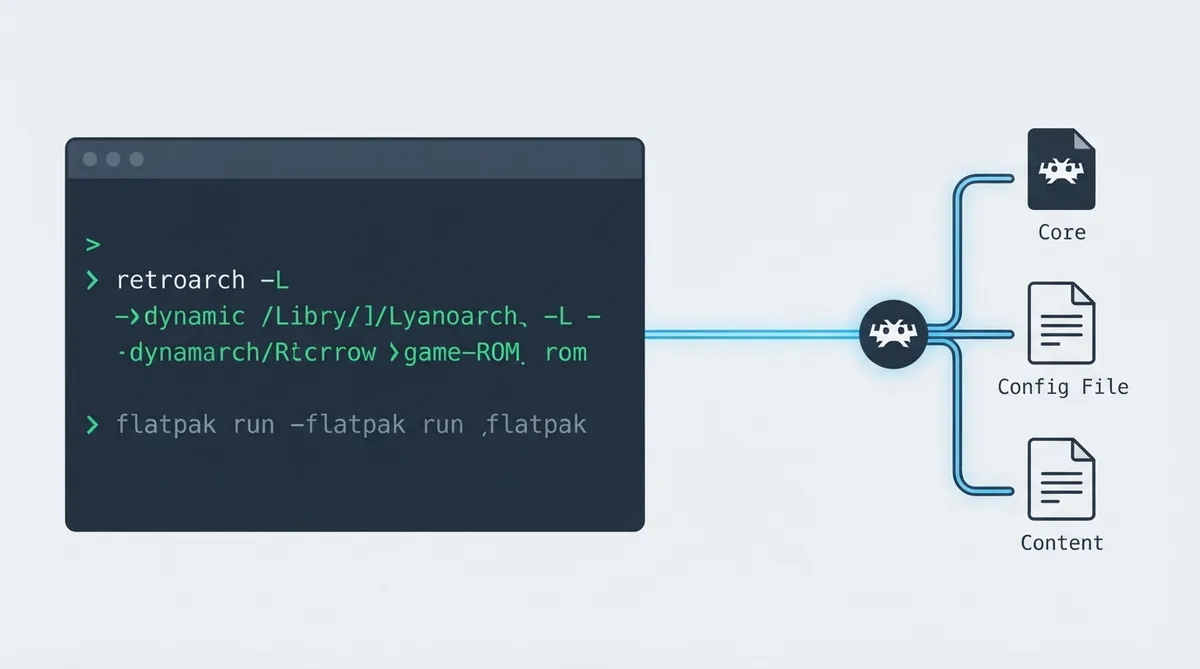
The documented basic pattern passes the libretro core with -L, followed by the content path. The example below uses Unix-style paths.
retroarch -L /path/to/libretro/core.so game.romFlatpak example
When RetroArch is installed as a Flatpak, wrap the command with flatpak run and the application ID, as shown in the documented example:
flatpak run org.libretro.RetroArch/x86_64/stable -L /home/MYUSERNAME/.var/app/org.libretro.RetroArch/config/retroarch/cores/nestopia_libretro.so Tetris.nesSteam example
RetroArch content can also be launched through Steam using an app launch command with -L and the content path:
steam -applaunch 1118310 -L "/path/to/steamapps/common/RetroArch/cores/nestopia_libretro.so" "/path/to/Tetris.nes"Cores that do not need a content file
Some cores, such as ScummVM, do not require a content file name as a command-line argument; ScummVM also includes an inbuilt GUI file browser. This behavior is declared in the core info file with the line supports_no_game = "true". In that case, after loading the core, if it does not start directly, select 'Start Core' from the main menu.
Verbose logging output
Use the --verbose flag to get more detail about what RetroArch is doing. The documentation notes that if you want to report a bug, including this log is vital.
Using a config file
By default, RetroArch looks for a config file in different places depending on the operating system:
- Linux/macOS: $XDG_CONFIG_HOME/retroarch/retroarch.cfg, then ~/.config/retroarch/retroarch.cfg, then ~/.retroarch.cfg, and finally /etc/retroarch.cfg as a fallback.
- Windows: retroarch.cfg in the same folder as retroarch.exe, then %APPDATA%\retroarch.cfg.
To override the default config, use retroarch --config customconfig.cfg. To combine a base config with additional options stored separately, use retroarch --config baseconfig.cfg --appendconfig specialconfig.cfg. If you are not loading content directly from the command line, also pass --menu, or RetroArch will close immediately after launching. See the man page and/or --help for details.
Other essential CLI flags
Run retroarch --help to display RetroArch's built-in CLI documentation. The documentation notes that this may reveal features you had not considered.
Launching on Android
Android has no retroarch executable. Instead, RetroArch is started as an activity, either with am start from adb shell or from another app or launcher, and it takes its arguments as intent extras:
am start -n com.retroarch/com.retroarch.browser.retroactivity.RetroActivityFuture \
  -e ROM "/storage/emulated/0/ROMs/snes/game.sfc" \
  -e LIBRETRO "/data/data/com.retroarch/cores/snes9x_libretro_android.so"
The package is com.retroarch, com.retroarch.aarch64, or com.retroarch.ra32, depending on which RetroArch is installed; the activity name is the same across all three. The core's full path is the core directory shown in Settings > Directory > Cores followed by the core's file name. Only the ROM and LIBRETRO extras are needed to start a game; RetroArch works out the configuration file, directories, and input method itself when they are not given. If RetroArch is already running with other content, starting it with a different ROM or LIBRETRO closes the running session and starts afresh with the new one.
Android intent extras
ROM: content to load, as a full path.
LIBRETRO: core to load the content with, as a full path.
CONFIGFILE: configuration file to use instead of the default retroarch.cfg.
QUITFOCUS: if present with any value, RetroArch quits instead of staying in the background when it loses focus, for example when you switch back to the launcher.
REFRESH: display refresh rate to ask for, in Hz, unless a display mode is chosen in the settings.
IME: input method (on-screen keyboard) to use.
DATADIR, APK, SDCARD, EXTERNAL: the app's data, APK, and storage directories.
This guide summarizes official RetroArch documentation. Always obtain content legally; this article does not provide or endorse unauthorized game downloads.
Reference table · Scroll horizontally to see all columns.
| Extra | Meaning |
|---|---|
| ROM | Content to load, as a full path. |
| LIBRETRO | Core to load it with, as a full path. |
| CONFIGFILE | Configuration file to use instead of the default retroarch.cfg. |
| QUITFOCUS | If present (with any value), RetroArch quits instead of staying in the background when it loses focus, for example when you switch back to the launcher. |
| REFRESH | Display refresh rate to ask for, in Hz, unless a display mode is chosen in the settings. |
| IME | Input method (on-screen keyboard) to use. |
| DATADIR, APK, SDCARD, EXTERNAL | The app's data, APK and storage directories. |
 View full image
 Sources & references
Published .
RetroArch: cli intro — official gaming software documentation https://raw.githubusercontent.com/libretro/docs/master/docs/guides/cli-intro.mdRetrieved Oct 8, 2026Something doesn’t match your setup?
Suggest a correction