

Cores are the programs and games that RetroArch runs, and RetroArch requires a core to run any content. The official documentation describes two ways to install them: through RetroArch's own interface, or through the Ubuntu package manager when RetroArch was installed from the Ubuntu PPA.
Prerequisite: a core is required
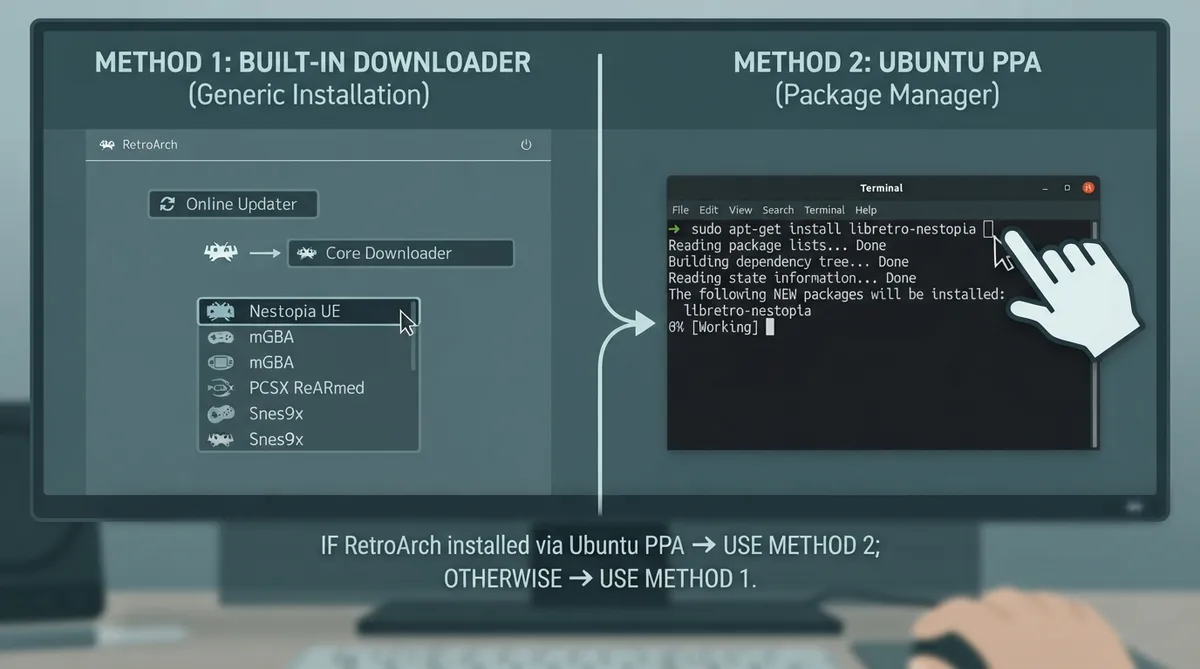
Method 1: Install cores through the RetroArch interface
If the Core Downloader option is missing from your menu, the documentation says you may have installed RetroArch using a package manager. Otherwise, enable it by navigating to Settings, then User Interface, then Menu Item Visibility, and turning on Show Core Downloader.
- Once the Core Downloader is visible, install a core by following these menu steps:
- 1. Navigate to Online Updater.
- 2. Navigate to Select Core Downloader.
- 3. Select the core you want to download.
The documentation notes one extra condition for the Ubuntu PPA build: if you enabled Show Core Downloader manually on that version, your changes will not be reflected unless the Cores directory setting points to a writable location in the Directory Configuration.
Method 2: Install cores through the package manager (Ubuntu PPA only)
Installing RetroArch through the Ubuntu PPA disables the Core Downloader option in RetroArch's interface, so core installation has to happen through the Ubuntu package manager instead.
- The documented package manager procedure is:
- 1. Open a terminal.
- 2. Start typing sudo apt-get install libretro- and press Tab a few times until all available possibilities are shown, then press Space to expand the list.
- 3. Type the full name of the core you want to install. Example: sudo apt-get install libretro-nestopia.
- 4. Press Enter and follow the process to install.
sudo apt-get install libretro-nestopiaChoosing between multiple cores for one console
The documentation notes that many game consoles have multiple emulator cores, and emulators can be designed to be more accurate at the cost of a performance hit. It points to the Emulation General Wiki as a reference for what will suit your needs and hardware; this article does not recommend a specific core.
 View full image
 Sources & references
Published .
RetroArch: download cores — official gaming software documentation https://raw.githubusercontent.com/libretro/docs/master/docs/guides/download-cores.mdRetrieved Oct 8, 2026Something doesn’t match your setup?
Suggest a correction