

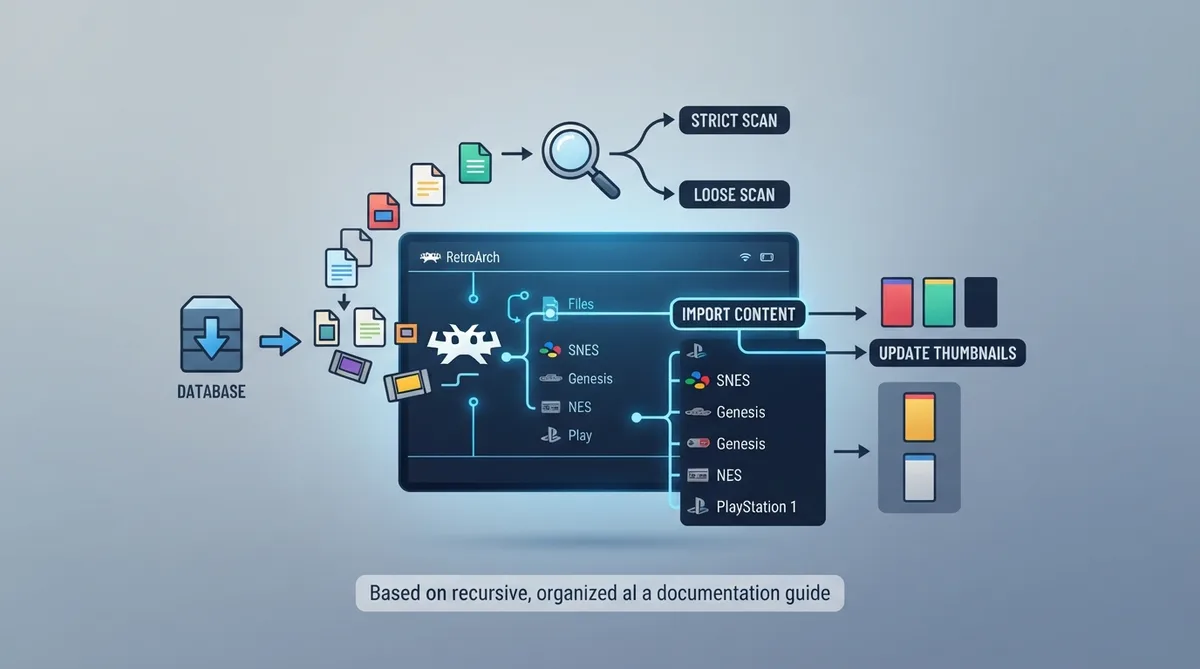
This guide summarizes the official RetroArch documentation describing how to import game content into RetroArch using its scan functionality. Scanning sorts imported games into playlists organized by console. The scan is recursive, so collections can be organized in sub-folders — or a scan can potentially cover a whole computer.
Prerequisites
- You must already have obtained the content legally. RetroArch does not provide users with copyrighted content.
Step 1: Download the database
RetroArch needs a database of titles before it can recognize your games. Certain releases, such as Windows, include the database files out of the box.
- From the RetroArch main menu, select "Online Updater", then choose "Update Databases". Also update core info files. Wait for the download to finish.
Step 2: Scan and import
The "Import Content" menu can be found under "Playlists" > "Import Content" (the default location), or it can be made directly accessible from the Main Menu. The location can be toggled in "Settings" > "User Interface" > "Menu Item Visibility" > "Show 'Import Content'", switching it from "Playlists Menu" to "Main Menu".
The default, fully automatic option for scanning is strict: it requires the CRC checksum or disc serial of the content to match the database. Scanning can be customized in several ways — loose scans, for example, will add content that does not match the database.
Large collections could take several minutes to scan.
Step 3: Add box art (optional)
Adding box art is optional. Return to the main menu, select "Online Updater", then choose "Playlist Thumbnails Updater". There you select the console whose artwork you want to download. These downloads can take quite some time, especially on a slow internet connection.
Reference table · Scroll horizontally to see all columns.
| Step | Menu path | Action |
|---|---|---|
| 1 | Main Menu > Online Updater | Select "Update Databases"; also update core info files |
| 2 | Playlists > Import Content (default) or Main Menu | Run scan (strict by default) to import content into console playlists |
| 3 (optional) | Main Menu > Online Updater > Playlist Thumbnails Updater | Select a console to download box art |
Sources & references
Published .
RetroArch: import content — official gaming software documentation https://raw.githubusercontent.com/libretro/docs/master/docs/guides/import-content.mdRetrieved Oct 8, 2026Something doesn’t match your setup?
Suggest a correction