

RetroArch netplay lets one player host a session while others connect to it as clients. This guide follows the official Libretro documentation for getting started with netplay, from setting a nickname through hosting or joining a room. Every step below is a summary of that documentation rather than a hands-on test.
Configure your nickname
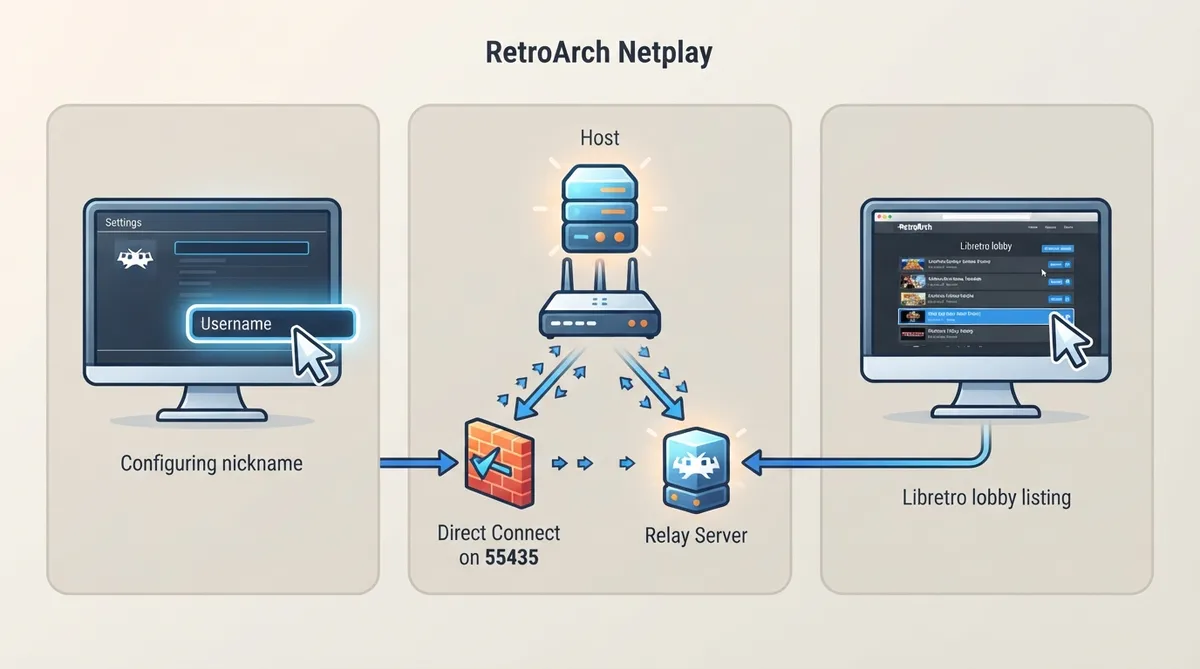
Before hosting or joining, set the name other players will see. In RetroArch, open the Settings menu, then the User submenu, select Username, and enter your preferred nickname.
Host a netplay server
To host a game, configure your network parameters and choose Start Hosting from the netplay menu. After that, load the content you want to netplay and wait for players to connect.
Once hosting is active, you can check whether your lobby is visible by looking it up in the public lobby listing on the Libretro lobby site.
Port forwarding and the relay server
By default RetroArch asks the gateway, via UPnP, to forward incoming connections on TCP port 55435 to itself. It does not check whether that succeeded, and the lobby server does not verify the host's reachability either. To confirm your setup, run an open-port check with your Netplay TCP Port while hosting; the port checker reports whether the port is open.
Keep a session private
To run a private game, set a Server Password so random players cannot connect. Alternatively, disable the Publicly Announce Netplay option so the room is not listed; clients then need to type your IP address or hostname directly.
Join a netplay room as a client
Connecting to a room requires no client-side configuration. Browse to the netplay menu, select Refresh to load the room list, then select the room you want to join.
If the room requires a password you will be prompted for it. If you have matching content scanned or in your Content History, the client connects right away; otherwise you are told to load the core and content manually, after which the connection attempt proceeds.
Reference table · Scroll horizontally to see all columns.
| Situation | Documented action or fact |
|---|---|
| Setting your display name | Settings > User > Username |
| Starting a session | Configure network parameters, then choose Start Hosting, then load content |
| Checking lobby visibility | Look up the lobby on the public Libretro lobby site |
| Router lacks UPnP or ports cannot be forwarded | Enable Use Relay Server |
| Private session | Set a Server Password or disable Publicly Announce Netplay |
| Client joining | Netplay menu > Refresh > select room |
 View full image
 Sources & references
Published .
RetroArch: netplay getting started — official gaming software documentation https://raw.githubusercontent.com/libretro/docs/master/docs/guides/netplay-getting-started.mdRetrieved Oct 8, 2026Something doesn’t match your setup?
Suggest a correction