

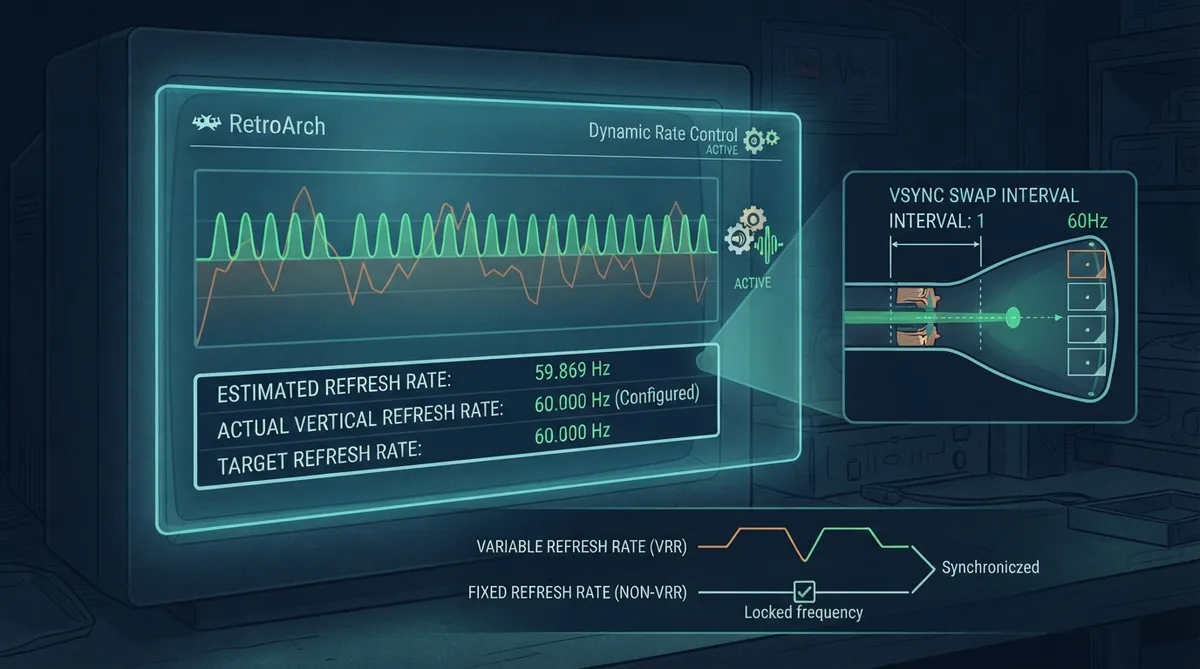
RetroArch synchronizes video and audio at the same time using Dynamic Rate Control, which the official documentation describes as smoothing out timing imperfections that are expected to arise. According to that documentation, when Dynamic Rate Control works as intended, frame pacing and audio synchronization are perfectly smooth. It can be turned off, but the documentation cautions that proper video and audio sync is nearly impossible to obtain in that case.
Basic configuration
Default settings may not be adequate and you may see video stuttering or audio crackling. For correct synchronization, the official documentation states that Settings->Video->Output->Vertical Refresh Rate must be set for your display, because OS-provided APIs cannot detect it accurately enough. Roughly 0.1% accuracy is described as necessary for Dynamic Rate Control to smooth out drift, and the document calls this trivial to obtain by measuring manually under normal conditions.
RetroArch shows an estimate of your display refresh rate at Settings->Video->Output->Estimated Screen Refresh Rate, updated in real time using a running average over frame times. The documentation advises confirming that VSync is enabled and working and running full-screen for more accurate results, since compositors can interfere with timing. Pressing the accept button on the estimated refresh rate configures RetroArch with that estimated rate; if the running average is no longer drifting much, the document suggests it is probably a good result.
Alternatively, RetroArch can log the measurement for manual configuration. The documentation suggests starting RetroArch directly in RGUI with retroarch --verbose --menu, letting it run uninterrupted for at least 4096 frames as displayed in the title bar, then exiting. A log line in this form is given as an example.
RetroArch: Average monitor Hz: 59.869485 Hz. (1.347 % frame time deviation, based on 2048 last samples).The documentation notes that if you are unsure about the result you can run the test several times and check whether the results are consistent, because some systems have very unreliable VSync behavior and the value can fluctuate wildly. The measured value can then be entered in Vertical Refresh Rate.
Step-by-step configuration
The documentation presents the advanced configuration as an ordered guide, starting with the settings most directly related to audio and video synchronization. It notes that changing settings randomly, or changing more than one at a time, can hide which change actually mattered.
- 1. Choose a synchronization method based on whether your display supports Variable Refresh Rate and whether you want to use it.
- 2. Ensure audio synchronization is enabled, and set Maximum Timing Skew as needed for your content.
- 3. Check the display control panel and other external program settings.
- 4. Adjust remaining in-RetroArch settings that affect frame pacing and synchronization.
Choosing a method: non-VRR
For synchronization without VRR, the documentation recommends setting Settings->Video->Output->Vertical Refresh Rate very close to an evenly divisible multiple of the core requested refresh rate, using the Estimated Screen Refresh Rate value for accuracy. Expected targets are around 60/120/180/240 Hz for NTSC and 50/100/150/200 Hz for PAL. It states that uneven but common display rates such as 75/90/144/165 Hz can only maintain smooth frame pacing and audio synchronization while Variable Refresh Rate is active.
The document describes setting the actual display refresh rate to 60 Hz, configuring the real refresh rate as in the basic section, and using a Vsync Swap Interval of 1 as the most default and therefore supported mode of operation for perfect frame timing. It also explains how to run RetroArch on a display above 60 Hz without lowering the actual screen refresh rate.
After verifying the rate, the documentation says to check System->Video Settings->Synchronization, make sure Vertical Sync (Vsync) is on, and set Vsync Swap Interval to Auto or a manual value. Auto is described as likely the superior choice unless you note specific issues, because it avoids the math required for manual configuration and responds to changes in other settings such as Black Frame Insertion and Sync to Exact Content Framerate (G-Sync, Freesync) without needing to be updated itself.
For manual configuration, the documentation gives the rule that dividing Settings->Video->Output-Vertical Refresh Rate by the swap interval should give a result near your 60/50 Hz goal: 60Hz/1 = 60Hz so the interval is 1, 120Hz/2 = 60Hz so the interval is 2, 180Hz/3 = 60Hz so the interval is 3, and so on. It adds that when syncing this way to a value other than Auto or 1, Black Frame Insertion and Sync to Exact Content Framerate (G-Sync, Freesync) should be off, because these are separate synchronization methods and should not be combined.
Choosing a method: VRR displays
For a VRR capable display, the documentation describes configuration as less error prone, at least inside RetroArch, with the added benefit of syncing to the exact originally intended speed of the core. In this mode Vertical Refresh Rate is not used to adjust timing and does not need to be set correctly, though the document still calls it good practice.
To use VRR timing, the guide says to turn on Sync to Exact Content Rate (G-Sync, Freesync) under System->Video Settings->Synchronization, verify Vsync Swap Interval is set to either 1 or Auto, and confirm Black Frame Insertion is off. As above, these settings should not be combined.
Audio synchronization and timing skew
The documentation says to ensure Settings->Audio->Synchronization->Synchronization is enabled. In the same menu, for a non-VRR setup, Maximum Timing Skew decides how far RetroArch is willing to adjust the core requested speed to attempt to sync with your refresh and swap interval settings.
The default skew is 0.05, which the document says is fine for most content. Some arcade content runs at rates significantly between 50 Hz and 60 Hz; the older Mortal Kombat arcade machines are given as requesting around 54 Hz. To run 50 Hz PAL content at 60 Hz NTSC speed the skew must be higher, since 60 Hz NTSC is about 17% faster than 50 Hz PAL, so the value would be set to .17. A higher maximum only allows content farther from your refresh rate to sync; it does not make nearby content run at a less correct speed.
Maximum Timing Skew determines what RetroArch does when content does not match the display rate and Sync to Exact Content Rate is not in use. Within the skew, RetroArch runs the content at the display rate: every frame is shown once, scrolling is smooth, and audio is resampled to match, so the game runs faster or slower than on real hardware and the music plays higher or lower by the same amount. Beyond the skew, RetroArch leaves the content at its own rate and logs that timings deviate too much and will not be adjusted; the game keeps its original speed and pitch while the display repeats or skips frames, which shows as judder.
The document's example: an arcade game made for 57.5 Hz is 4.2% away from a 60 Hz display. With the default 0.05 skew it runs at 60 Hz, smooth but about 4.3% fast and 4.3% high in pitch. With the skew set below 0.042, for instance 0.03, it runs at its correct speed and pitch with occasional judder. 50 Hz PAL content is 17% away from 60 Hz and is only sped up if the skew is raised to at least 0.17. The document frames the choice as a matter of taste, with a display running at the content's own rate or a VRR display using Sync to Exact Content Rate avoiding the compromise altogether.
External settings to check
- Confirm application settings are not being overridden to force VSync off.
- If not using VRR and a maximum framerate cap is set in the driver or a tool such as RTSS, verify the cap is at least as high as the display's set refresh rate; a display at 240 Hz with swap interval 4 still needs 240 potential vblanks per second.
- If using VRR, verify it is enabled at the display driver level and on the display itself, and that any framerate cap is set slightly above 60 rather than right at 60, since NTSC NES/SNES request 60.1 Hz.
- On a strong GPU, consider a setting such as Power Management Mode configured for Prefer Maximum Performance, globally or for RetroArch, because GPUs that shift between high and low power states can cause inconsistent frame times.
- Consider disabling unnecessary overlays such as RTSS, Discord or Steam; RTSS has been known in previous versions to cause Vulkan issues in RetroArch even when merely installed.
- Active video recording or streaming software can interfere with perfect frame pacing; the document suggests setting all other settings as appropriately as you can if the recording or stream matters.
In-RetroArch settings that affect frame pacing
- Windowed mode, including windowed full-screen, can contribute to frame pacing issues, so Settings->Video->Fullscreen Mode->Windowed Full-Screen Mode can be disabled to test.
- Settings->Video->Output->Automatic Refresh Rate Switch can be considered for disabling, because a change to the actual display refresh rate can interfere with your Vsync Swap Interval in non-VRR mode and, in VRR mode, the display should keep the maximum potential refresh rate.
- Settings->Video->Output->Threaded Video is described as well known to interfere with smooth frame pacing and audio sync, though it can be the only choice for hardware too weak for the content.
- A very heavy shader, such as accurate CRT emulation on a higher resolution display, can increase the performance needed for smooth synchronization.
- Your renderer API of Vulkan, OpenGL, DirectX 11 or similar might not interact perfectly with your system or core, so an alternative can be tried.
- Core specific settings may include overclocks, internal run-ahead or frame duplication that raise system requirements.
- Under Settings->Latency, Frame Delay, Automatic Frame Delay, Run-Ahead to Reduce Latency and Run Pre-Emptive Frames should be adjusted down or off if smooth frame pacing is a priority over latency.
- Settings-Latency->Audio Latency should be kept higher, not lower; too low a value causes stutter while waiting to refill a smaller audio buffer when synchronization is enabled, or very poor audio output when it is not. The 64 ms default was chosen to avoid such issues, and since a 60 Hz NTSC frame is about 16.66 ms, values slightly above two frames (around 35 ms) or three frames (around 52 ms) are suggested as reference points.
- Under System->Video Settings->Synchronization, Hard GPU Sync, Max Swapchain Images and Waitable Swapchains limit how many frames ahead the CPU can calculate. If frame pacing issues remain and matter more than latency, Hard GPU Sync and Waitable Swapchains can be disabled or Max Swapchain Images increased.
Statistics for judging changes
To judge a setting change by more than eyeballing, the documentation points to a running statistics HUD, toggled at Settings->User Interface->On-Screen Display->On-Screen Notifications->Notification Visibility->Display Statistics. An external frame pacing monitor can also be used, keeping in mind that running it may itself introduce a small amount of jitter.
- Core AV_INFO->FPS: the exact frame timing the core is requesting.
- Video->Refresh: what Settings->Video->Output->Vertical Refresh Rate is currently set to.
- Video->FPS: the rate at which frames are actually being output. With VRR on this should match Core AV_INFO->FPS; with VRR off it should be very close to Vertical Refresh Rate divided by Vsync Swap Interval once the averaging settles. Neither Video->FPS nor Core AV_INFO->FPS will usually display 30 for 30 fps content, because internal frame doubling is performed.
- Audio->Underrun: how much of a recent period the audio buffer spends near emptying. Settling above 0% after running a while, without recent menu access, slow motion or fast forward, suggests audio is not keeping up with video.
- Audio->Blocking: the practical opposite; settling above 0% under the same conditions suggests audio is running ahead of the video.
Some cores can show moderate amounts of both Underrun and Blocking while hardware is capable and settings are correct; the document notes this is more common with genuinely variable framerate content from the fifth console generation onward, so testing overall settings with an earlier, less complex core may be preferable.
Limitations and further considerations
If everything above has been tried, the documentation says there is not much more to configure settings-wise. Hardware may simply not be capable of running the desired content at full speed, and an alternative core designed for lower specification hardware might exist. It also notes that some content on some cores has poorer timing control, with higher odds on fifth generation and later console cores dealing with content that ran at unstable framerates on original hardware.
On VRR displays, Low Framerate Compensation means there is a minimum fps below which VRR cannot actually sync, compensated by a combination of internal frame doubling and screen tearing depending on the display. If that minimum is near the output rate, as the document says some 240 Hz+ displays are arriving with a Low Framerate Compensation minimum around 60, frame pacing can be significantly affected. 30 fps content also falls below that rate on many VRR displays. If the display specifications suggest Low Framerate Compensation issues, the document says a fixed refresh rate may serve better: discontinue Sync to Exact Content Rate (G-Sync, Freesync) inside RetroArch and follow the Vsync Swap Interval instructions instead, without needing to disable VRR in the display driver or on the display.
The documentation also notes that on macOS more than one active display can interfere with good frame pacing and audio synchronization, and suggests trying a single display regardless of operating system, or at least setting all active displays to the same refresh rate. Running videos or other updating content on a secondary display is another potential source of issues, and compositor behavior with multiple simultaneous contents varies across operating systems and can change over time.
Reference table · Scroll horizontally to see all columns.
| Content refresh rate | Distance from 60 Hz display | Default skew 0.05 | Skew below distance (example 0.03) |
|---|---|---|---|
| 57.5 Hz arcade | About 4.2% | Runs at 60 Hz: smooth, about 4.3% fast and 4.3% high in pitch | Runs at correct speed and pitch, occasional judder |
| 50 Hz PAL | About 17% | Only sped up if skew is at least 0.17 | Keeps original speed and pitch, frames repeat or skip as judder |
Reference table · Scroll horizontally to see all columns.
| Vertical Refresh Rate | Manual Vsync Swap Interval | Resulting rate |
|---|---|---|
| 60 Hz | 1 | 60 Hz |
| 120 Hz | 2 | 60 Hz |
| 180 Hz | 3 | 60 Hz |
 View full image
 Sources & references
Published .
RetroArch: optimal vsync — official gaming software documentation https://raw.githubusercontent.com/libretro/docs/master/docs/guides/optimal-vsync.mdRetrieved Oct 8, 2026Something doesn’t match your setup?
Suggest a correction