

RetroArch lets you save customized settings in several ways, and most of them are plain text files that can also be edited manually. Beyond the global configuration file, the config override system can override global settings on a per-core, per-content-directory, or per-game basis. Input settings and shader presets are handled by their own systems rather than the override files.
How overrides load
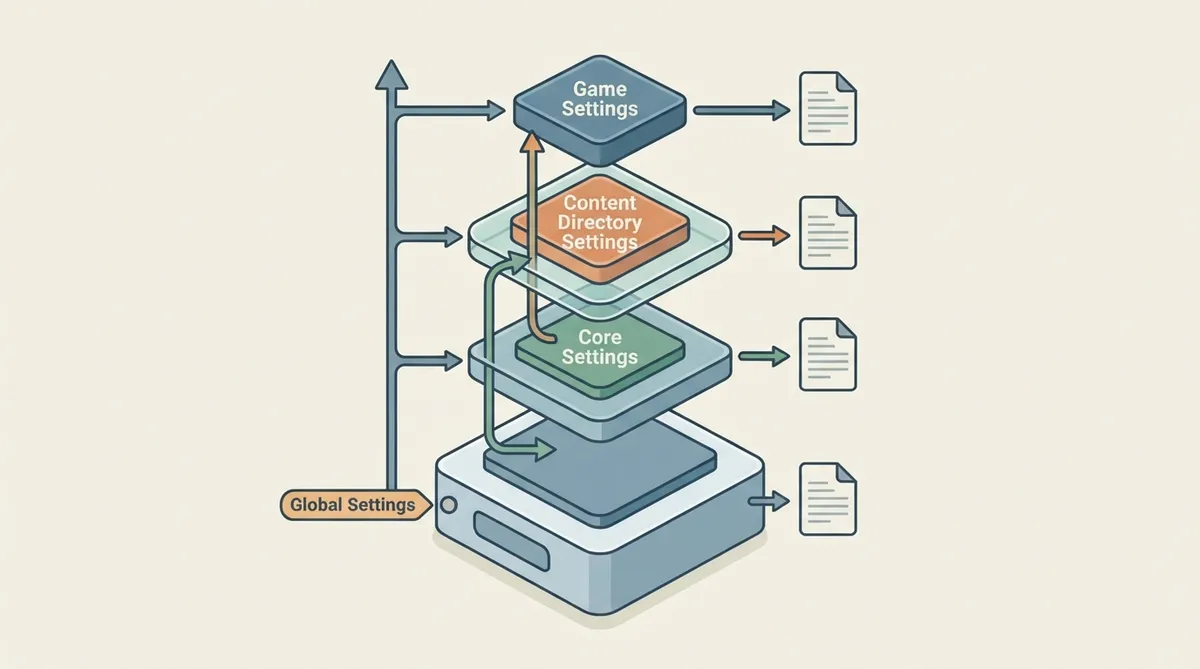
Overrides are applied in a fixed order, from the most specific to the least specific. Game settings apply when loading a particular game (content), content directory settings apply when loading content from a particular directory, core settings apply when loading content with a specific core, and default settings come from retroarch.cfg.
Override and remap files are designed to be lightweight and easy to maintain: they save only the settings that differ from the preceding settings files. For example, if only one setting differs between your retroarch.cfg and a core.cfg, the core.cfg file will contain only that one setting.
Configuration files and where they live
- retroarch.cfg — the default and global settings file, located in the base install path.
- retroarch-core-options.cfg — the global file for core option settings, for cores that support options, located with retroarch.cfg.
The location of these files after installation can vary depending on the chosen platform, so confirm the actual paths on your system before editing anything by hand.
Saving core, content directory, and game overrides
- Load content with the core you want to configure, then change the settings you need from the menu.
- Open the Quick Menu and choose Save Core Overrides to write a per-core override at /config/<name-of-core>/name-of-core.cfg. These settings load every time you load content with that core.
- To target a directory instead, choose Save Content Directory Overrides, which writes /config/<name-of-core>/name-of-content-directory.cfg and takes precedence over name-of-core.cfg.
- For a single game, choose Save Game Overrides, which writes /config/<name-of-core>/name-of-game.cfg and takes precedence over name-of-content-directory.cfg.
- Remember that core-specific or content directory-specific overrides that are not present in game-specific overrides persist and will still be loaded.
The /config/<name-of-core>/ path used for override files is set under Settings -> Directory -> Config, so the exact location on disk depends on that setting.
Input remaps
Input remaps follow the same core/directory/game logic as the config overrides but use the .rmp extension instead of .cfg. They are saved from the Controls section of the Quick Menu.
- Quick Menu -> Controls -> Save Core Remap File
- Quick Menu -> Controls -> Save Content Directory Remap File
- Quick Menu -> Controls -> Save Game Remap File
The save directory for remaps is configured under Settings -> Directory -> Input Remapping, and by default they save to /config/remaps/<name-of-core>/.
Core options and shader presets behave differently
Per-game core options and shader presets work differently from overrides: they are full configurations and are loaded instead of the base shader preset and core option settings, rather than layered on top of them. The options files list the settings found under Quick Menu -> Options, and retroarch-core-options.cfg is created automatically when a core that supports options is loaded.
A game-specific options file is created when you select Quick Menu -> Options -> Game-options file, and it is located at /config/<name-of-core>/<name-of-game>.opt, with the path set under Settings -> Directory -> Config. For game-specific options to load automatically when content loads, Load Content Specific Core Options Automatically must be set to On in RetroArch's configuration settings.
Limitations to keep in mind
- Some settings cannot be saved in an override file from the menu. You can work around most of these situations by adding the settings manually to the override file.
- Override and remap files contain only values that differ from the preceding settings files, so reading them in isolation does not show the full effective configuration.
- File locations can vary by platform, and the config and remap directories are controlled by their own Settings -> Directory entries.
Reference table · Scroll horizontally to see all columns.
| Level | Applies when | Override file |
|---|---|---|
| Game | Loading a particular game (content) | /config/<name-of-core>/name-of-game.cfg |
| Content directory | Loading content from a particular directory | /config/<name-of-core>/name-of-content-directory.cfg |
| Core | Loading content with a specific core | /config/<name-of-core>/name-of-core.cfg |
| Default | Always, as the base | retroarch.cfg |
 View full image
 Sources & references
Published .
RetroArch: overrides — official gaming software documentation https://raw.githubusercontent.com/libretro/docs/master/docs/guides/overrides.mdRetrieved Oct 8, 2026Something doesn’t match your setup?
Suggest a correction