

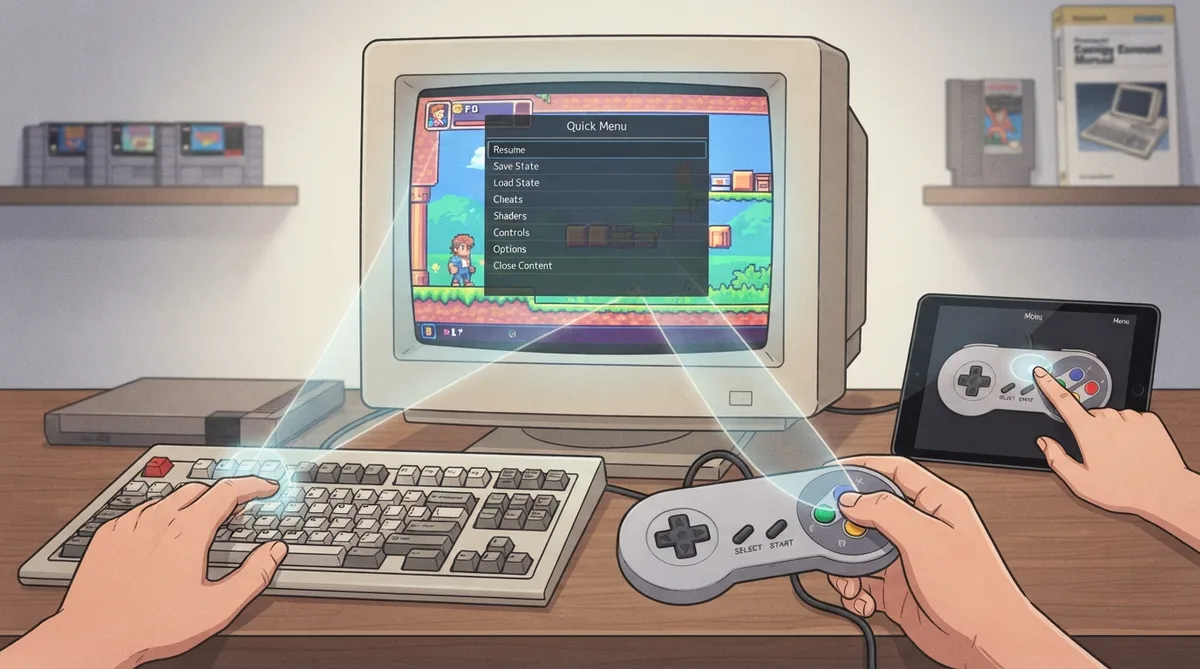
The Quick Menu is effectively RetroArch's pause menu. It is opened while content is running, and it provides access to many core-specific settings and options while the content is paused in the background.
How to open the Quick Menu
According to the official documentation, the Quick Menu can be accessed in three ways: by pressing a certain gamepad combination, by pressing the F1 key on a keyboard, or by tapping the "Invader" or "Menu" button on most Gamepad Overlays.
- Access methods described in the documentation:
- - Press the configured gamepad button combination.
- - Press the F1 key on your keyboard.
- - Tap the "Invader" or "Menu" button on most Gamepad Overlays.
Changing the menu button combination
The RetroPad button combination for opening the Quick Menu can be changed at Settings > Input > Hotkeys > Menu Toggle. Users select the combination from a list; custom combinations cannot be applied.
The documentation states that the following combinations are selectable from the Menu Toggle list, exactly as named there:
- None
- Done + Y + L1 + R1
- L3 + R3
- L1 + R1 + Start + Select
- Start + Select
- L3 + R1
- L1 + R1
- Hold Start (2 seconds)
- Hold Select (2 seconds)
- Down + Select
- L2 + R2
What the Quick Menu provides access to
The documentation says Quick Menu options include, but are not limited to, the following, available while the content is paused in the background:
- Adjusting the video resolution and system region
- Remapping controller inputs
- Managing Load/Save States
- Using cheats or shaders
- Taking screenshots
- Recording video clips
Close Content
The documentation describes Close Content as the most important function exclusive to the Quick Menu, aside from Resume Content. It safely "shuts off" the emulated system and its content, returning the user to RetroArch's main menu without having to quit RetroArch completely.
Disc Control
Another function the documentation describes as exclusive to the Quick Menu appears with certain cores: swapping discs using the Disc Control option. The documentation refers readers to its Disc Swapping guide for details.
Reference table · Scroll horizontally to see all columns.
| Menu Toggle option | Type |
|---|---|
| None | Disabled |
| Done + Y + L1 + R1 | Button combination |
| L3 + R3 | Button combination |
| L1 + R1 + Start + Select | Button combination |
| Start + Select | Button combination |
| L3 + R1 | Button combination |
| L1 + R1 | Button combination |
| Hold Start (2 seconds) | Hold |
| Hold Select (2 seconds) | Hold |
| Down + Select | Button combination |
| L2 + R2 | Button combination |
 View full image
 Sources & references
Published .
RetroArch: quick menu — official gaming software documentation https://raw.githubusercontent.com/libretro/docs/master/docs/guides/quick-menu.mdRetrieved Oct 8, 2026Something doesn’t match your setup?
Suggest a correction