

Overview
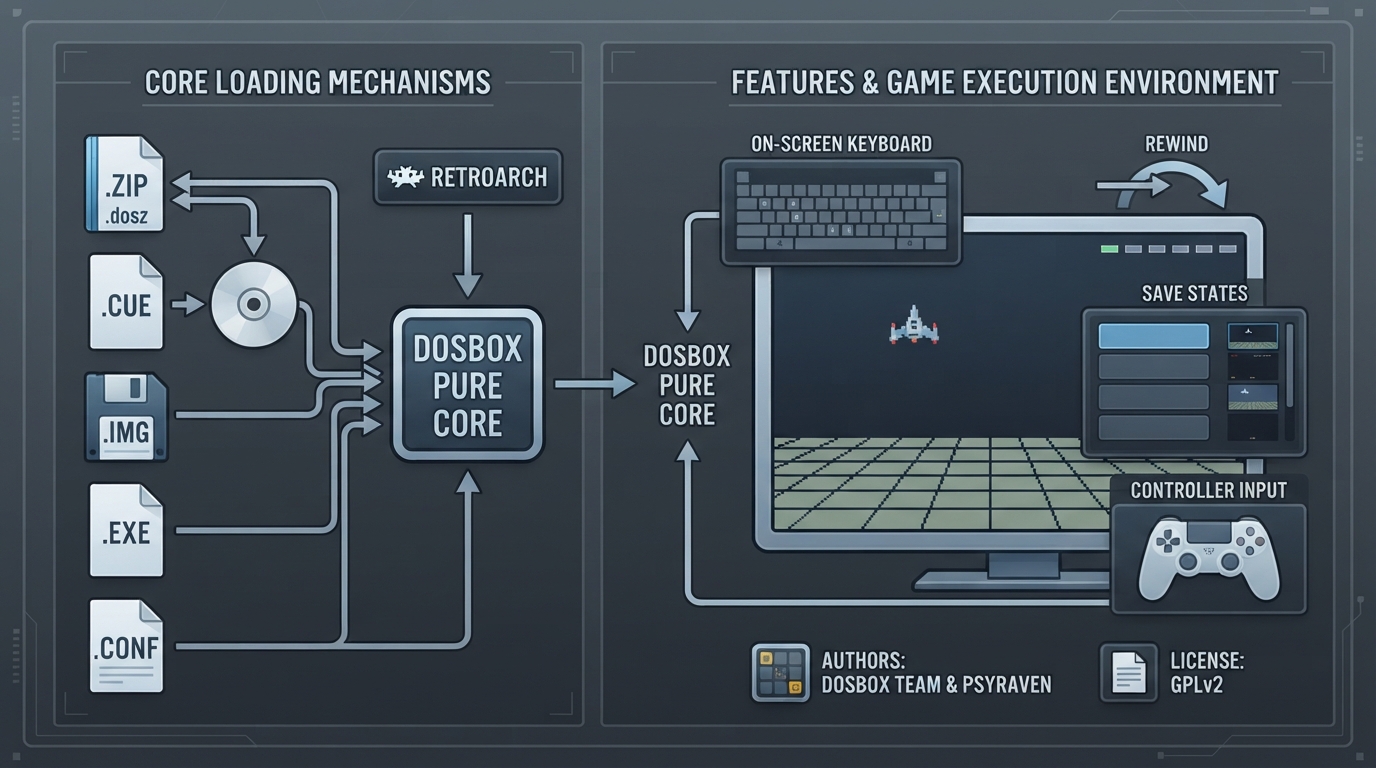
DOSBox Pure is a libretro core built for RetroArch. It is a fork of DOSBox, the multiplatform MS-DOS emulator, created by Psyraven in 2020. According to the official documentation, it implements save states, an on-screen keyboard, customizable controller setup and rewinding, and is designed for simplicity and ease of use.
What content the core loads
The core accepts the following file extensions: .zip (with the alternative .dosz), the DOS programs .exe, .com and .bat, the CD-ROM images .iso, .chd, .cue and .ins, the disk images .img, .ima and .vhd, the PCjr cartridge .jrc, the playlists .m3u and .m3u8, and .conf files. A directory can also be loaded directly as drive C:.
Loading paths and start menu
Games can be loaded directly from ZIP files without extracting them first.
When changes are made to the file system loaded from a ZIP, those changes are written to a separate save file stored in the frontend's save directory. If a game is loaded directly without a ZIP file, the saves directory is not used.
CD images (ISO or CUE) and floppy disk images (IMG/IMA/VHD) can be mounted directly from inside ZIP files. The system automatically mounts the first detected disk image as the A: or D: drive. Additional disks can be loaded or swapped through RetroArch's Disc Control menu.
Installing and running CD-ROM games
- In the RetroArch main menu, use Load Content to navigate to the ISO and launch it with the DOSBox Pure core.
- From the start menu, select the installer executable on the CD-ROM (typically SETUP.EXE, INSTALL.EXE or START.EXE) and follow its instructions to install the game into a local directory such as C:\ or C:\C&C\.
- On the next launch of the same ISO, the start menu will list the locally installed executables (for example C:\C&C\C&C.EXE) above the executables from the mounted disc; launch the correct one to run the game.
Controls and input
When a game is detected, DOSBox Pure can apply a controller mapping automatically. The applied mapping appears in the Port 1 Controls screen in RetroArch as Detected Automatic Key Mapping: <GAMENAME>. The behavior can be changed with the Input > Advanced > Automatic Game Pad Mappings core option.
- On the Controls screen, the Device Type of a port can be switched to Mouse with Left Analog Stick or Mouse with Right Analog Stick.
- With the left stick mode, the B and A face buttons act as left and right mouse buttons.
- With the right stick mode, the L and R shoulder buttons act as left and right mouse buttons.
- The X button is the middle mouse button, and L2/R2 speed up or slow down mouse movement.
- Mouse movement speed is also tunable through the Input > Mouse Sensitivity core option.
For games without automated mappings that are not detected successfully, the core maps generic keyboard keys to the controller buttons. The Controller Mapper screen in the start menu or the on-screen keyboard can change any of them. Setting a port's Device Type to Generic Keyboard Bindings or Custom Keyboard Bindings changes how keys are assigned.
Pressing L3 on the gamepad opens the on-screen keyboard. The cursor is controlled by the controller, mouse or keyboard, and L2/R2 change the move speed. Holding a key on the on-screen keyboard for about half a second keeps it pressed; clicking it again releases it, which allows multiple simultaneous keys. The button can be remapped, and a core option can disable it.
Notable core options
- General > Force Output FPS: forces output at a fixed rate; try 60 FPS when encountering screen tearing or vsync issues.
- General > Save States Support: enables save states, optionally with rewind; states saved with different video, CPU or memory settings are not loadable.
- Performance > Emulated Performance: sets the raw emulated CPU speed, from an automatic option through fixed Intel models.
- Video > Emulated Graphics Chip (restart required): selects the emulated graphics chip, such as SVGA, VGA, EGA, CGA, Tandy, Hercules or PCjr.
- Video > Aspect Ratio Correction: approximates a CRT monitor's display, working best on high-resolution displays.
- Audio > Audio Sample Rate (restart required): should match the frontend's audio output rate.
- Audio > MIDI Output: selects the .SF2 SoundFont or the .ROM file used for MIDI output, such as a Roland MT-32.
Compatibility and limitations
- Save states are fully supported, but the documentation advises testing them in each game before use; complex late-era DOS games may have problems.
- Rewinding is supported through the Save States Support core option, but it has a high performance cost.
- Netplay, RetroAchievements, rumble, sensors, camera, subsystem, softpatching, disk control, username, language, crop overscan and LEDs are not supported.
- Complex late-era DOS games with certain video or CPU settings may produce save states that cannot be loaded.
Reference table · Scroll horizontally to see all columns.
| Extension | Type |
|---|---|
| .zip / .dosz | ZIP archive (games loadable without extraction) |
| .exe / .com / .bat | DOS program or batch file |
| .iso / .chd / .cue / .ins | CD-ROM image |
| .img / .ima / .vhd | Hard disk, floppy disk or CD-ROM image |
| .jrc | PCjr cartridge |
| .m3u / .m3u8 | Playlist for multiple CD-ROM or floppy images |
| .conf | Bootable configuration file |
| directory | Loaded as drive C: |
Sources & references
Content responsibility: FrameTinker editorial desk. Source authors and software maintainers are credited separately below; this is not a claim of hands-on testing.
Published .
RetroArch: dosbox pure — official gaming software documentation https://raw.githubusercontent.com/libretro/docs/master/docs/library/dosbox_pure.mdRetrieved Oct 12, 2026Something doesn’t match your setup?
Suggest a correction