

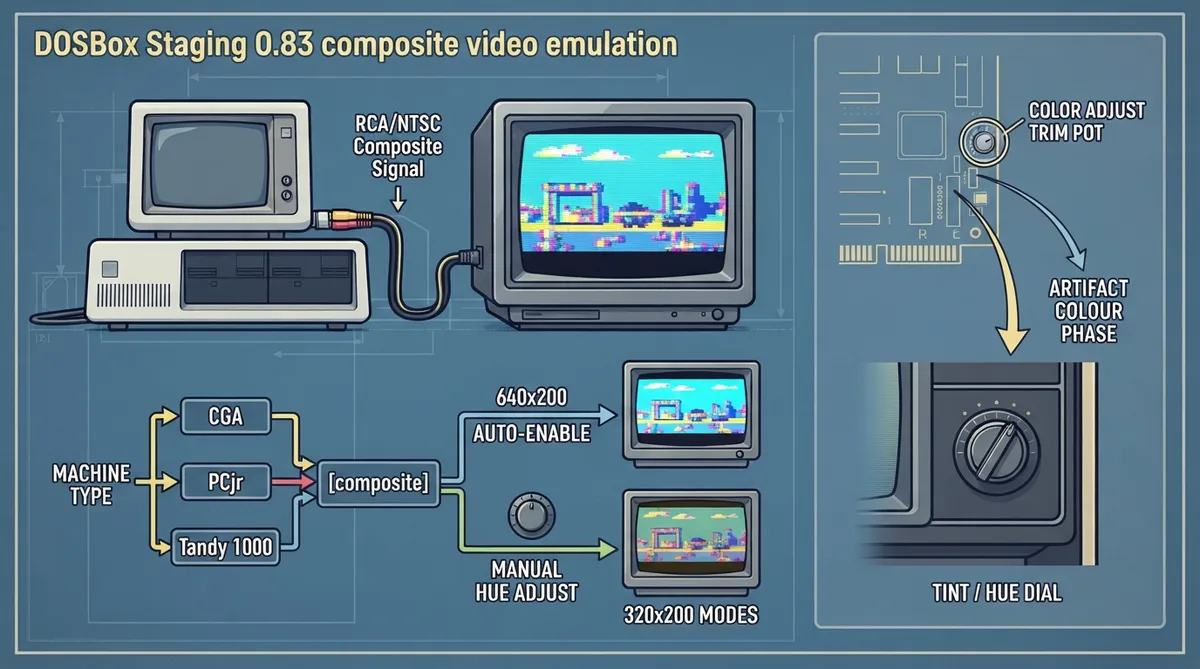
Before dedicated RGB monitors became common in the late 1980s, many home PC users connected their computers to TVs or composite video monitors. The NTSC composite signal introduces interference patterns that produce unexpected colours — artifact colours — that expand CGA's usual 4-colour palette to as many as 16. It sounds like a bug, but developers deliberately exploited it. DOSBox Staging 0.83 emulates this behaviour, and this guide summarizes the documented options from the official manual.
Which machines support it
Composite emulation is available for the CGA, IBM PCjr and Tandy 1000 machine types. CGA composite monitor emulation is only available for the cga, pcjr and tandy machine types, so the machine type must match before the composite settings apply. This is the first decision that matters: if the configuration selects a different machine type, the [composite] settings will not produce the emulated composite look.
When composite mode turns on
DOSBox Staging automatically enables composite emulation when a game switches to the 640×200 composite mode. The more common 320×200 modes are not enabled automatically: for those you must enable the composite setting manually. This distinction determines how much setup work a given game needs. A title that runs in 640×200 composite mode needs no manual toggle, while a title that stays in the more common 320×200 modes requires an explicit change to the composite setting before the artifact-colour rendering applies.
Composite settings reference
CGA composite video parameters are set in the [composite] section of the DOSBox Staging configuration. The documented settings are composite, hue and era. Each addresses a different part of the composite look, so the practical workflow is to enable composite emulation first, then tune colour with hue and match the artifact pattern with era.
composite — enables composite emulation manually, which the documentation notes is needed for the common 320×200 modes. Games that switch to 640×200 composite mode do not require this manual step.
hue — artifact colours are sensitive to the phase of the composite signal, so hue can drift between different cards and setups. Real NTSC monitors had a physical tint dial for this reason, and IBM even included a "COLOR ADJUST" trimpot on the PC motherboard to compensate. The hue setting replicates that adjustment. If colours look off, the documentation says this is the first thing to tweak: adjust it per game until colours look as expected (for example, blue skies and green grass).
era — early and late CGA card revisions produce slightly different artifact patterns, and some games were designed with one revision in mind. The era setting lets you choose which revision to emulate, so it is the second tuning step when the pattern rather than the hue seems wrong.
Documented setup order
- 1. Select a CGA, IBM PCjr or Tandy 1000 machine type; composite monitor emulation applies only to these.
- 2. Launch the game. If it switches to 640×200 composite mode, composite emulation is enabled automatically.
- 3. If the game uses the more common 320×200 modes, enable the composite setting manually in the [composite] section.
- 4. If colours look wrong, adjust the hue setting for that game until the colours match expectations.
- 5. If artifact patterns look off, try the era setting to match the CGA card revision the game was designed for.
The documented expected result is the NTSC artifact-colour look, in which interference patterns expand CGA's 4-colour palette to as many as 16 colours. Colour accuracy depends on the hue and era adjustments described above.
Reference table · Scroll horizontally to see all columns.
| Setting | Section | Documented purpose |
|---|---|---|
| composite | [composite] | Enables composite emulation manually, needed for the common 320×200 modes |
| hue | [composite] | Adjusts artifact colour phase so colours look as expected |
| era | [composite] | Selects early or late CGA card revision artifact patterns |
Sources & references
Content responsibility: FrameTinker editorial desk. Source authors and software maintainers are credited separately below; this is not a claim of hands-on testing.
Published .
DOSBox Staging: composite video — official gaming software documentation https://raw.githubusercontent.com/dosbox-staging/dosbox-staging/main/website/docs/0.83/manual/graphics/composite-video.mdRetrieved Oct 31, 2026Something doesn’t match your setup?
Suggest a correction