

EmuDeck's official application documentation describes its SteamOS application as a one-stop shop for emulation, covering file transfer, emulator management, Steam library shortcuts, performance tooling and controller aids. This guide summarizes the documented procedures and their expected outcomes. The steps below are drawn from that documentation and have not been hands-on tested by this article.
Scope and prerequisites
All procedures here target the EmuDeck application on SteamOS, as documented in the official EmuDeck page. Several steps require exiting to the desktop, and the Power Tools and GyroDSU installers ask for a password; if none is set, the installer page prompts you to create one. Actions that change emulator configuration are made through EmuDeck rather than through standalone emulator settings.
Getting started with the EmuDeck application
USB Transfer Wizard
The USB Transfer Wizard is documented as the way to transfer files between your Steam Deck and another PC using a USB stick.
Quick Settings options
- The documented Quick Settings area covers:
- - Legacy Homebrew Games installation
- - Bezels
- - Sega Aspect Ratio
- - NES & SNES Aspect Ratio
- - 3D Aspect Ratio
- - Gamecube Aspect Ratio
- - CRT Shaders 2D
- - CRT Shaders 3D
- - LCD Shaders
- - AutoSave
Manage Emulators
- The Manage Emulators section documents these actions:
- - Update to the latest EmuDeck configurations and optimizations for the various emulators and tools
- - Reset emulators to EmuDeck's defaults
- - Update emulators and tools to the latest version
- - Install advanced emulators such as Xenia and Cemu (Native)
- - Uninstall emulators and tools
Steam ROM Manager
Steam ROM Manager adds ROMs, tools and emulators to your Steam library as non-Steam shortcuts. Launching it through EmuDeck exits Steam and puts the Steam Deck into "Lizard Mode". In that mode, L2 acts as right click, R2 as left click, and the trackpad moves the cursor.
Installing Power Tools
- 1. Open EmuDeck on your desktop.
- 2. Select Power Tools.
- 3. Enter your password and click Install Power Tools. If you have not set a password, this page prompts you to create one.
- 4. Restart your Steam Deck.
- 5. Decky Loader and Power Tools are now installed.
DeckyControls and EmuDeck hotkeys
DeckyControls is an EmuDeck plugin that lets you view EmuDeck's hotkeys in Game Mode.
- 1. In Game Mode, press the "..." button (Quick Access Menu), then press the Socket icon.
- 2. Select EmuDeck Hotkeys.
- 3. Select a system.
- 4. A page showing that system's hotkeys appears on screen.
SteamDeckGyroDSU
SteamDeckGyroDSU is documented as a tool that allows emulators to use the Steam Deck's gyro. The page lists the following supported emulators: Dolphin (GameCube and Wii), Citra (3DS), Cemu (Wii U), Yuzu (Switch) and Ryujinx (Switch).
- 1. Open EmuDeck on your desktop.
- 2. Select SteamDeckGyroDSU.
- 3. Enter your password and click Install GyroDSU. If you have not set a password, this page prompts you to create one.
- 4. Restart your Steam Deck.
- 5. SteamDeckGyroDSU is now installed.
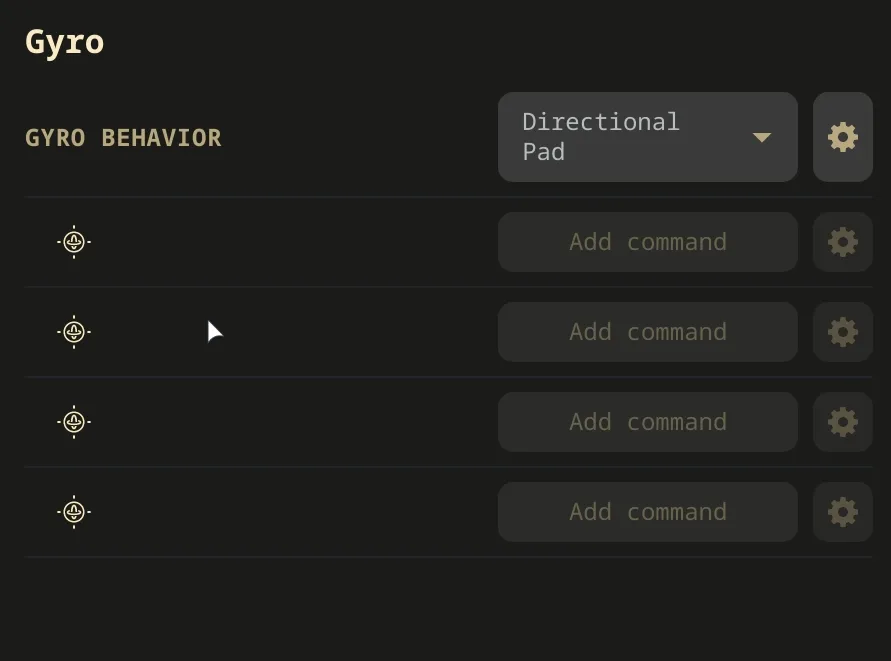
- 1. In Game Mode, while in a game, press the STEAM button.
- 2. Open Controller settings.
- 3. Select Edit Layout.
- 4. Select Gyro.
- 5. Select Gyro Behavior.
- 6. Select Directional Pad. Nothing needs to be set for the four buttons below Gyro Behavior.
Note on testing
Reference table · Scroll horizontally to see all columns.
| Documented tool | What it does |
|---|---|
| USB Transfer Wizard | Transfers files between your Steam Deck and another PC using a USB stick |
| Steam ROM Manager | Adds ROMs, tools and emulators to your Steam library as non-Steam shortcuts |
| Power Tools (via Decky Loader) | Installed through EmuDeck; installation also installs Decky Loader |
| DeckyControls | EmuDeck plugin that lets you view EmuDeck hotkeys in Game Mode |
| SteamDeckGyroDSU | Allows emulators to use the Steam Deck's gyro |
Sources & references
Content responsibility: FrameTinker editorial desk. Source authors and software maintainers are credited separately below; this is not a claim of hands-on testing.
Published .
EmuDeck: emudeck application — steamos — emudeck application 101 — official gaming software documentation https://raw.githubusercontent.com/EmuDeck/emudeck.github.io/main/docs/emudeck-application/steamos/emudeck-application-101.mdRetrieved Oct 31, 2026Something doesn’t match your setup?
Suggest a correction