

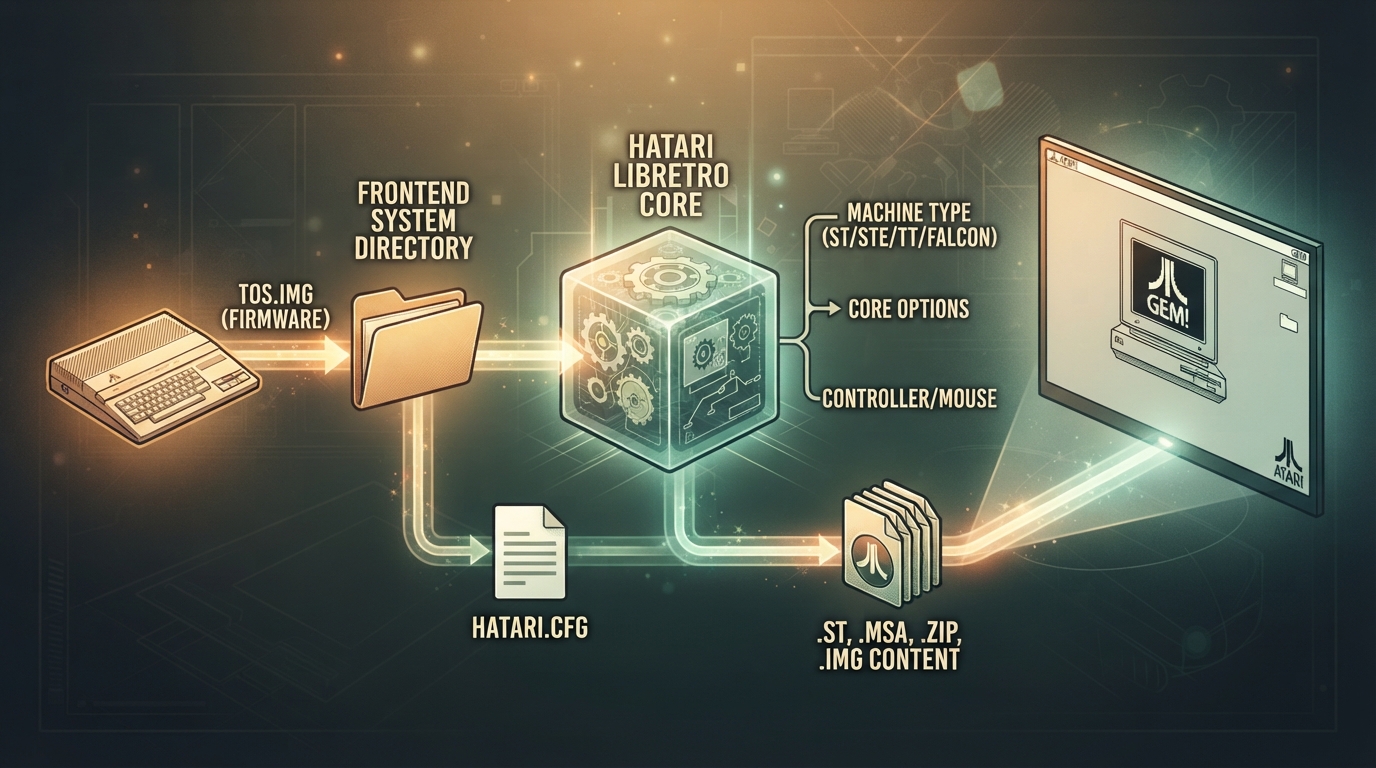
Hatari is an Atari ST/STE/TT/Falcon system emulator that can be used as a libretro core. It attempts to emulate the hardware closely so that it can run most old Atari games and demos. The core is authored by Nicolas Pomarède and licensed under GPLv2.
Prerequisites
- A TOS boot image named tos.img (the documentation lists the expected MD5 checksum c1c57ce48e8ee4135885cee9e63a68a2).
- The frontend's system directory must be writable/usable as the location for required firmware files.
- Firmware and content must be obtained legally by the user. The core itself is not a source of games or TOS images.
TOS boot image requirements
The tos.img TOS boot image is listed as required, and firmware files go in the frontend's system directory. TOS version requirements depend on the emulated machine: plain ST mode only works with TOS 1.00, 1.02, 1.04, or 2.06; STE mode requires TOS 1.xx or 2.xx; TOS 3.0x is for TT; and TOS 4.0x is for Falcon.
Supported content extensions
- .st
- .msa
- .zip
- .stx
- .dim
- .ipf
Quick-start configuration (source summary)
The following example is drawn from a community quick-start guide originally written using Lakka 2.1 rc6 x86_64. It places the TOS image where the frontend expects system firmware and creates a hatari.cfg that points Hatari at both the TOS image and the games directory. Paths use the Lakka /storage convention; adapt them to your own frontend.
- Place the TOS image at /storage/system/tos.img (the guide names US TOS 1.02).
- Create a folder for Atari ST games, for example /storage/roms/Atari - ST.
- Create a hatari.cfg file. The guide uses /storage/system/hatari.cfg and includes [Floppy] and [ROM] sections.
Example hatari.cfg content
[Floppy]
bAutoInsertDiskB = TRUE
FastFloppy = TRUE
nWriteProtection = 0
szDiskAFileName = /storage/roms/Atari\ -\ ST/game.st
szDiskBFileName =
szDiskImageDirectory = /storage/roms/Atari\ -\ ST/
szDiskAZipPath =
szDiskBZipPath =

[ROM]
szCartridgeImageFileName =
szTosImageFileName = /storage/system/tos.imgControllers and the Hatari menu
The core supports the RetroPad device type for user 1 (the default), plus RetroPad w/Analog, which behaves the same. Mouse input is emulated automatically and cannot be manually selected as a device type.
- Enter GUI: default controller button labeled as Y in the source documentation.
- Mouse mode toggle: Select.
- Keyboard overlay: Start.
- Fire: A. Up, Down, Left, Right: directional pad.
- Joystick number: L1. Mouse speed: R1. Toggle mouse/keyboard status: L2.
The guide reports that once the Hatari menu is open, pressing Select switches to mouse mode so the menu can be navigated with the controller. From the menu it is possible to point to new TOS images, change CPU and memory settings, change floppy disks, add a hard disk, change keyboard and joystick settings, change screen size, change sound chip settings, and save states from the memory menu.
Changing floppy disks
After loading the first game disk, open the Hatari menu, go to the Floppy menu, and browse to a new disk image for drive A or B. The guide cautions against resetting the system when exiting the menu if you are still in a game; that reset is described as not being selected by default.
Core options
Core options can be adjusted from the core options menu. Changes marked as requiring a restart take effect the next time content is launched. The options are grouped as follows.
- System: Machine Type, DSP Emulation (Falcon), Blitter (ST/STE), Fast Boot, Patch Timer-D.
- CPU / FPU: CPU Type, CPU Clock, Prefetch Mode, Cycle Exact CPU, CPU Data Cache, 24-bit Addressing, FPU Type, Software FPU, MMU Emulation.
- ROM: Patch TOS.
- Memory: ST-RAM Size, TT-RAM Size.
- Floppy Disks: Auto Insert Disk B, Fast Floppy Access, Floppy Write Protection, Drive A Enabled, Drive A Heads, Drive B Enabled, Drive B Heads.
- Atari Screen: Monitor Type, Video Timing (ST/STE), Show Screen Borders, Spec512 Palette Threshold, Aspect Ratio Correction (TT/Falcon).
- Devices: Joystick Port 0, Joystick Port 1, Joystick Autofire, Joystick Button 2 = Jump.
Features the core does not support
The documentation lists the following frontend-level features as unsupported by the core: Restart, Screenshots, Saves, States, Rewind, Netplay, Memory Monitoring (achievements), RetroArch Cheats, Native Cheats, Multi-Mouse, Rumble, Sensors, Camera, Location, Subsystem, Softpatching, Disk Control, Username, Language, Crop Overscan, and LEDs. Core Options, Controls and Remapping are supported.
Directories and configuration storage
The core's internal name is Hatari. It saves and loads hatari.cfg in the frontend's system directory. The user directory is listed as .hatari/ and is described as unused.
Compatibility reference
The documentation points to an external Hatari compatibility list rather than summarizing results. No specific game compatibility is asserted here.
If the TOS file is not found
According to the community guide, Hatari without a config file may report that it cannot load the TOS file because it is looking in a location such as the frontend's binary directory, which may be read-only. Pointing szTosImageFileName in hatari.cfg at the actual tos.img location is the documented workaround, and saving the config from the in-game menu produces a reusable file.
Reference table · Scroll horizontally to see all columns.
| Item | Value from source |
|---|---|
| Required firmware | tos.img (TOS Boot Image) |
| Listed MD5 checksum for tos.img | c1c57ce48e8ee4135885cee9e63a68a2 |
| Example TOS placement | /storage/system/tos.img (community guide) |
| Example config file | /storage/system/hatari.cfg (community guide) |
| Core internal name | Hatari |
Reference table · Scroll horizontally to see all columns.
| Machine mode | TOS versions listed |
|---|---|
| Plain ST | 1.00, 1.02, 1.04, or 2.06 |
| STE | 1.xx or 2.xx |
| TT | 3.0x |
| Falcon | 4.0x |
Reference table · Scroll horizontally to see all columns.
| Frontend feature | Supported |
|---|---|
| Restart | No |
| Screenshots | No |
| Saves | No |
| States | No |
| Rewind | No |
| Netplay | No |
| Core Options | Yes |
| Memory Monitoring (achievements) | No |
| RetroArch Cheats | No |
| Native Cheats | No |
| Controls | Yes |
| Remapping | Yes |
| Multi-Mouse | No |
| Rumble | No |
| Sensors, Camera, Location | No |
| Subsystem, Softpatching, Disk Control | No |
| Username, Language, Crop Overscan, LEDs | No |
Sources & references
Content responsibility: FrameTinker editorial desk. Source authors and software maintainers are credited separately below; this is not a claim of hands-on testing.
Published .
RetroArch: hatari — official gaming software documentation https://raw.githubusercontent.com/libretro/docs/master/docs/library/hatari.mdRetrieved Oct 13, 2026Something doesn’t match your setup?
Suggest a correction