

Heroic’s documented Steam Deck workflow starts in Desktop Mode: open Heroic there to install and update games. Some games may also need an initial Desktop Mode launch to complete setup, such as linking an Epic account through a browser window.
Install through Discover
- 1. Switch your Steam Deck to Desktop Mode.
- 2. Open Discover, the app store.
- 3. Search for “Heroic.”
- 4. Select Heroic Games Launcher and click Install.
- 5. Launch Heroic from your applications.
Install and update your games in Heroic while still in Desktop Mode. If a game needs first-launch interaction, launch it there to complete that interaction and check whether it functions before moving to Game Mode. This is not a guarantee that every game will work.
Configure folder access
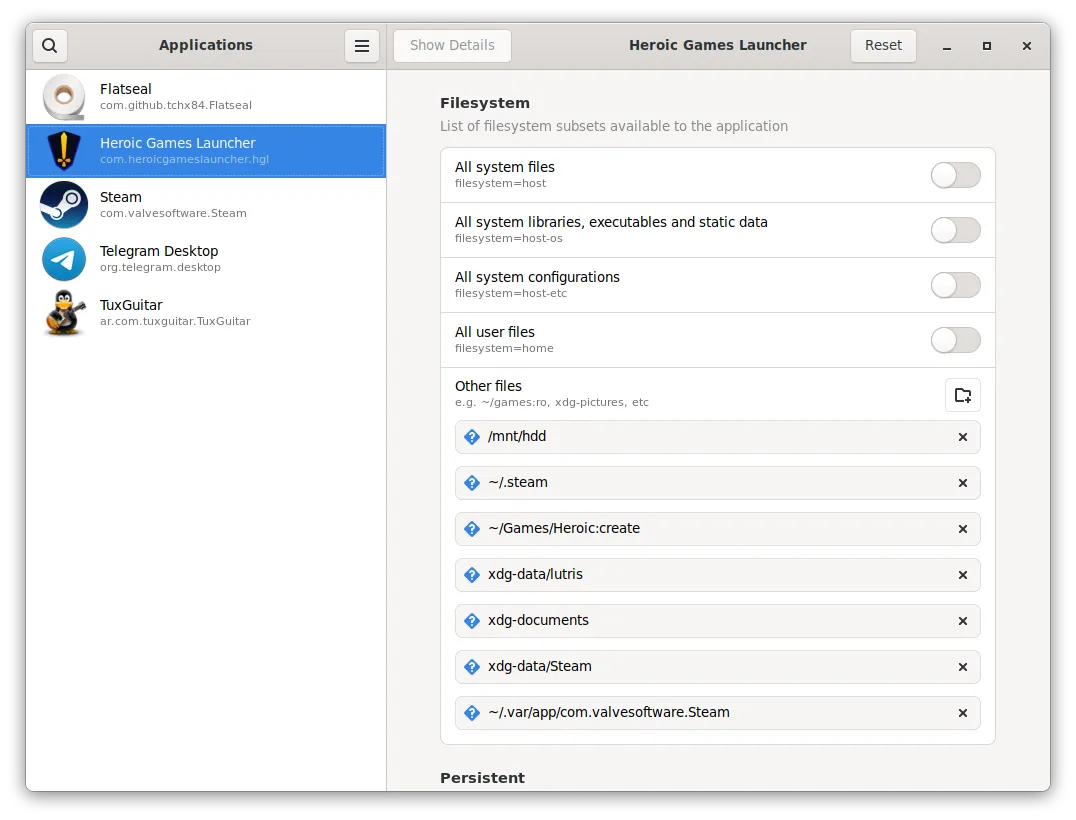
- For the Flatpak installation, the wiki documents this procedure for granting access to a chosen folder:
- 1. Open System Settings.
- 2. Under Personalization, select Applications, then Flatpak Permission Settings.
- 3. Select Heroic Games Launcher.
- 4. Find Filesystem Access in the permissions menu.
- 5. Choose Add New and enter the folder path you want Heroic to access.
- 6. Set that entry to read/write and click OK.
- 7. Restart Heroic.
Add games to Steam
- To add an individual game:
- 1. Open Heroic in Desktop Mode.
- 2. Install a game or select one that is already installed.
- 3. Open the three-dot menu in the upper-right section of the screen.
- 4. Select Add to Steam.
- The documented result is a game entry under the Non-Steam tab in Game Mode.
- To add future installations automatically:
- 1. Open Heroic in Desktop Mode.
- 2. Open Settings from the left side.
- 3. Enable Add games to Steam automatically.
- The wiki says newly installed Heroic games will then appear under the Non-Steam tab in Game Mode. This procedure describes new installations, not a bulk import of games already installed.
Checkpoints and scope
- • After installation: check that Heroic opens as an application in Desktop Mode.
- • After changing folder permissions: restart Heroic as the wiki instructs.
- • Before relying on Game Mode: complete any required first-launch browser interaction in Desktop Mode.
- • After adding a game: look for its entry in Steam’s Non-Steam tab.
HDR setup is separate from the basic installation and Steam-shortcut workflow above. The wiki’s Flatpak HDR instructions specify the Gamescope 24.08 runtime, while its version-comparison instructions include a December 11, 2024 reference to Gamescope 3.15.14. Those are version-specific details, not evidence of current compatibility; this guide does not treat them as a general-purpose HDR fix.
Sources & references
Content responsibility: FrameTinker editorial desk. Source authors and software maintainers are credited separately below; this is not a claim of hands-on testing.
Published .
Heroic Games Launcher: Steam Deck — official gaming software documentation https://raw.githubusercontent.com/wiki/Heroic-Games-Launcher/HeroicGamesLauncher/Steam-Deck.mdRetrieved Nov 8, 2026Something doesn’t match your setup?
Suggest a correction