

This guide covers the official RetroDECK installation procedure for Linux desktops, including Flatpak installation and Steam controller configuration.
1. Prepare your system
Ensure Flatpak is installed before proceeding. Follow the instructions for your distribution in the official Flatpak Setup Guide: https://flatpak.org/setup/.
For Steam controller detection, the RetroDECK documentation calls for the steam-devices package. It is usually included with Steam on most distributions; Steam warns if it is missing. Install it through your distribution's package manager if needed.
2. Configure Steam Input
- 1. Open Steam and select the Steam menu.
- 2. Go to Settings → Controller.
- 3. Enable Steam Input for Xbox, PlayStation, Switch Pro, and Generic controllers.
- 4. Close Settings.
3. Install RetroDECK
For the graphical installation route, open a Flatpak-supported software manager such as GNOME Software, KDE Discover, or Bazaar. Search for RetroDECK and select Install.
Alternatively, install it from a terminal with the following command:
flatpak install net.retrodeck.retrodeck4. Complete the setup choices
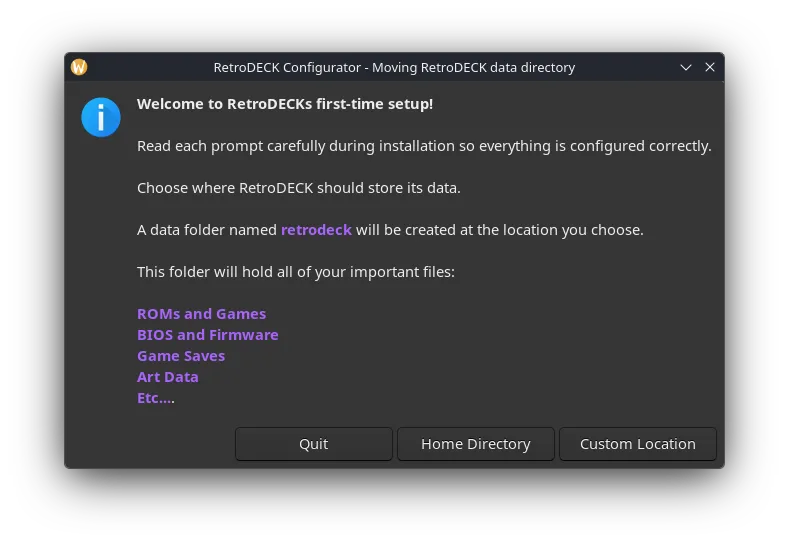
When setup asks where to create the retrodeck/ folder, choose Home Directory or Custom Location.
To add RetroDECK to Steam, select Yes when prompted. In Game Mode, it will appear under Library → Non-Steam.
Sources & references
Content responsibility: FrameTinker editorial desk. Source authors and software maintainers are credited separately below; this is not a claim of hands-on testing.
Published .
RetroDECK: wiki devices — linux desktop — linux install — official gaming software documentation https://raw.githubusercontent.com/RetroDECK/Wiki/main/wiki-rtd/docs/wiki_devices/linux_desktop/linux-install.mdRetrieved Nov 13, 2026Something doesn’t match your setup?
Suggest a correction