

Cloud Sync lets RetroArch synchronize configuration and save data to a cloud server so multiple devices can stay in sync. This guide summarizes the official RetroArch Cloud Sync documentation: which backends exist, which directories are synced, how to configure the first and subsequent devices, how sync mode and conflicts work, and what to check when something does not behave as expected.
Supported Cloud Sync Backends
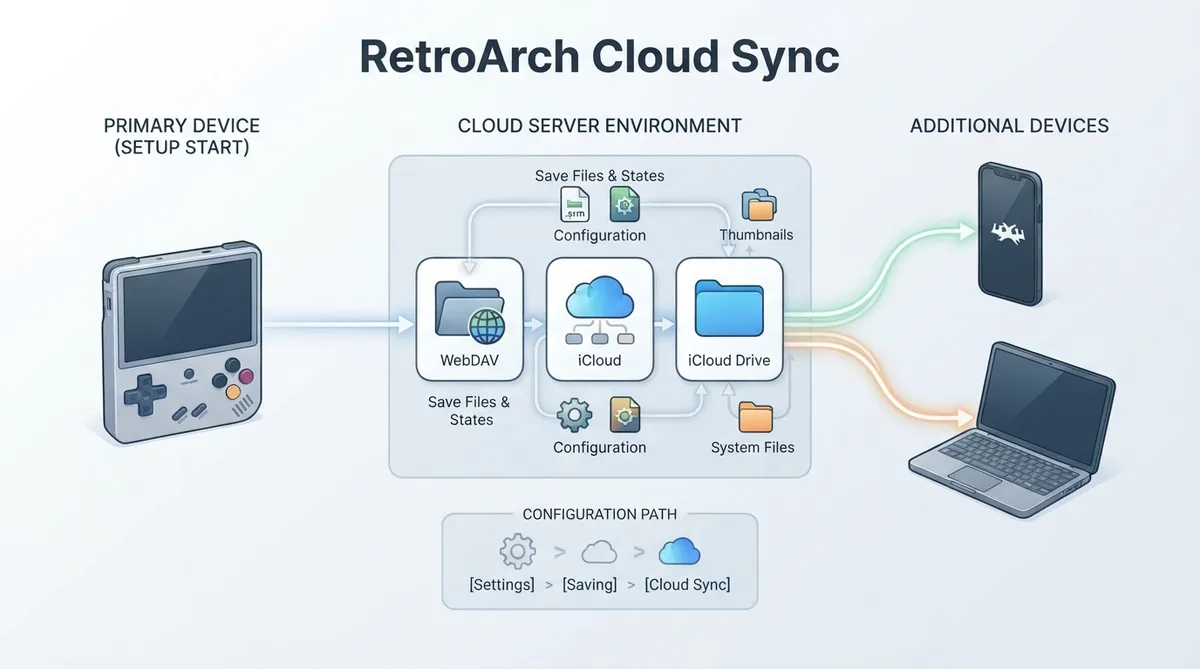
Three backends are available. WebDAV works on all platforms and requires a server URL plus a username and password. iCloud targets macOS, iOS and tvOS and uses CloudKit. iCloud Drive targets macOS and iOS and stores files directly in iCloud Drive storage.
iCloud and iCloud Drive both use an Apple iCloud account but differ in storage style: iCloud uses CloudKit, Apple's database service, storing data in a structured database, while iCloud Drive stores files in iCloud Drive storage similar to how other apps keep documents.
What Gets Synced
- Save Files & States (on by default): game saves in .srm format and save states.
- Configuration (on by default): core configs, core options, shader presets, MAME/FBNeo hiscores.
- Thumbnails (off by default): custom thumbnails; standard thumbnails are intended to come from the thumbnail downloader.
- System Files (off by default): BIOS files and similar content, which can be large and are meant to be enabled with caution.
Some files are automatically excluded from sync: the main configuration file retroarch.cfg, playlist files matching content_*.lpl, and macOS .DS_Store files.
Initial Setup on the First Device
Start with your primary RetroArch device so that the initial cloud state is established from a known device. Configuration lives under Settings, then Saving, then Cloud Sync.
- 1. Open Settings, then Saving, then Cloud Sync.
- 2. Turn on Enable Cloud Sync.
- 3. Choose a Cloud Sync Backend: webdav, icloud, or icloud_drive.
- 4. Decide the Destructive Cloud Sync behavior: when it is off, deleted or overwritten files are backed up locally instead of being discarded.
- 5. Choose which categories to sync: Sync Saves, Sync Configs, Sync Thumbnails and Sync System.
- 6. For WebDAV, additionally set the Cloud Storage URL, Username and Password.
- 7. Save the configuration and restart RetroArch.
- 8. The initial sync begins automatically; watch the status line at the bottom of the screen.
The Sync Saves option covers both save files and save states, Sync Configs covers configuration files, Sync Thumbnails covers thumbnail images, and Sync System covers system/BIOS files. Destructive Cloud Sync being off causes deleted or overwritten files to be backed up locally rather than removed without a copy.
For WebDAV, the Cloud Storage URL should be the WebDAV server URL and should include the trailing slash, for example a path under your WebDAV host. Username and Password are the WebDAV credentials.
Adding Additional Devices
Configure each additional device with identical settings. In particular, these directory organization settings must match across all devices, otherwise the devices store files in different locations and sync cannot merge them correctly: Sort Saves into Folders by Core Name, Sort Save States into Folders by Core Name, Sort Saves into Folders by Content Directory, and Sort Save States into Folders by Content Directory.
How Cloud Sync Works
Cloud Sync uses a three-way merge based on two manifests: a server manifest tracking what is stored in the cloud and a local manifest tracking what was last synced from this device. On each run RetroArch compares current local files, the local manifest and the server manifest to detect new local files to upload, new server files to download, changed files to reconcile by recency, deleted files to propagate (or back up in non-destructive mode), and conflicts where both sides changed the same file.
Sync Mode and Sync Now
- Automatic (default): syncs on RetroArch startup and when cores are unloaded, meaning when you return to the menu. In this mode sync also runs when RetroArch resumes from the background on iOS.
- Manual: syncs only when you explicitly trigger it with Sync Now, which suits full control over timing or minimizing data usage on a metered connection.
Sync Now, found in Settings, then Saving, then Cloud Sync, manually triggers a sync and works in both Automatic and Manual modes, so you can force a sync at any time.
Conflict Resolution
A conflict is detected when the server version differs from what was last synced and the local version also differs from what was last synced. A conflict also occurs when one device deletes a file while another device modifies it.
When a conflict is detected, RetroArch does not overwrite either version: the local file stays unchanged, the server file stays unchanged, and the conflict is logged. The file is temporarily excluded from sync until it is manually resolved.
Identifying Conflicts
- The status line shows the message "Cloud Sync finished with conflicts".
- The log file contains entries such as a conflicting change of saves/game.srm, prefixed with the CloudSync tag.
Resolving Conflicts Manually
- 1. Enable debug logging and check the log to identify which files are conflicting.
- 2. Decide which version to keep: the local one or the server one.
- 3. To keep the server version: delete or rename the local file, then let sync run again so the server version is downloaded.
- 4. To keep the local version: edit the local manifest file, named manifest.local in the downloads/core assets directory, and update the conflicting file's hash to match the server's hash. On the next sync, RetroArch sees the local file as changed and uploads it.
Non-Destructive Mode Backups
When Destructive Cloud Sync is off, files that would be deleted or overwritten are backed up under the core assets directory in a cloud_backups folder, using the original path plus a timestamp in YYMMDD-HHMMSS form. The documented template is [core_assets_directory]/cloud_backups/[path]-YYMMDD-HHMMSS.
These backups allow recovery if sync makes unwanted changes.
Sync Status Messages
- "Cloud Sync in progress": sync is running.
- "Cloud Sync finished": completed successfully.
- "Cloud Sync finished with conflicts": completed but conflicts were detected.
- "Cloud Sync finished with failures": some operations failed.
- "Cloud Sync failed": could not connect to the backend.
Sync progress is shown in the bottom-left status line of RetroArch.
Troubleshooting
Cloud Sync logs detailed information under the CloudSync prefix. To enable logging, open Settings, then Logging, turn on Log to File and set Logging Level to Debug.
Common Issues
- Sync not starting: verify Cloud Sync is enabled, check network connectivity, and for WebDAV verify the URL, username and password. For iCloud, make sure the device is signed into iCloud.
- Files not syncing between devices: ensure directory organization settings match on all devices, check that the same sync options such as saves and configs are enabled, and wait for sync to complete on one device before starting another.
WebDAV Reported Failures With HTTP -1
If the status says "Cloud Sync finished with failures" even though the files are on the server, and the log shows HTTP -1 for some transfers, compare the server's access log for those same requests. If the server recorded them as 201 or 204, and 405 for MKCOL on an existing collection, the transfers did succeed and the failure is in reading the response rather than in the upload.
This can happen when the connection is reused after the server has already closed it. Apache's default KeepAliveTimeout is 5 seconds, and a sync with many files can easily span that time.
BrowserMatch "libretro" nokeepalive downgrade-1.0 force-response-1.0On Apache, telling the server not to keep connections alive for this client avoids the problem, and this only affects RetroArch's user agent while other clients keep HTTP/1.1 with keep-alive. A failed manifest upload also leaves the local manifest stale, which shows up as spurious conflicting-change notices on the following sync, so fixing the connection issue usually clears those as well.
iCloud Drive Files Not Visible in Files.app
 View full image
 Sources & references
Published .
RetroArch: retroarch cloud sync — official gaming software documentation https://raw.githubusercontent.com/libretro/docs/master/docs/guides/retroarch-cloud-sync.mdRetrieved Oct 8, 2026Something doesn’t match your setup?
Suggest a correction