

What Disc Swapping Does in RetroArch
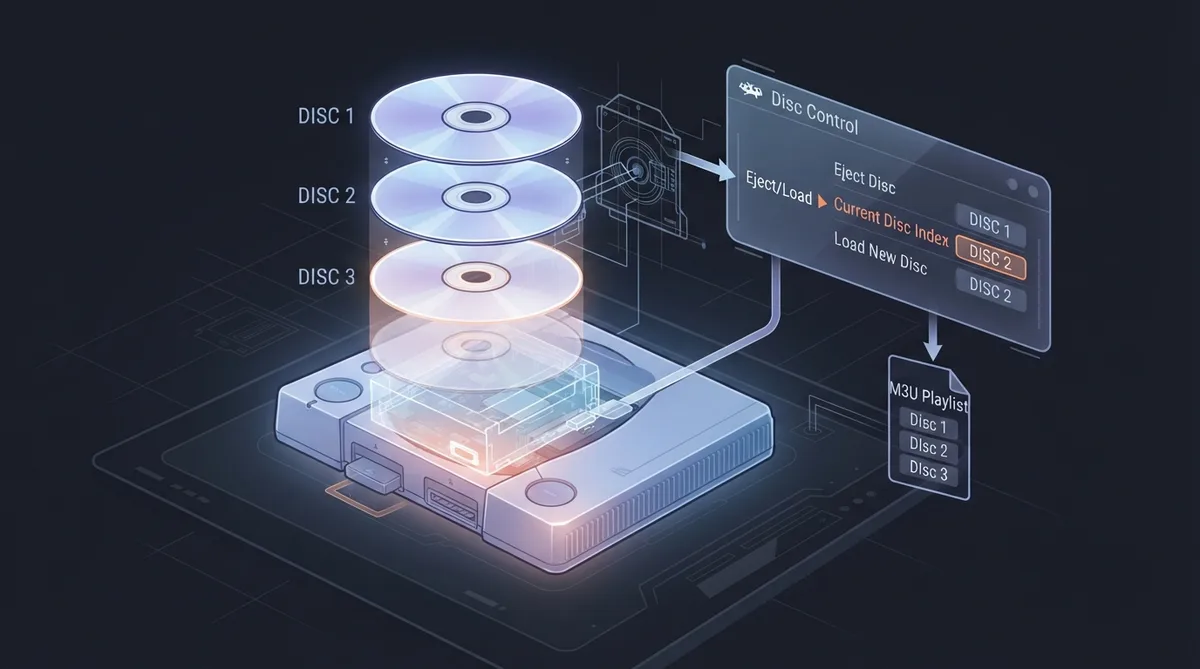
Some games from the 32-bit generation shipped across multiple CDs and ask the player to swap one disc for another while the console stays powered on. To handle this, libretro uses a disc index concept, similar to a multi-disc CD player.
Prerequisite
A Sony PlayStation core or Sega Saturn core must be loaded. When one of those cores is active, a Disc Control option is added to the Quick Menu.
Using Eject/Load Disc
Load New Disc ejects the current virtual disc and opens the File Browser, where you pick the disc image to load.
- Selecting Eject Disc reveals three options:
- - Insert Disc: opens the File Browser to find a disc image and load it into the Disc Index (CD list).
- - Current Disc Index: displays the current discs in the "CD changer" and lets you choose which disc is in use.
- - Load New Disc: opens the File Browser to find another disc image and load it into the Disc Index (CD list).
Using Disc Image Append
If you cannot or do not want to use a playlist, Disc Image Append adds a disc image to the list on the fly. Use the File Browser to locate the image and add it to the internal disc image list. The Disc Index list updates accordingly, and you can make your selection before returning to the game.
Using M3U Playlists
Multi-CD images are typically handled with an .m3u playlist file. With this setup, you swap discs by cycling through the Disc Index setting.
Start the game by loading its M3U file through Load Content or Playlists. A content scan adds the M3U file to the playlist as one entry for the game, rather than one entry per disc.
Making an M3U Playlist File
- - Put all of the content's disc files into a single folder.
- - Create a new text file in the same folder as your content, and name it the same as your content.
- - Add the full names of each disc into the text file, including the file extension, one filename per row.
- - If your discs are BIN/CUE files, only list the .cue files.
- - If your discs are CHD files, list the .chd files.
- - Save and close the text file.
- - Rename the file extension from .txt to .m3u.
M3U Example
For a folder containing BIN/CUE disc images for Metal Gear Solid (USA), the folder holds the Disc 1 and Disc 2 .bin and .cue files plus a file named Metal Gear Solid (USA).m3u. The M3U file itself lists only the two .cue filenames, one per row.
Issue: Games That Require a Real Eject
Replacing the disc inside RGUI is, physically speaking, the same as ejecting, swapping discs and closing the tray instantaneously. Some games do not work with this approach. Notably, Metal Gear Solid needs to detect an actual eject taking place.
Workaround for Eject Detection
Set Disk Index to No Disk, then exit RGUI. After roughly half a second, the game picks up that the tray has been ejected or the disc is missing. Then go back to RGUI, select the correct disc index and return to the game.
Note on Testing
These instructions have not been hands-on tested for this article. They summarize the official libretro disc swapping documentation. Menu labels and behavior may vary depending on your build and core.
Reference table · Scroll horizontally to see all columns.
 View full image
 Sources & references
Published .
RetroArch: disc swapping — official gaming software documentation https://raw.githubusercontent.com/libretro/docs/master/docs/guides/disc-swapping.mdRetrieved Oct 8, 2026Something doesn’t match your setup?
Suggest a correction