

RetroArch's file browser is described in the official documentation as rather basic, though not difficult to get used to. A practical first use is changing the default directory so your content is easier to reach. The steps below follow the official setup guide.
Prerequisite
- Have RetroArch installed and running.
- Decide that you want to change the default directory so your content is easier to get to — this is the recommended first use of the file browser in the official guide.
Steps to Set the Default Directory
- 1. Open the Settings tab.
- 2. Find the Directory entry.
- 3. Move to File Browser.
The first screen should show your storage devices. Move to the device that contains your game content and press Enter.
What Storage Devices Look Like by Platform
- Windows: drive letters are displayed, such as C:/ and D:/.
- Linux: unlike Windows, only the root is displayed.
- Android: most users who want internal storage should select /storage/emulated/0.
You are now in the main part of the file browser. Beneath the first two options you will see all your folders. Navigate through the file system until you are inside your content folder, then select <Use this directory>.
After confirming, you should be back in the settings menu with File browser set to the folder you chose.
Reference table · Scroll horizontally to see all columns.
| Platform | Storage display / path notes |
|---|---|
| Windows | Shows drive letters such as C:/ and D:/ |
| Linux | Does not use drive letters the same way; displays only the root. Additional drives are usually under /media/ or /mnt/ |
| Android | Most users who want internal storage should select /storage/emulated/0 |
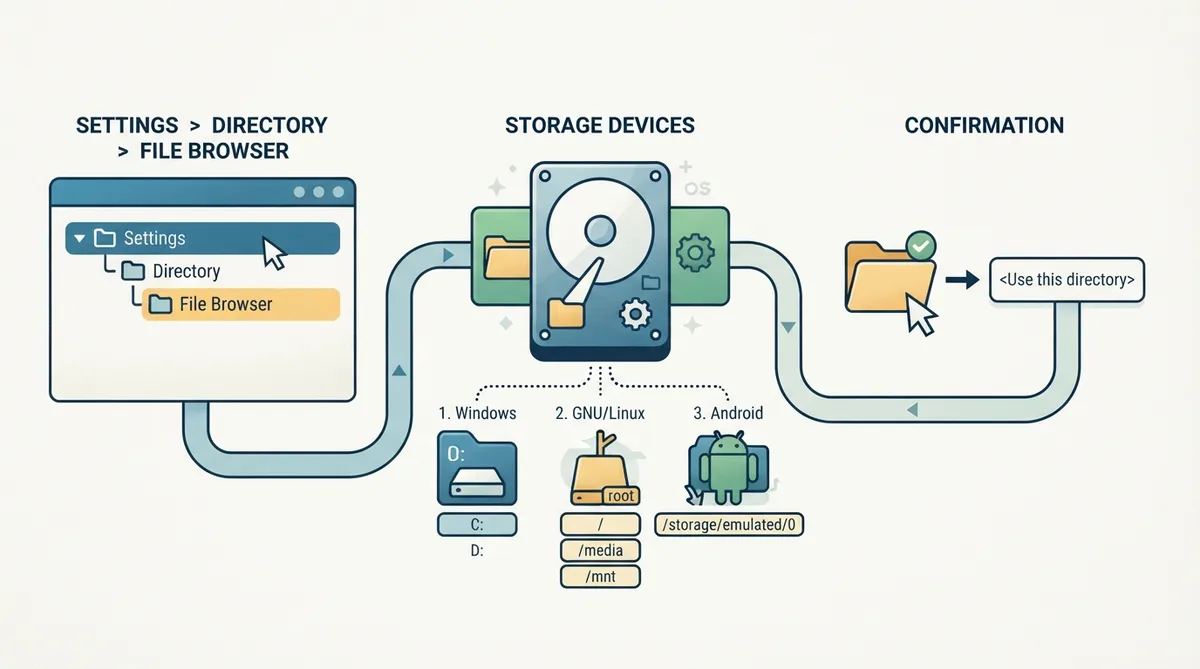 View full image
 Sources & references
Published .
RetroArch: file browser — official gaming software documentation https://raw.githubusercontent.com/libretro/docs/master/docs/guides/file-browser.mdRetrieved Oct 8, 2026Something doesn’t match your setup?
Suggest a correction