

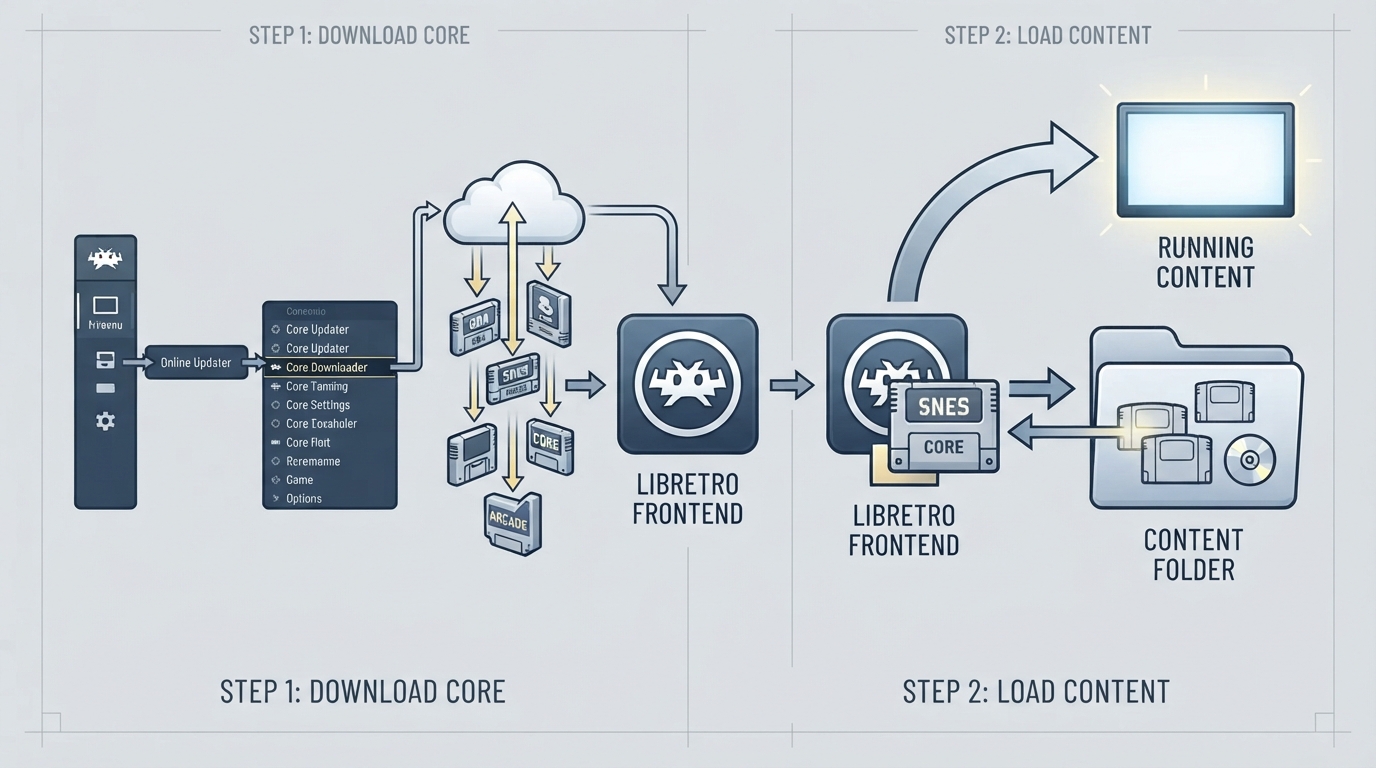
Before you can run anything, you need a core. In RetroArch, a core is a program that has been ported to the libretro API and runs inside a libretro frontend. RetroArch requires a core to run any content, so getting a core in place is the first real step after installing the frontend.
Downloading a Core
The documentation describes downloading cores directly from RetroArch's own interface rather than sourcing them elsewhere. The procedure is handled entirely through the menu:
- 1. Navigate to Online Updater.
- 2. Navigate to Select Core Downloader.
- 3. Select the core you want to download.
Loading and Running Content
Once a compatible core is available, the documentation walks through launching content from the menu:
- 1. Navigate to Load Content.
- 2. Browse to the folder that contains the content you want to run.
- 3. Select the content that you want to run.
- 4. If you have more than one compatible core, you will be asked to select the core you want to use for that purpose.
When the Online Updater Is Missing
The documentation notes that the online updater option may be hidden in some cases. One documented example is that distribution of cores in the Steam version depends on permissions and licenses.
Sources & references
Content responsibility: FrameTinker editorial desk. Source authors and software maintainers are credited separately below; this is not a claim of hands-on testing.
Published .
RetroArch: last station — official gaming software documentation https://raw.githubusercontent.com/libretro/docs/master/docs/start/last-station.mdRetrieved Oct 14, 2026Something doesn’t match your setup?
Suggest a correction