

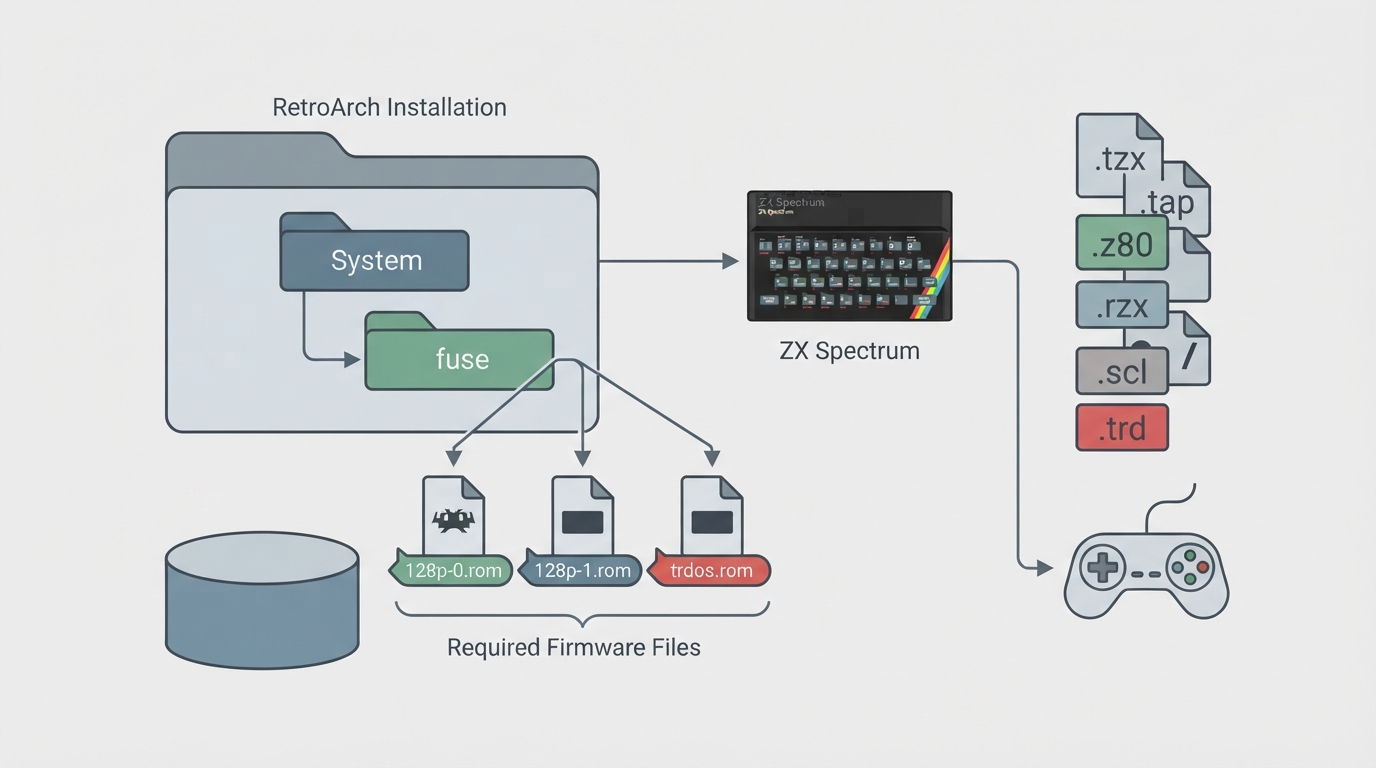
The Free Unix Spectrum Emulator (Fuse) is a libretro core that emulates the 1980s ZX Spectrum home computer and various clones. It was authored by Team Fuse and is licensed under GPLv3. This guide summarizes the officially documented firmware requirements, content formats, core options and controller behavior so you can get the core running inside RetroArch.
Prerequisites
- RetroArch installed on your system (Windows, Mac OS X or Unix) with the Fuse core available. Fuse firmware files placed in the frontend's System directory. The ROM files for any machine that requires them, located in a subdirectory named 'fuse' inside the System directory for the machines that need them. Content in a supported format such as .tzx, .tap, .z80, .rzx, .scl or .trd.
Installing the Fuse Core and Firmware
- 1. Install the Fuse core in RetroArch through the online updater or by placing the core library in the appropriate core directory. 2. Put required or optional firmware files in the frontend's System directory. 3. For machines that need dedicated ROM files, create a directory named 'fuse' inside the System directory and place the ROM files there. 4. Verify the ROM file names match the documented ones before launching content.
Machines the Fuse Core Can Emulate
- The core supports the following machines, selectable in the Model core option: Spectrum 16K, Spectrum 48K, Spectrum 48K (NTSC), Spectrum 128K, Spectrum +2, Spectrum +2A, Spectrum +3, Spectrum +3e, Spectrum SE, Timex TC2048, Timex TC2068, Timex TS2068, Pentagon 128K, Pentagon 512K, Pentagon 1024 and Scorpion 256K.
Required ROM Files by Machine
Several Pentagon and Scorpion machines require specific ROM files with the exact filenames shown below. All of these files go inside the 'fuse' directory under RetroArch's System directory.
Loading Content
The Fuse core loads content with the following extensions: .tzx, .tap, .z80, .rzx, .scl and .trd. RetroArch also provides two associated databases for this core: Sinclair - ZX Spectrum +3 and Sinclair - ZX Spectrum.
- 1. Launch RetroArch and load the Fuse core. 2. Use the Load Content menu to pick a file with a supported extension. 3. If you plan to switch machines, set the Model option and then reload the content because the setting only applies when new content is loaded. 4. Adjust the core options described below to match your preferences.
Core Options to Know
The Fuse core exposes several options under the core options menu in RetroArch. The default setting is highlighted in the original documentation.
- Model (needs content load) — select the machine to emulate. The default is Spectrum 48K. Hide Video Border — hides the video border so the game fills the screen area. Default: Off. Tape Fast Load — instantly loads tape files when enabled; disable to see the moving horizontal lines in the border during loading. Default: On. Tape Load Sound — outputs tape sound when fast load is disabled. Default: On. Speaker Type — applies an audio filter. Default: tv speaker. AV Stereo Separation — controls AY sound chip stereo separation. Default: none. Transparent Keyboard Overlay — toggles whether the keyboard overlay is transparent or opaque. Default: On. Time to Release Key in ms — how long a key stays pressed before release when using the keyboard overlay. Default: 500. Joypad mapping options — map each joypad input (Left, Right, Up, Down, Start, A, B, X, Y, L, R, L2, R2, L3, R3) to a keyboard key. Default: none.
Setting Up Controllers and Keyboards
The Fuse core emulates seven joystick types: Cursor, Kempston, Sinclair 1, Sinclair 2, Timex 1, Timex 2 and Fuller Joystick. Users configure joystick device types in the frontend's input configuration, but fuse-libretro supports at most two joysticks, so only users one and two can actually use theirs in the emulation. Users 1 and 2 may pick any joystick device type; user 3 can only choose the Sinclair Keyboard.
- For joystick games: set user 1 to a joystick type, optionally set user 2 to another joystick type for local cooperative play, and set user 3 to none. This keeps L1 mapped to RETURN, R1 to SPACE, and SELECT brings up the embedded on-screen keyboard. For keyboard games: set users 1 and 2 to none and user 3 to Sinclair Keyboard. This gives up joystick support and the embedded keyboard, but makes the entire physical keyboard available for typing commands.
Frontend Features the Core Honors
- Supported: Restart, Screenshots, States, Rewind, Core Options, Controls, Remapping. Not supported: Saves, Netplay, Memory Monitoring (achievements), RetroArch Cheats, Native Cheats, Multi-Mouse, Rumble, Sensors, Camera, Location, Subsystem, Softpatching, Disk Control, Username, Language, Crop Overscan, LEDs.
Getting Games Legally
You can find hundreds of free, legally available ZX Spectrum games at World of Spectrum. The official documentation suggests starting with the Visitor Voted Top 100 Best Games list.
Reference table · Scroll horizontally to see all columns.
| Machine | Required ROM files (in System/fuse/) |
|---|---|
| Pentagon 128K | 128p-0.rom, 128p-1.rom, trdos.rom |
| Pentagon 512K | 128p-0.rom, 128p-1.rom, gluck.rom, trdos.rom |
| Pentagon 1024 | 128p-0.rom, 128p-1.rom, gluck.rom, trdos.rom |
| Scorpion 256K | 256s-0.rom, 256s-1.rom, 256s-2.rom, 256s-3.rom |
Reference table · Scroll horizontally to see all columns.
| RetroPad input | Function |
|---|---|
| D-pad Up/Down/Left/Right | Directional movement |
| A, X, Y | Fire |
| B | Up direction |
| L1 | RETURN |
| R1 | SPACE |
| SELECT | On-screen keyboard overlay |
Sources & references
Content responsibility: FrameTinker editorial desk. Source authors and software maintainers are credited separately below; this is not a claim of hands-on testing.
Published .
RetroArch: fuse — official gaming software documentation https://raw.githubusercontent.com/libretro/docs/master/docs/library/fuse.mdRetrieved Oct 13, 2026Something doesn’t match your setup?
Suggest a correction