

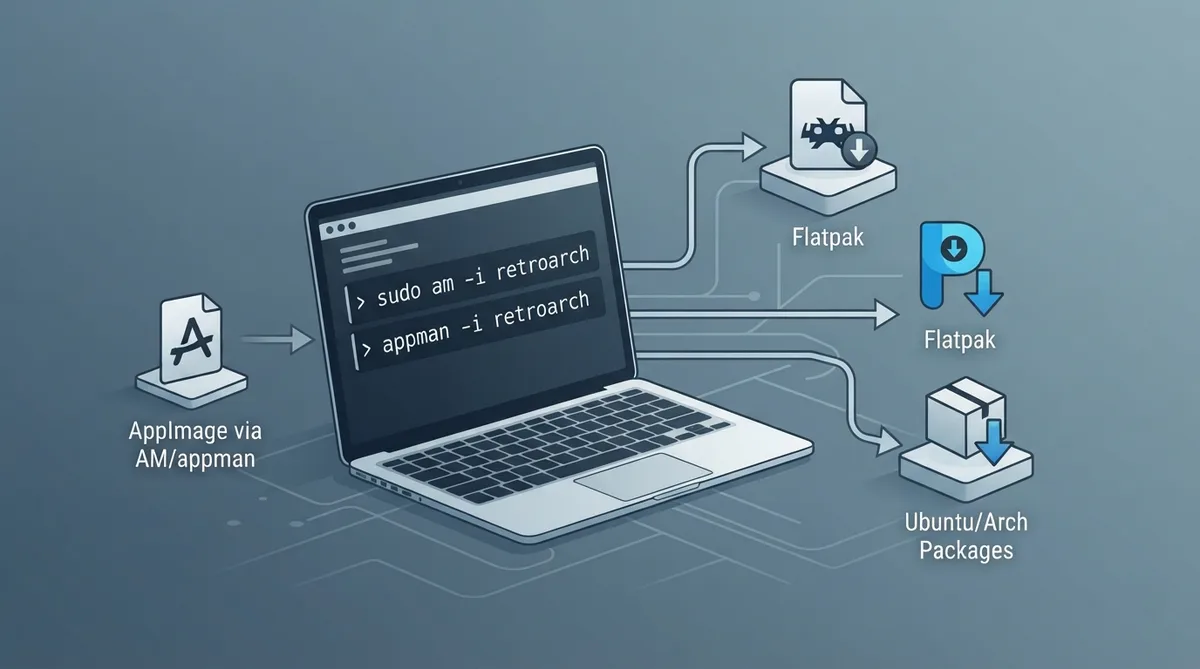
This guide summarizes the officially supported ways to download, install, and update RetroArch on systems running the GNU/Linux kernel, as described in the project's documentation. It covers four families of installation methods: AppImage managed through AM or appman, Flatpak, Ubuntu(-based) distribution packages and PPAs, and Arch Linux packages. Command spelling is preserved from the source.
AppImage (suitable for most GNU/Linux distributions)
The AppImage route installs RetroArch as a portable AppImage. The documentation describes managing these AppImages with AM, a command-line package manager for AppImage software.
Step 1: Install AM or appman
There are no system packages available for AM in common repositories, so it must be installed manually by following the official installation instructions published at https://github.com/ivan-hc/AM. During setup you are prompted to choose between two installation modes: Option 1, AM, for system-wide AppImage management (requires root privileges), or Option 2, appman, for local user-level AppImage management (no root access required). Choose the option that matches your environment and permissions.
Step 2: Search for RetroArch AppImages
Once installation is complete, verify that AM or appman works by performing a search. Use the command matching your installation type: am -q retroarch for a system-wide install, or appman -q retroarch for a user-level install. The query searches for available AppImages matching "retroarch" and lists the results.
# For system-wide installation
am -q retroarch

# For user-level installation
appman -q retroarch
Step 3: Install the AppImage
To install your chosen AppImage, use the -i flag followed by the specific package name. You can install either the stable release, intended for everyday use, or the nightly build, described as ideal for testing.
# For system-wide installation (Stable)
am -i retroarch

# For system-wide installation (Nightly)
am -i retroarch-nightly

# For user-level installation (Stable)
appman -i retroarch

# For user-level installation (Nightly)
appman -i retroarch-nightly
Step 4: Update RetroArch
To update RetroArch, use the -u (or --update) flag. Running the update command without specifying a package name updates all installed AppImages managed by the tool: am -u for system-wide images or appman -u for user-level images. Alternatively, target a specific package to update only that application, for example am -u retroarch-nightly or appman -u retroarch-nightly.
# Update all system-wide AppImages
am -u

# Update all user-level AppImages
appman -u

# Target a specific package
am -u retroarch-nightly
appman -u retroarch-nightlyFlatpak (suitable for most GNU/Linux distributions)
Flatpak is a distribution-agnostic packaging format. An official RetroArch Flatpak is published in the Flathub repository and, according to the documentation, can be installed in three steps.
- 1. Confirm Flatpak is enabled on your system by opening a terminal and running flatpak --installations, which should exit with no errors.
- 2. Confirm that Flathub is configured as a Flatpak remote. You can inspect the currently enabled remotes with flatpak remotes --columns=name,url,homepage.
- 3. Install the RetroArch Flatpak, either for the current user only or for all users.
If Flathub is not among the remotes shown in the output, the documentation provides this command to add it to your system: sudo flatpak remote-add --if-not-exists flathub https://flathub.org/repo/flathub.flatpakrepo
# Install for the current user only
flatpak install -y --user --from https://dl.flathub.org/repo/appstream/org.libretro.RetroArch.flatpakref

# Install for all users
sudo flatpak install -y --from https://dl.flathub.org/repo/appstream/org.libretro.RetroArch.flatpakref
Launching and updating the Flatpak
After installation, RetroArch should appear in your app launcher and can also be started from the terminal with flatpak run org.libretro.RetroArch. The documentation advises keeping RetroArch updated by periodically running flatpak update -y --app org.libretro.RetroArch.
Ubuntu(-based) distributions
Ubuntu provides RetroArch as a Debian package in its official "universe" archive, maintained by the community with no promise of support or regular update schedule. For casual users of Ubuntu or a derivative distribution, it is described as the simplest method: open a terminal and run sudo apt --upgrade --yes install retroarch.
Personal Package Archives (PPAs)
The Libretro Team also produces its own Debian packages as an alternative to the ones supplied by Ubuntu. These packages are updated faster to keep pace with new RetroArch versions and are compiled with a greater range of features. Debian packages are also created for the vast majority of popular Libretro cores, which lets the system package manager update them on the same schedule as other package updates. The packages are distributed through Launchpad in two channels: Stable, which includes only official releases, and Testing, which contains builds of RetroArch and most Libretro cores from the latest source code. Enabling a PPA lets users replace the Ubuntu RetroArch package with the Libretro team's version.
Installing from the PPAs
- 1. Install software-properties-common, the tools needed to add PPAs to your package sources: sudo apt --update --yes install software-properties-common
- 2. Add the PPA. For the Stable PPA run sudo add-apt-repository --yes --no-update --ppa libretro/stable, or for the Testing PPA run sudo add-apt-repository --yes --no-update --ppa libretro/testing.
- 3. Install the RetroArch package from the PPA with sudo apt --update --yes install retroarch.
Verifying PPA package installation
You can verify that the PPA package is installed rather than the one from the official distribution repositories with the apt show retroarch command. Look at the APT-Sources line in the output: if one of the PPA packages is installed, its value begins with https://ppa.launchpadcontent.net/libretro/.
With this installation method, RetroArch updates are automatically included with your system's regular package upgrades. You can also trigger an update specifically for RetroArch, if one is available, with sudo apt --update --yes upgrade retroarch.
Arch Linux(-based) distributions
Arch Linux provides a retroarch package for x86_64 systems in its official Extra repository. You can install it by searching for RetroArch by name in a graphical package manager such as Octopi, or from the terminal with sudo pacman -S retroarch. To update it, the documentation gives pacman -Syyuu retroarch.
A "git" package named retroarch-git, which offers prerelease builds similar to the Testing PPA, is also available in the Arch User Repository (AUR). It can be installed from a package manager GUI or in the terminal using an AUR helper such as yay, for example yay retroarch-git; the corresponding update command is yay -Syyuu retroarch-git. If you do not yet have an AUR helper, the documentation offers a shell one-liner that downloads, compiles, and installs yay: pacman -S --needed git base-devel && git clone https://aur.archlinux.org/yay-bin.git && cd yay-bin && makepkg -si
Reference table · Scroll horizontally to see all columns.
| Method | Best suited for | Install command shown in documentation | Update command shown in documentation |
|---|---|---|---|
| AppImage via AM/appman | Most GNU/Linux distributions | am -i retroarch (or appman -i retroarch) | am -u (or appman -u) |
| Flatpak | Most GNU/Linux distributions | flatpak install -y --user --from https://dl.flathub.org/repo/appstream/org.libretro.RetroArch.flatpakref | flatpak update -y --app org.libretro.RetroArch |
| Ubuntu package (universe) | Ubuntu and derivatives | sudo apt --upgrade --yes install retroarch | sudo apt --update --yes upgrade retroarch |
| Ubuntu PPA (libretro/stable or libretro/testing) | Ubuntu and derivatives wanting faster updates | sudo apt --update --yes install retroarch (after adding PPA) | sudo apt --update --yes upgrade retroarch |
| Arch Linux official package (Extra) | x86_64 Arch Linux systems | sudo pacman -S retroarch | pacman -Syyuu retroarch |
| Arch User Repository (retroarch-git) | Arch Linux users wanting prerelease builds | yay retroarch-git | yay -Syyuu retroarch-git |
Sources & references
Published .
RetroArch: install gnu — official gaming software documentation https://raw.githubusercontent.com/libretro/docs/master/docs/guides/install-gnu.mdRetrieved Oct 8, 2026Something doesn’t match your setup?
Suggest a correction