

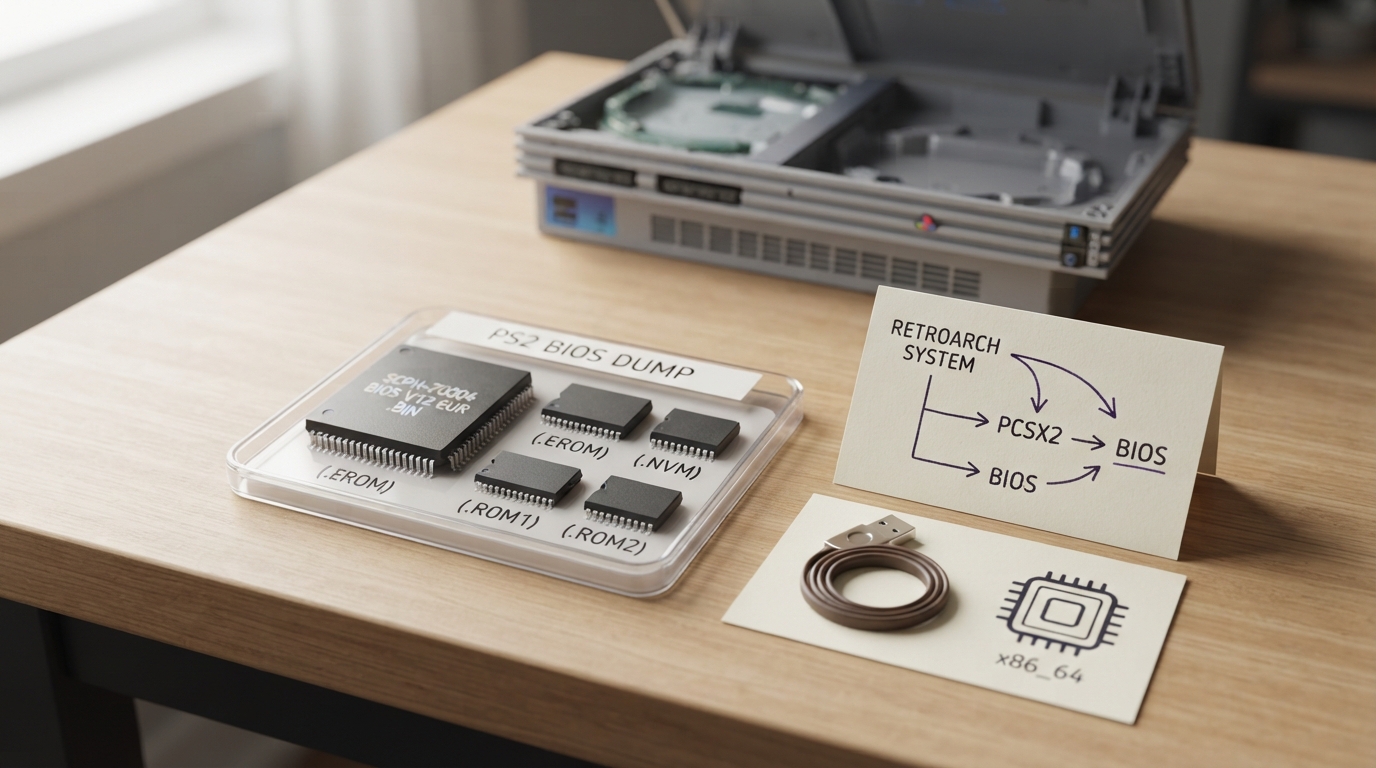
LRPS2 is a heavily modified fork of the PCSX2 emulator ported to the libretro API. This guide walks through the setup steps described in the official libretro documentation: placing PlayStation 2 BIOS files, understanding the embedded GameIndex database, and preparing the expected folder structure inside RetroArch's system directory.
Supported platforms
LRPS2 runs on Windows, macOS, and Linux on the x86_64 architecture. macOS computers using Apple's ARM chips can run it through the Rosetta x86 compatibility mode. The core does not work natively on ARM hardware, so it is not available on iOS/tvOS, Android, ARM Linux, or Windows on ARM.
Requirements
- CPU: supports SSE2/AVX2; PassMark Single Thread Performance rating near or greater than 1600/2100; two physical cores with hyperthreading, or four physical cores with or without hyperthreading. GPU: Direct3D10/11 support; OpenGL 3.x/4.5 support; Vulkan 1.3+ support; PassMark G3D Mark rating around 3000 (GeForce GTX 750); 2 GB/4 GB video memory. RAM: 4 GB/8 GB.
Step 1: Prepare your BIOS files
LRPS2 requires a BIOS to work. The BIOS can be provided as a single 4 MB .bin file or with additional files, usually .erom, .nvm, .rom1, and .rom2. The BIOS files must be extracted; the core cannot find them if they are zipped. No specific filename is required, as long as the BIOS was properly dumped the core will be able to find it. For compatibility reasons, the documentation recommends not using an SCPH-10000 BIOS.
If you have additional files alongside the .bin, make sure they share the same filename or they will be ignored. For example, a BIOS file named SCPH-70004_BIOS_V12_EUR_200.BIN with accompanying EROM, ROM1, and ROM2 files would look like this:
SCPH-70004_BIOS_V12_EUR_200.BIN
SCPH-70004_BIOS_V12_EUR_200.EROM
SCPH-70004_BIOS_V12_EUR_200.ROM1
SCPH-70004_BIOS_V12_EUR_200.ROM2- Go inside your RetroArch "system" folder (usually retroarch/system/, but if you are not sure check the path in Settings > Directory > System/BIOS). Create a pcsx2 folder. Go inside the pcsx2 folder and create a bios folder. Go inside the bios folder and paste your BIOS file(s) there. The default path would look like system\pcsx2\bios\[bios_file_name].bin. On a case-sensitive OS, make sure both pcsx2 and bios folders are lowercase.
Step 2: GameIndex.yaml
In the past, most PlayStation 2 games required setting various hacks or options on a per-game basis to avoid compatibility issues and bugs. The PCSX2 team later automated this by including a database of these per-game hacks and options in a file named GameIndex.yaml. In LRPS2 this file is now embedded in the core, so it is no longer strictly necessary to supply it manually. You can still override the internal database with an external one.
The easiest way to supply the file, if you want to override the embedded database, is to open RetroArch's Online Updater and go to the Core System Files Downloader. Look for LRPS2.zip and select it. The downloader then fetches the GameIndex.yaml database and places it within the necessary directory structure automatically.
If the Core System Files Downloader is not available to you, for example when using the Steam release of RetroArch or another libretro frontend, the file can be placed manually. Download GameIndex.yaml from the core's source code repository on GitHub, then:
- Navigate to your system/BIOS directory (find or confirm it under Settings > Directory in the RetroArch menu) and create a directory named pcsx2 (all lowercase). Inside the new pcsx2 directory, create another directory named resources (all lowercase). Place GameIndex.yaml inside it. The final structure should be system/pcsx2/resources/GameIndex.yaml.
Step 3: Expected directory structure
The documentation describes the following layout under RetroArch's system directory. The bios/ folder is where BIOS files are located and should be created by the user. The cheats/ folder stores cheat patches and is created on first boot automatically. The cheats_ws/ folder stores additional widescreen patches and is also created on first boot automatically. The memcards/ folder stores legacy memory cards and is optional.
retroarch/
└── system/
    └── pcsx2/
        ├── bios/
        ├── cheats/
        ├── cheats_ws/
└── memcards/ (optional)Choosing a renderer
LRPS2 supports hardware rendering via OpenGL on Windows and Linux, Vulkan natively on Windows and Linux and via MoltenVk on macOS, and D3D11/12 on Windows only. Software rendering is available for games that require its additional accuracy. The core also includes a Vulkan compute renderer known as ParaLLEl-GS, which is essentially a software renderer that relies on the parallel-processing power of a modern gaming GPU to reproduce console behavior accurately at or beyond full speed. The documentation states this renderer is recommended if your hardware can run it at full speed.
Loadable content formats
Content that can be loaded by the LRPS2 core uses the following file extensions: .elf, .iso, .ciso, .chd, .cso, .bin, .mdf, .nrg, .dump, .gz, .img, and .m3u. The associated RetroArch database is Sony - PlayStation 2.
Feature support and missing features
At the frontend level, the core respects features such as restart, screenshots, saves, save states, core options, memory monitoring for achievements, native cheats, controls, remapping, rumble, and disk control. It does not support rewind, netplay, RetroArch cheats, multi-mouse, sensors, camera, location, subsystem, softpatching, username, language, frontend-level crop overscan, or LEDs.
Rumble requirements
Rumble only works in LRPS2 when the content being run has rumble support, the frontend being used has rumble support, the joypad device being used has rumble support, and the corresponding user's device type is set to DualShock 2.
Stated compatibility figures
The documentation reports that the current standalone development version is compatible with approximately 97.4% of 2,641 tested games as of August 2020. Compatibility in this sense means only that the game will not crash, lock up, or enter a loop; there can still be bugs and missing post-processing effects, textures, and shadows in many compatible games, especially in hardware mode. A slower software mode is available for bugs without workarounds.
Reference table · Scroll horizontally to see all columns.
| Directory | Purpose | Created by |
|---|---|---|
| system/pcsx2/bios/ | BIOS files | User |
| system/pcsx2/cheats/ | Cheat patches, named by disc hash | First boot (automatic) |
| system/pcsx2/cheats_ws/ | Additional widescreen patches | First boot (automatic) |
| system/pcsx2/memcards/ | Legacy memory cards (optional) | User |
| system/pcsx2/resources/ | External GameIndex.yaml override | User |
Sources & references
Content responsibility: FrameTinker editorial desk. Source authors and software maintainers are credited separately below; this is not a claim of hands-on testing.
Published .
RetroArch: lrps2 — official gaming software documentation https://raw.githubusercontent.com/libretro/docs/master/docs/library/lrps2.mdRetrieved Oct 13, 2026Something doesn’t match your setup?
Suggest a correction