

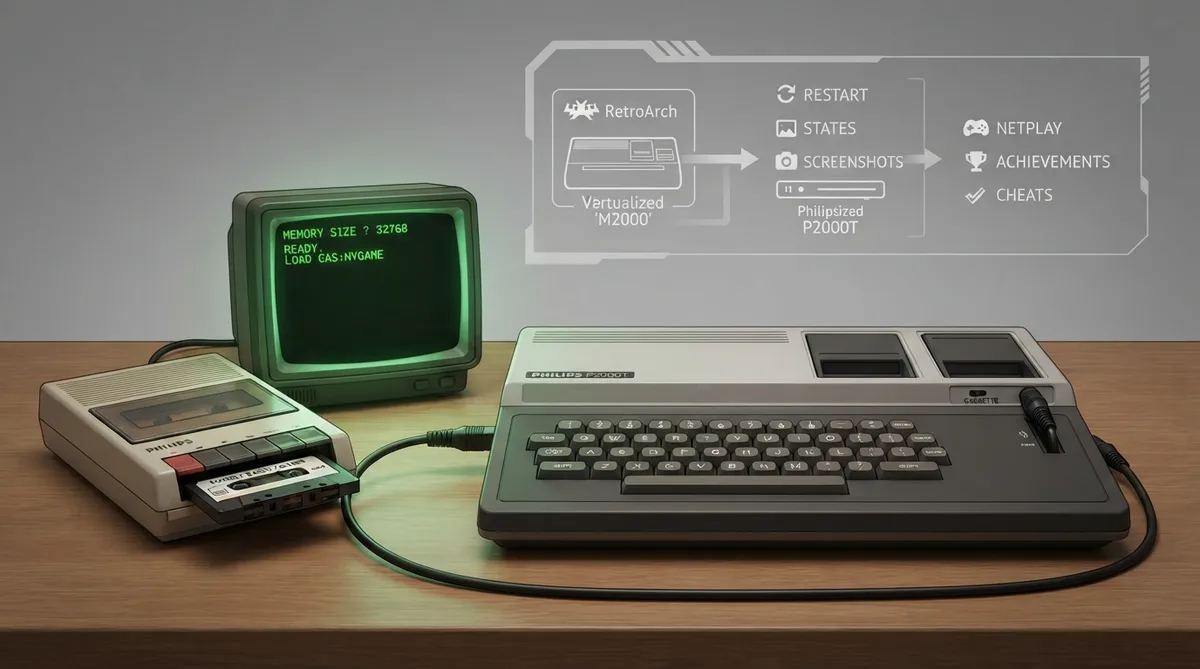
What the M2000 Core Emulates
The M2000 core brings the Philips P2000T home computer to RetroArch. Philips released the P2000T as its first computer for the home market in the early 1980s, before the company later moved to manufacturing MSX machines. The system used a Z80 CPU running at 2.5 MHz and a Mullard SAA5050 teletext display chip to produce the video picture.
The core's library name is M2000, and it loads cassette content with the .cas file extension. If you are configuring the core by name inside RetroArch, look for M2000 in the core list.
Supported Frontend Features
The official documentation lists the following RetroArch features as supported by the M2000 core: Restart, Screenshots, Saves, States, Rewind, Core Options, Controls, and Remapping. These determine what you can expect from the standard RetroArch interface when the core is loaded.
The same documentation marks several features as unsupported: Netplay, memory monitoring for achievements, RetroArch cheats, native cheats, multi-mouse, rumble, sensors, camera, location, subsystem, softpatching, disk control, username, language, crop overscan, and LEDs. Plan around these gaps: for example, do not expect netplay sessions or automatic achievement tracking with this core.
Display and Timing Values
The core reports a frame rate of 50 FPS, a sample rate of 30000, a base and maximum resolution of 480 x 480, and an aspect ratio of 4/3. These values are set by the core itself; you do not configure them manually, but knowing them helps you interpret RetroArch's video and audio status readouts.
Loading Cassette Content
- 1. Obtain a legitimate .cas cassette image from a source you are authorized to use.
- 2. Load the .cas file as content in RetroArch so the M2000 core starts with that cassette attached.
- 3. Confirm the core loaded correctly by checking that the M2000 core is the active core, since its library name is M2000.
Programming in Philips Cassette Basic
To reach the programming environment, start the M2000 core without loading any content. You will see the "Philips Cassette Basic" screen with a white cursor waiting for input, where you can type in a Basic program and load or save programs. An initially empty cassette named Default.cas is attached and stored in the M2000 save directory. This file is only created or attached when the core starts without content, so loading a .cas image instead of starting empty gives you a different cassette state.
csave "program name"
cload "program name"
Use csave to save a program and cload to load it again. Only the first character of each program name is used for identification, so a program saved as "hello world" can be loaded with cload "h". This means program names that share a first letter will collide, so choose names carefully and keep a personal record of which letter maps to which program.
Programming in Basic requires full keyboard access, so it works best when the core is in Game Focus mode, which lets the M2000 core take precedence for inputs. The easiest way to enable it automatically is Settings > Input, where you set Auto Enable 'Game Focus' Mode to Detect, or set input_auto_game_focus = "2" in retroarch.cfg. Be aware that the default toggle hotkey is the Scroll Lock key, which may not exist on every keyboard; if yours lacks it, remap the hotkey.
Reference table · Scroll horizontally to see all columns.
| Property | Value |
|---|---|
| FPS | 50 |
| Sample rate | 30000 |
| Base and maximum width | 480 |
| Base and maximum height | 480 |
| Aspect ratio | 4/3 |
Sources & references
Content responsibility: FrameTinker editorial desk. Source authors and software maintainers are credited separately below; this is not a claim of hands-on testing.
Published .
RetroArch: m2000 — official gaming software documentation https://raw.githubusercontent.com/libretro/docs/master/docs/library/m2000.mdRetrieved Oct 13, 2026Something doesn’t match your setup?
Suggest a correction