

RetroArch NetPlay includes an advanced network option called Request Device that lets each RetroArch instance request which device or controller it controls. According to the official documentation, this makes setups such as four players spread across two RetroArch instances possible, and it also lets a connecting client request the player 1 controller from the host. To make the option visible, Show Advanced Settings must be turned on.
Prerequisite: Enable Show Advanced Settings
The Request Device options are hidden until Show Advanced Settings is set to ON. To enable it, navigate to Settings, then User Interface, and toggle Show Advanced Settings to ON.
Locate the Advanced Network Options
Once Show Advanced Settings is on, proceed to the Network configurations in the Settings menu; the NetPlay menu also has a path to the Network configurations. Scroll down through the Network configuration and the advanced options become visible. The Request Device # options, where # is any number from 1 to 16, allow the computer to control any number of controllers during NetPlay.
Example Setup: Four Players on Two Computers
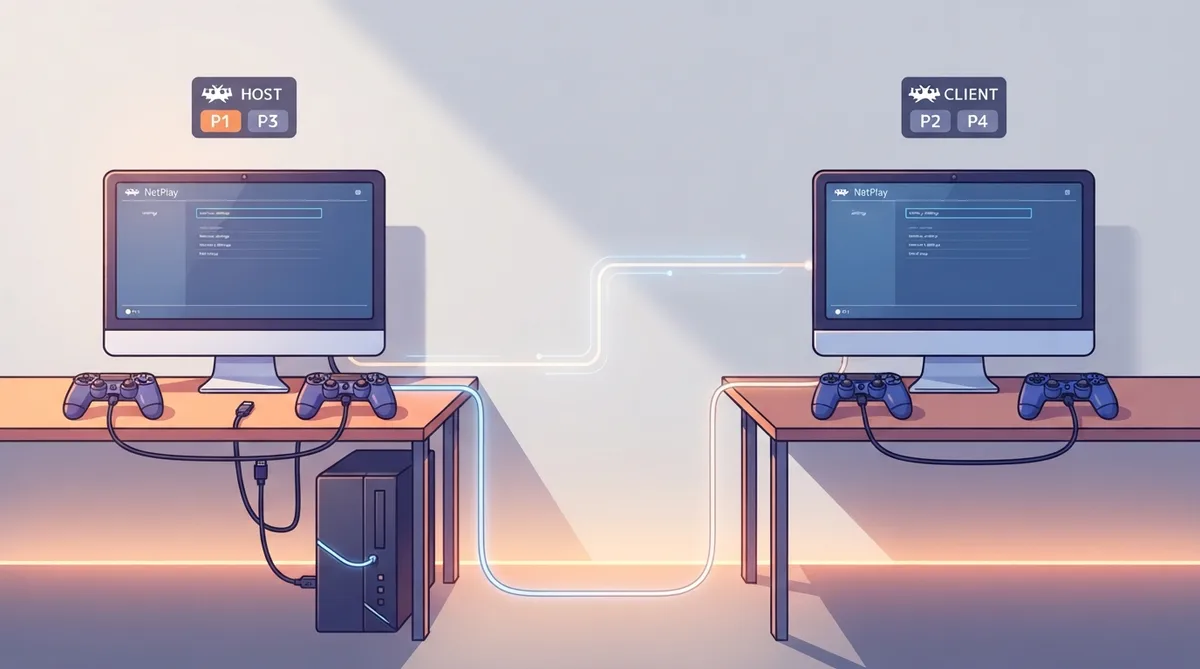
The official documentation uses Super Bomberman 2 on the SNES to demonstrate four players across two computers: the host controls players 1 and 3, and the client controls players 2 and 4.
On the Host: Configure Input Devices
- While the game is loaded:
- Connect two controllers.
- Start the SNES Super Bomberman 2 game.
- Set Inputs for each controller:
- Go to Settings, then Inputs, then Port 1 Binds, and ensure Device Index is set to Controller Name 1.
- Return to the Inputs configuration menu, go to Port 2 Binds, and ensure Device Index is set to Controller Name 2.
- Set Device Type to MultiTap. MultiTap is only available when the SNES core is loaded; it plugs in a virtual SNES MultiTap so more than two controllers can connect to the SNES.
- Controller Name 1 and 2 are unique to the computer and to the controllers connected to it; for example, a PS4 controller shows as "Wireless Controller #1".
On the Host: Configure Requested Devices
Go to Settings or NetPlay, then Network. Set Request Device 1 to YES and Request Device 3 to YES, and ensure all other Request Device # options are set to NO. The host is then able to start a NetPlay game controlling controllers 1 and 3.
On the Client: Configure Input Devices
- While the game is loaded:
- Connect two controllers.
- Start the SNES Super Bomberman 2 game.
- Set Inputs for each controller:
- Go to Settings, then Inputs, then Port 1 Binds, and ensure Device Index is set to Controller Name 1.
- Return to the Inputs configuration menu and go to Port 2 Binds, and ensure Device Index is set to Controller Name 2.
- Controller Name 1 and 2 are unique to the computer and to the controllers connected to it; for example, a PS4 controller shows as "Wireless Controller #1".
On the Client: Configure Requested Devices
Go to Settings or Netplay, then Network. Set Request Device 2 to YES and Request Device 4 to YES, and ensure all other Request Device # options are set to NO. The client can then join the host in a NetPlay game controlling controllers 2 and 4.
Limitation: Automatic Controller Assignment
Reference table · Scroll horizontally to see all columns.
| Instance | Request Device settings | Controlled controllers |
|---|---|---|
| Host | Request Device 1 = YES, Request Device 3 = YES; all others NO | 1 and 3 |
| Client | Request Device 2 = YES, Request Device 4 = YES; all others NO | 2 and 4 |
| Typical default (automatic) | All Request Device # = NO | Host = 1; each client = next available controller |
 View full image
 Sources & references
Published .
RetroArch: netplay multiple controllers — official gaming software documentation https://raw.githubusercontent.com/libretro/docs/master/docs/guides/netplay-multiple-controllers.mdRetrieved Oct 8, 2026Something doesn’t match your setup?
Suggest a correction