

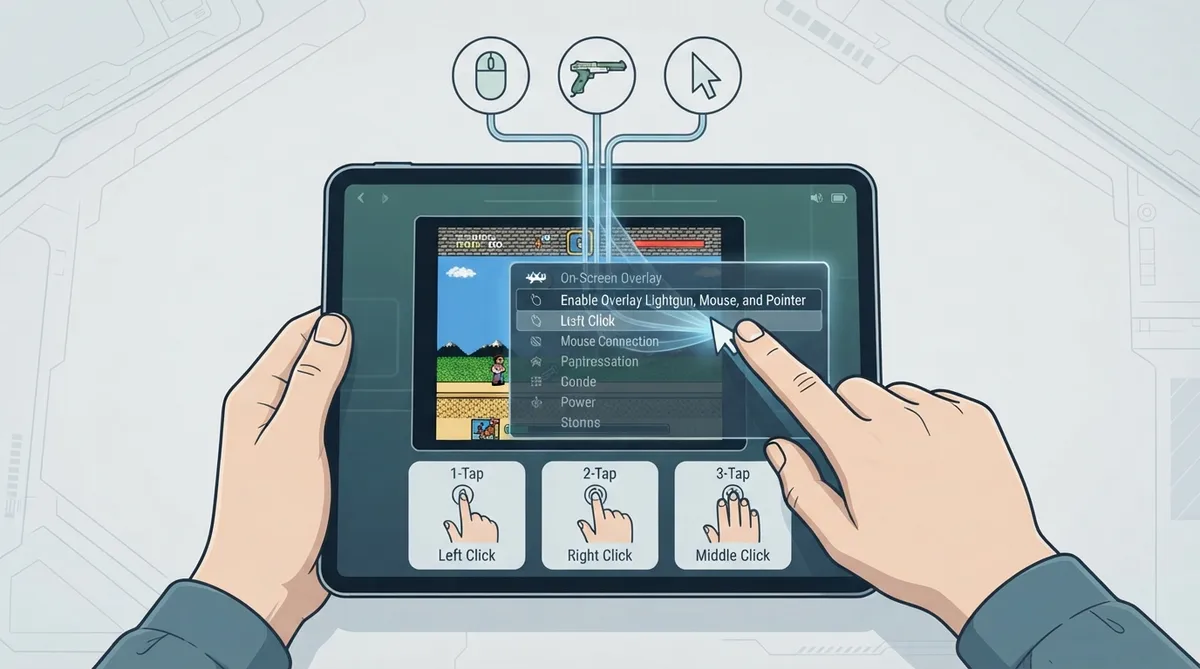
RetroArch can send pointing device input alongside gamepad input when an on-screen overlay is active. This is controlled by the Enable Overlay Lightgun, Mouse, and Pointer option in the On-Screen Overlay menu. The feature is intended for lightgun overlays, emulated touchscreens, mouse-controlled first-person shooters, and any other use requiring simultaneous button and pointer input.
Overview
Enabling overlay pointing devices overrides any platform-specific touchscreen controls, which might behave differently. The documentation distinguishes two input behaviors: mouse behavior and lightgun behavior.
Enabling Pointing Device Input
- 1. Open the On-Screen Overlay menu in RetroArch.
- 2. Locate the Enable Overlay Lightgun, Mouse, and Pointer option.
- 3. Turn the option on to send pointing device input alongside gamepad input while an overlay is active.
Mouse Behavior
With mouse behavior, dragging one finger moves the mouse cursor. A one-finger tap produces a left mouse button click, a two-finger tap produces a right mouse button click, and a three-finger tap produces a middle mouse button click.
By default, a 0.2-second long press begins holding a button, and haptic feedback is felt when it starts. A double-tap hold method is also available but adds some latency to clicks. With either method, dragging two or three fingers immediately holds the right or middle button.
The documentation notes settings for mouse speed, long-press and double-tap time thresholds, and a swipe threshold used to distinguish swipes from taps and long presses.
Lightgun Behavior
Lightgun x, y, and trigger input are normally sent together to every lightgun port. There are settings to choose the port, disable the trigger, delay the trigger, and clamp off-screen aim to the in-bounds edge. The trigger delay is needed for content that does not instantly move the gun cursor to a screen tap.
More lightgun buttons can be assigned to two-, three-, and four-finger inputs. The trigger delay is used to wait for the correct multi-touch count; a one-frame delay is usually enough to distinguish these inputs.
Core Compatibility Note
A few cores have a Touchscreen option for lightgun input. That option needs to be set to Lightgun for this input to work.
Limitations and Caveats
- Enabling overlay pointing device input overrides any platform-specific touchscreen controls, which might behave differently.
- Trigger delay may be required for content that does not instantly move the gun cursor to a screen tap.
- The double-tap hold method adds some latency to clicks.
- Some cores require the Touchscreen option to be set to Lightgun.
Reference table · Scroll horizontally to see all columns.
| Input | Behavior |
|---|---|
| Drag 1 finger | Moves the mouse cursor |
| 1-finger tap | Left mouse button click |
| 2-finger tap | Right mouse button click |
| 3-finger tap | Middle mouse button click |
| 1-finger long press (default 0.2s) | Begins holding a button, with haptic feedback |
| Drag 2 fingers | Immediately holds the right mouse button |
| Drag 3 fingers | Immediately holds the middle mouse button |
| 2-, 3-, or 4-finger input (lightgun) | Additional lightgun buttons can be assigned |
Reference table · Scroll horizontally to see all columns.
| Setting | Purpose |
|---|---|
| Mouse speed | Adjusts mouse cursor speed |
| Long-press time threshold | Adjusts when a long press begins |
| Double-tap time threshold | Adjusts double-tap detection timing |
| Swipe threshold | Distinguishes swipes from taps and long presses |
| Lightgun port selection | Chooses the lightgun port |
| Lightgun trigger disable | Disables the trigger |
| Lightgun trigger delay | Delays the trigger; needed for content that does not instantly move the gun cursor to a screen tap |
| Lightgun off-screen clamp | Clamps off-screen aim to the in-bounds edge |
| Touchscreen core option | Must be set to Lightgun on a few cores for lightgun input |
 View full image
 Sources & references
Published .
RetroArch: overlay pointing devices — official gaming software documentation https://raw.githubusercontent.com/libretro/docs/master/docs/guides/overlay-pointing-devices.mdRetrieved Oct 8, 2026Something doesn’t match your setup?
Suggest a correction