

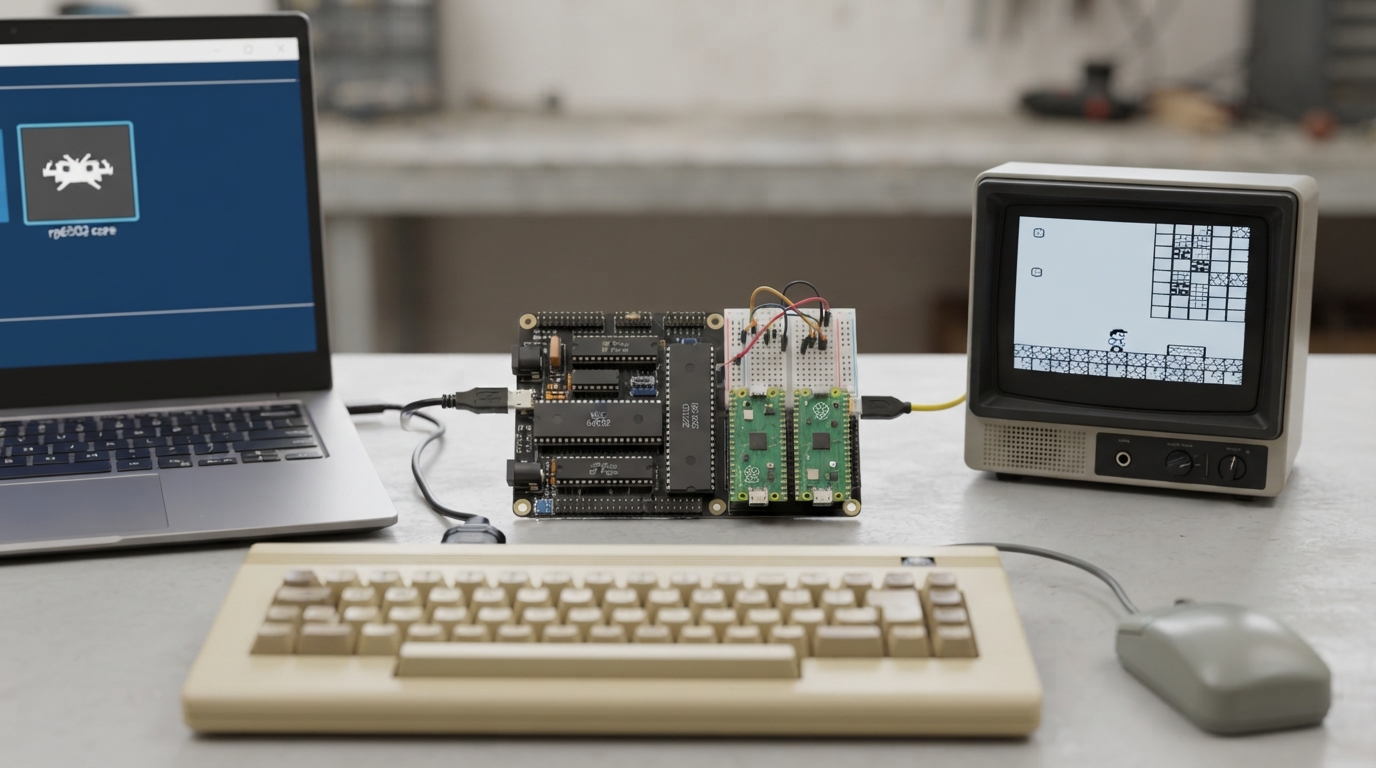
The rp6502 core lets RetroArch run software for the Picocomputer 6502, a build-it-yourself 8-bit computer. This guide summarizes the official libretro documentation for the core, covering what the target machine is, how to load software, and how to configure keyboard, mouse and tablet input. The steps below are drawn from the documentation only and have not been tested hands-on.
What the core targets
The Picocomputer 6502 is a real 8-bit computer built from a WDC 65C02 processor, a couple of Raspberry Pi Picos and very little else. It provides 64 KB of RAM and 64 KB of XRAM, no ROM and nothing reserved, with a 6502 running cycle accurate from 0.1 to 8.0 MHz. Video output uses three planes of tiles, bitmaps and sprites in RGB555, programmable per scanline. Software is distributed as .rp6502 ROM files.
Load rp6502 software in RetroArch
- 1. Confirm you have a RetroArch installation that includes the rp6502 core.
- 2. Obtain Picocomputer 6502 software in .rp6502 ROM file format.
- 3. Load a .rp6502 ROM file through RetroArch as you would any other core content.
- 4. Expect keyboard input to behave as gamepad emulation by default, not as a computer keyboard, until you enable Game Focus (see below).
Keyboard input and Game Focus
The keyboard defaults to gamepad emulation. RetroArch binds your keys to a virtual RetroPad and to its own hotkeys, so typing does nothing useful until you enable Game Focus, which is the Scroll Lock key by default.
You can change the default in Settings > Input > Auto Enable 'Game Focus' Mode. Setting it to Detect turns Game Focus on whenever this core is loaded, because the core always asks for keyboard input.
Mouse and tablet pointing devices
With Game Focus off, RetroArch keeps its own cursor, and you may see two of them: the frontend's and the program's. With Game Focus on, RetroArch captures the mouse, and reaching the edges of the screen is difficult.
The Picocomputer's tablet is an absolute pointing device, and libretro's absolute pointing device is a lightgun. Set a port's device type to Lightgun to use one.
Save states, rewind and netplay
Save states are supported and are deterministic, so rewind, run-ahead and netplay all work.
Platform limitations and an alternative
The Picocomputer is a gaming-centric computer with keyboard, mouse, tablet and gamepad support, while libretro was built for consoles with gamepads. The limitations described in this guide are limitations of libretro, not of the Picocomputer, and a core cannot work around them. Desktop users may prefer a native emulator where one is available, at https://picocomputer.github.io/emu.html.
The primary documentation for the Picocomputer 6502 is maintained by the project; consult it for details beyond what the libretro core documentation covers.
Reference table · Scroll horizontally to see all columns.
| Item | Value |
|---|---|
| Processor | WDC 65C02 |
| RAM | 64 KB |
| XRAM | 64 KB |
| ROM | None |
| Reserved memory | None |
| Clock speed | 0.1 to 8.0 MHz, cycle accurate |
| Video | Three planes of tiles, bitmaps and sprites in RGB555, programmable per scanline |
| Software format | .rp6502 ROM files |
Reference table · Scroll horizontally to see all columns.
| Input | Notes |
|---|---|
| Gamepad | Standard joypad |
| Gamepad (Analog) | Analog input |
| Lightgun | Used for the Picocomputer's tablet; set the port's device type to Lightgun |
Sources & references
Content responsibility: FrameTinker editorial desk. Source authors and software maintainers are credited separately below; this is not a claim of hands-on testing.
Published .
RetroArch: rp6502 — official gaming software documentation https://raw.githubusercontent.com/libretro/docs/master/docs/library/rp6502.mdRetrieved Oct 15, 2026Something doesn’t match your setup?
Suggest a correction