

This guide covers non-arcade software emulation in libretro MAME and MESS cores. In this context, "software" and "software lists" describe non-arcade machines emulated by MAME or MESS. Software lists live in the hash database and tell MAME or MESS how to start a game.
Why this setup is more complex than arcade emulation
Software list emulation requires a different planning approach than arcade machine emulation, and the documentation notes that it is more complicated to set up.
Understand the core variants
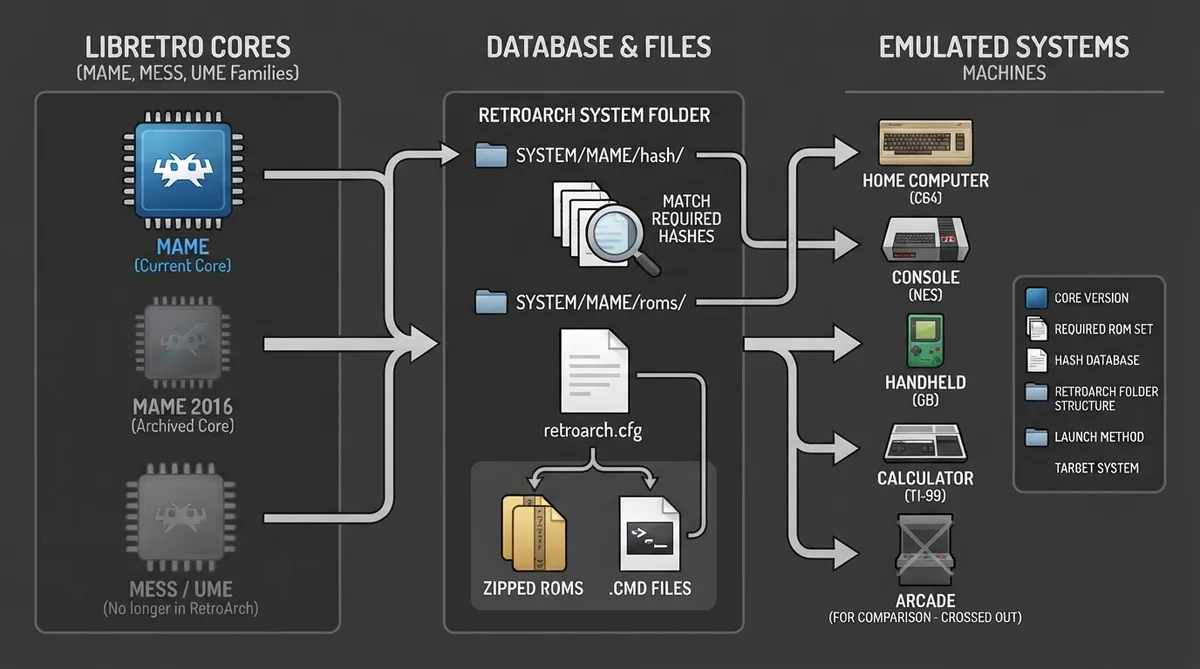
The libretro core ecosystem includes multi-software emulators that support software emulation. Three families exist: MAME, MESS, and UME. Each family is available in multiple versions so users can match a core to their preference.
Arcade (MAME) is currently the only MAME core for most host systems that supports emulation of both software and arcade systems. It is updated regularly and most of the time is in line with the official MAME project release.
Arcade (MAME 2016) is an archived snapshot of MAME from the 0.174 release. It is currently no longer built for RetroArch.
There is currently no dedicated MESS core in RetroArch except for Android ARM64. It is also still provided in RetroPie as the MESS2016_libretro core.
UME cores are no longer in RetroArch. Multi (UME 2015) was a snapshot of the Universal Machine Emulator.
Use the correct ROM set version for your emulator
As in MAME arcade emulation, each core requires its own distinct version of software list ROM sets. The table below lists the required ROM version per emulator.
Two ways to launch software list machines
- Method 1 — MAME frontend direct launch: uses the inbuilt MAME logic and hash files to launch your games.
- Method 2 — RetroArch frontend friendly via libretro CMD file launch: uses an extra libretro feature to pass command line functions to the core.
Method 1: MAME frontend direct launch
Step 1: Obtain hash files that match your core version
To use MAME's internal software list functions, you need the right supporting files from the mainline MAME standalone emulator: the hash files. For the MAME (current) core, download the newest version of the Windows MAME emulator. For earlier versions, get the exact version you require, because the version of the hash files must match the libretro core version.
Step 2: Place hash files in the RetroArch system folder
Extract the MAME download and take the "hash" folder, then move it into the RetroArch folder structure. If your device has limited storage, copy only the hash files for the system you want to emulate. The folder structure is the same for every machine, but the naming depends on the machine you are trying to emulate. For the Atari 7800 example, the hash file is a7800.xml.
"YourPath"/RetroArch/system/mame
"YourPath"/RetroArch/system/mame/hash
"YourPath"/RetroArch/system/mame/hash/a7800.xmlStep 3: Build the games folder structure
Create folders in a games directory of your choice. The last folder must be named as MAME requires; for the Atari 7800 example this is "a7800". Put the required .zip games and .zip BIOS files there, such as a7800.zip at the parent level and asteroid.zip inside the a7800 folder.
"YourPath"/Games/Atari 7800/a7800
"YourPath"/Games/Atari 7800/a7800.zip
"YourPath"/Games/Atari 7800/a7800/asteroid.zipStep 4: Load the game
In RetroArch, choose "Load Content" and browse to the game's .zip file — in the example, asteroid.zip — then launch it with the MAME current core.
Method 2: RetroArch frontend friendly via libretro .cmd file launch
This method follows the same folder structure as above, but allows custom naming outside of the hash file included with MAME. It uses custom additions to the libretro MAME cores, specifically text files (.cmd) that replicate sending command line actions as you can with mainline MAME.
Create a .cmd file
Following the Atari 7800 example, create a dedicated asteroid.cmd file containing the line below.
a7800 -cart asteroid -rp "[YourPath]/mame/roms/a7800"In RetroArch, choose "Load Content" and browse to asteroid.cmd; it should launch with the MAME current core.
Reference table · Scroll horizontally to see all columns.
| Emulator | Required ROM version | Notes |
|---|---|---|
| MAME (latest version) | MAME (latest version) | or same version if not in sync with MAME upstream |
| MAME 2016 | MAME 0.174 | RetroArch core no longer provided |
| MESS 2015 | MAME 0.160 | RetroArch core no longer provided |
| UME 2015 | MAME 0.160 | RetroArch core no longer provided |
 View full image
 Sources & references
Published .
RetroArch: softwarelist getting started — official gaming software documentation https://raw.githubusercontent.com/libretro/docs/master/docs/guides/softwarelist-getting-started.mdRetrieved Oct 8, 2026Something doesn’t match your setup?
Suggest a correction