

This guide follows the official RetroArch documentation page on starting a game. It covers the two required items, the Load Core/Load Content route, launching from playlists, and how to exit cleanly. The documentation does not name a specific RetroArch version or platform, so the steps below apply generally to the menu layout described there.
Requirements
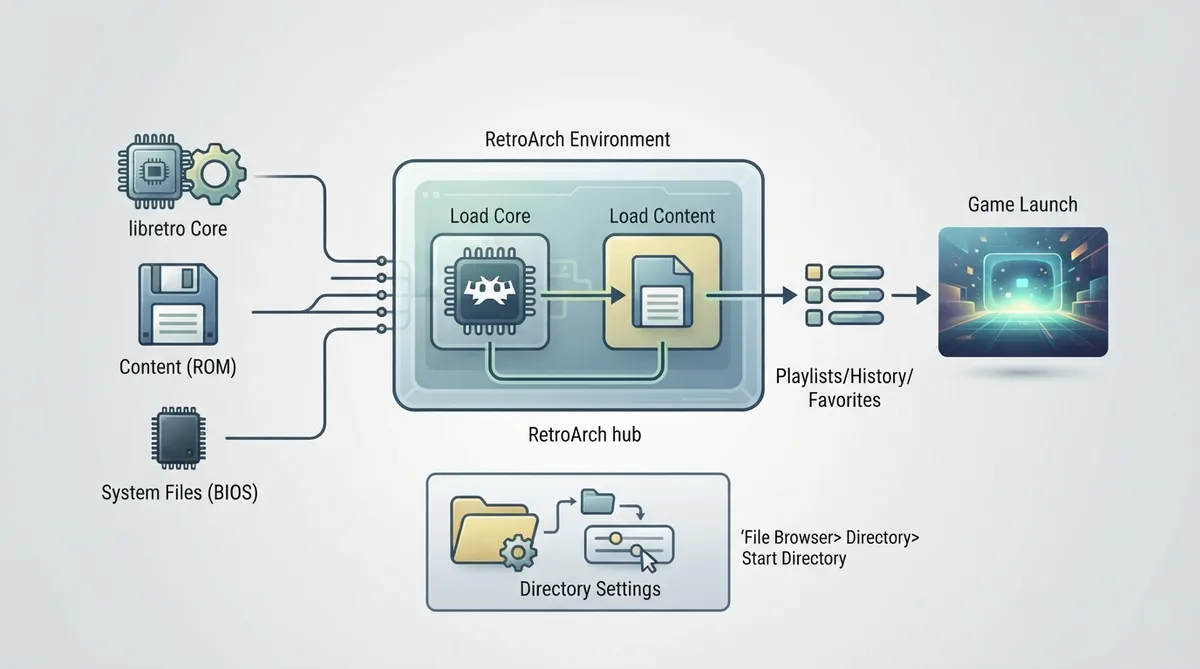
Loading a game requires two things: a libretro core and a ROM file. Some systems or games may also need additional system files, such as a BIOS, to run correctly.
Route one: Load Core, then Load Content
- 1. From the main menu, select `Load Core> Core`, then choose a libretro core from the list.
- 2. If no cores are installed, or you want to add new ones, connect to the internet and select `Download a Core` at the bottom of the list.
- 3. Select your core in the list to load it.
Once a libretro core is loaded, its name and version appear in the bottom left of the screen in the Ozone, XMB and RGUI menus, or in the notification bar in GLUI.
- 1. Select `Load Content`.
- 2. Browse to the folder that holds your content and select the ROM from the list.
- 3. Select `Current Core`, or pick another core from this list. The content then launches.
By default the file browser starts in the user's root directory. To change the folder the `Start Directory` option opens in, set `File Browser` under `Settings> Directory`.
Route two: Playlists, History and Favorites
- 1. Scan for content to add it to a playlist.
- 2. Open your chosen playlist.
- 3. Highlight the row you want and select it. A submenu appears; select `Run` to start the game.
- 4. If you have already set a core association, the content launches immediately. If not, one more list asks which core you want to run the content with.
The documentation states that this option automatically chooses the best core to run the content. Content in the History and Favorites playlists launches the same way as with a regular playlist.
Exiting a game
Press the key or button combination to open the Quick Menu and select `Close Content`. The documentation states this safely closes both the content and its core, and returns you to the RetroArch main menu.
Reference table · Scroll horizontally to see all columns.
| Menu path | Value or action |
|---|---|
| Main menu | `Load Core> Core` |
| Core list (bottom entry) | `Download a Core` |
| Main menu | `Load Content` |
| Content list | `Current Core` or another core |
| `Settings> Directory` | `File Browser` (sets the folder for `Start Directory`) |
| Playlist row submenu | `Run` |
| Quick Menu | `Close Content` |
 View full image
 Sources & references
Published .
RetroArch: starting a game — official gaming software documentation https://raw.githubusercontent.com/libretro/docs/master/docs/guides/starting-a-game.mdRetrieved Oct 8, 2026Something doesn’t match your setup?
Suggest a correction