

This guide summarizes the official RetroArch troubleshooting documentation. It covers the common video problems the documentation describes, how to configure video refresh rate for dynamic rate control, how to approach low frame rates and latency, why BIOS files may not be recognized, and what information to prepare when requesting help. The steps below are reproduced from the official documentation and have not been independently tested by this article.
Video sync and dynamic rate control
RetroArch uses Dynamic Rate Control to synchronize video and audio at the same time. The documentation notes that this synchronization is demanding timing-wise, and that dynamic rate control smooths out timing imperfections that are expected to arise. It can be disabled, but the documentation warns that proper video and audio sync is nearly impossible to obtain without it.
Default settings may not be adequate, which can appear as video stuttering or audio crackling. For correct synchronization, video_refresh_rate must be configured for your monitor. The documentation states it cannot be detected accurately enough by OS-provided APIs and that an accuracy of roughly 0.1% is needed for dynamic rate control to smooth out the drifting; that level is described as trivial to obtain by measuring manually under normal conditions.
Using the built-in refresh rate estimate
- Make sure VSync is enabled and working.
- Run in full-screen, since compositors can interfere with timing.
- Open the video settings, where RetroArch shows an estimate of your monitor's refresh rate, updated in real time as a running average over frame times.
- Press the accept button on the estimated refresh rate to configure RetroArch with that estimate.
- If the running average is no longer drifting much, the documentation suggests the result is probably good.
Measuring the refresh rate from the log
You can also have RetroArch record the relevant data in a log and configure things more manually. Start RetroArch directly in RGUI, let it run uninterrupted for at least 4096 frames (the frame count is displayed in the title bar), then exit. In the log you should see an entry reporting the average monitor Hz along with the frame time deviation and the number of samples it is based on.
retroarch --verbose --menuIf the result is unclear, the documentation recommends running the test several times to see whether the results are consistent. Some systems are described as having unreliable VSync behavior, in which case the result will fluctuate wildly. The measured value can be used for video_refresh_rate, and the documentation says video and audio should ideally be smooth if the game's frame rate and the monitor's frame rate are relatively close. It also notes that playing a PAL game on a 60 Hz monitor will not be perfect regardless of settings.
Threaded video
If the video driver performs very poorly, it can be run on a thread to avoid almost all video driver overhead. Set video_threaded = true in the configuration file. The documentation notes that butter-smooth VSync behavior is impossible in this case and latency may increase slightly. It recommends using this only if full speed cannot be obtained otherwise.
Low frame rate checks
- Make sure your system meets the requirements of the core you picked.
- Check whether your core options are set too high for your system.
- Disable shaders.
- Lower the video scale setting.
- Try another video driver.
- Try enabling threaded video in the video options.
- Try disabling VSync.
- Disable Run-Ahead in the latency options.
Windows Vista and later VSync behavior
The documentation states that Windows Vista and later have problems with OpenGL in windowed mode, where it appears impossible to obtain proper, smooth VSync behavior. If you want to keep playing in windowed mode, the documentation suggests using the D3D driver, which does not have this problem. It also notes that disabling Aero sometimes helps OpenGL VSync behavior.
Input latency and video_hard_sync
Excessive input lag has been reported on Windows for some users. The documentation describes this as video driver latency rather than true input latency, with some video drivers buffering more than necessary for increased performance. RetroArch gained an option to use a swap/fence sync method in the OpenGL driver, which is reported to greatly lower input latency.
- Set video_hard_sync = true in the configuration file, or enable it from RGUI.
- To confirm the sync method is actually used, check the log for the GL extension query showing ARB_sync exists and for the message stating that ARB_sync is used to reduce latency.
- Be aware that this sync method can greatly reduce performance, potentially turning smooth 60 fps into 30 fps when there is not enough performance headroom.
- If you use KMS mode, video_hard_sync will not help, because it already does something similar.
Why a BIOS may not work
- Make sure the BIOS files are placed into the correct directory.
- Make sure they are named correctly so the core can identify them.
- Make sure it is the correct version and region of BIOS.
- Make sure your files are not corrupted, for example from a bad source or broken download.
- Check the log for any errors.
Information to gather before asking for help
When problems arise, the developers and volunteers find certain standard information helpful. The documentation asks you to include a description of the problem, the RetroArch version, the hardware and operating system, the core name and version plus the game or media you were playing if the problem occurs while using a core, and the RetroArch log files recorded when the problem occurs. The documentation points to a separate page on generating RetroArch logs.
For questions or issues that cannot be resolved on your own, the documentation directs users to the RetroArch forum. For problems known to be bugs, it directs users to the RetroArch issues tracker.
Reference table · Scroll horizontally to see all columns.
| Setting | Value | Purpose |
|---|---|---|
| video_refresh_rate | Configured manually for your monitor | Accurate video and audio synchronization with dynamic rate control |
| video_threaded | true | Run the video driver on a thread to reduce driver overhead; smooth VSync is not possible |
| video_hard_sync | true | Use the OpenGL swap/fence sync method to reduce latency; can greatly reduce performance |
| Run-Ahead | Disabled | One of the suggested checks when frame rate is low |
RetroArch: Querying GL extension: ARB_sync => exists
RetroArch: [GL]: Using ARB_sync to reduce latency.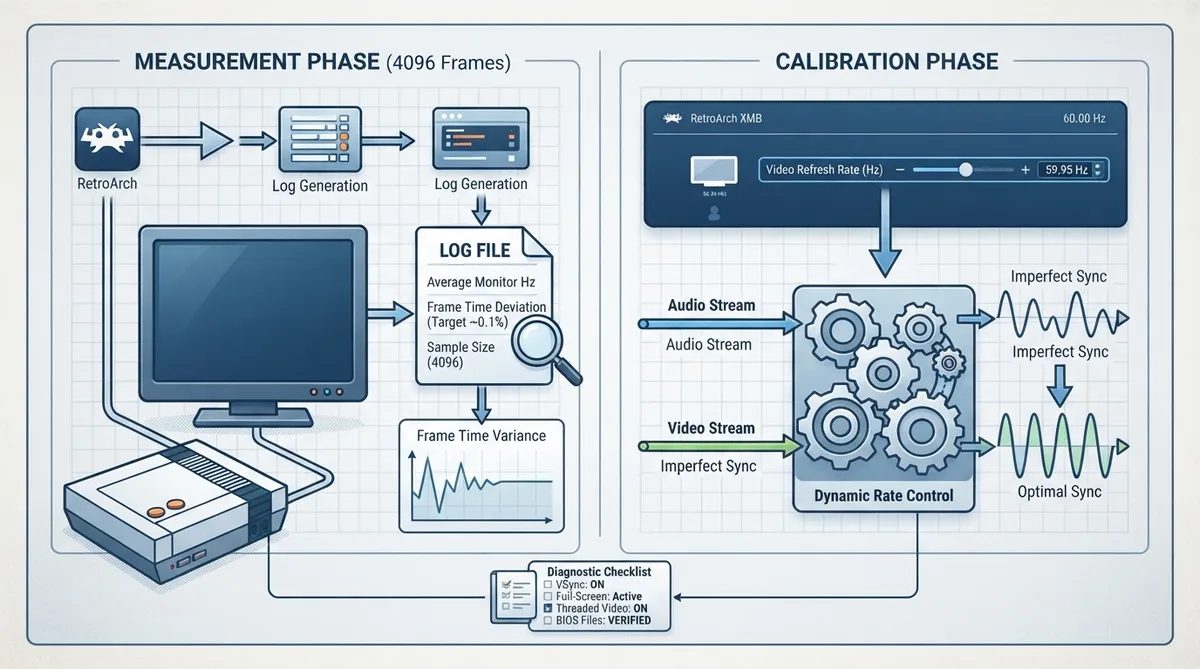 View full image
 Sources & references
Published .
RetroArch: troubleshooting retroarch — official gaming software documentation https://raw.githubusercontent.com/libretro/docs/master/docs/guides/troubleshooting-retroarch.mdRetrieved Oct 8, 2026Something doesn’t match your setup?
Suggest a correction