

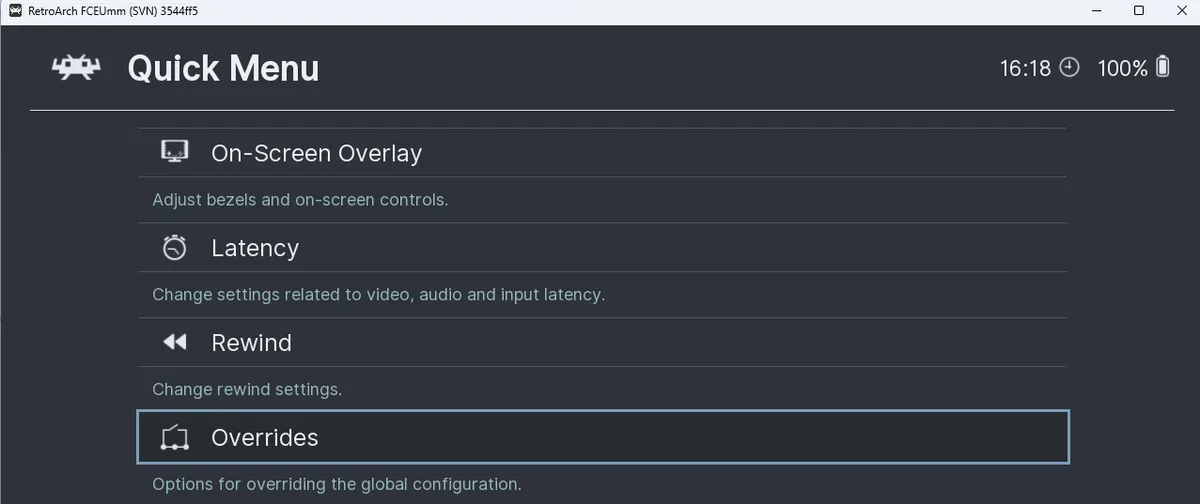
What this setup does
RetroBat can automatically load configuration overrides and shader override files created in RetroArch instead of using RetroBat’s configuration for those settings. These controls apply to the RetroBat-managed setup; they are not standalone RetroArch defaults.
Enable configuration overrides
Start with a configuration override saved in RetroArch. The documentation identifies three possible scopes: a game, a content folder, or a libretro core.
- 1. In RetroBat, open Main Menu > Game Settings > RetroArch Options > Emulation.
- 2. Enable the override option.
Enable shader overrides
For shader overrides, this workflow uses shader override files created in RetroArch.
- 1. In RetroBat, open Main Menu > Game Settings > RetroArch Options > Visual Rendering.
- 2. Enable the Shaders override option.
Expected result
The documented result is automatic loading of the configuration and/or shader override files you created in RetroArch, according to the override options enabled in RetroBat.
Sources & references
Content responsibility: FrameTinker editorial desk. Source authors and software maintainers are credited separately below; this is not a claim of hands-on testing.
Published .
RetroBat: advanced features — using retroarch overrides — official gaming software documentation https://raw.githubusercontent.com/RetroBat-Official/retrobat-wiki/master/lang/en/advanced-features/using-retroarch-overrides.mdRetrieved Nov 4, 2026Something doesn’t match your setup?
Suggest a correction