

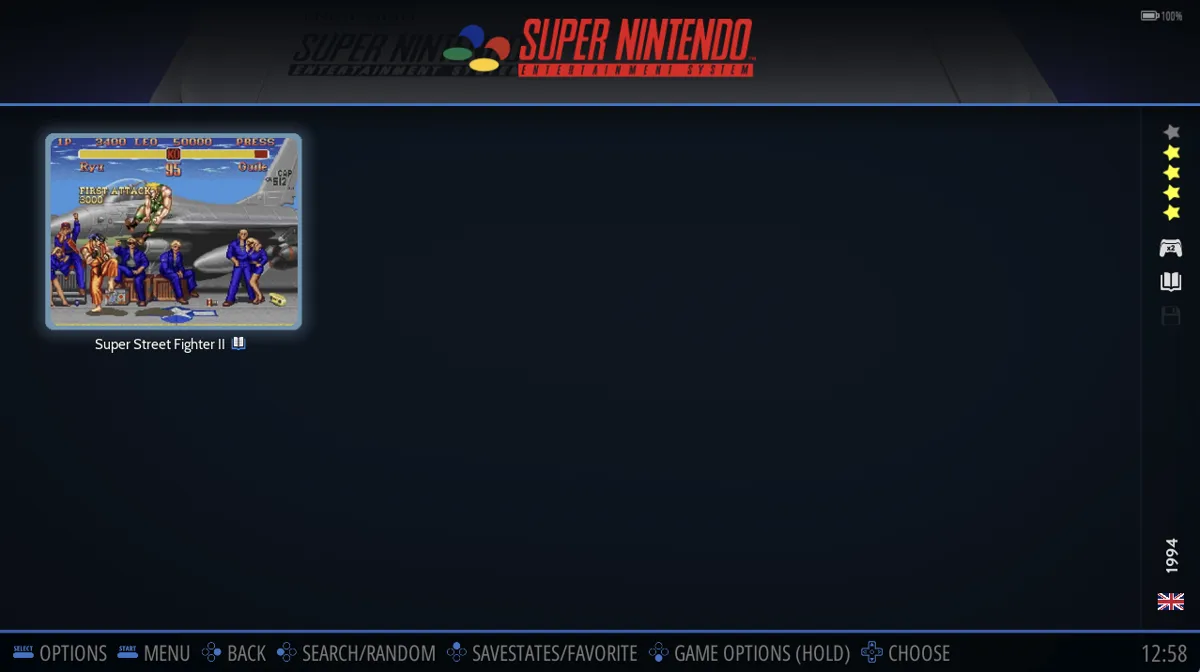
Start and exit a game
In Game View, highlight the game you want to play, then press the button illustrated in the official documentation. The supplied source represents that button only as an image, so its label cannot be identified here.
A splash screen appears while the emulator starts the game.
When finished playing, press HOTKEY + START to close the emulator and return to Game View.
Open system or game options
For system-level options, press SELECT in Game View to open VIEW OPTIONS, then go to ADVANCED SYSTEM OPTIONS.
For a specific game, highlight it in Game View, long-press the same image-only button used to launch a game, then choose ADVANCED GAME OPTIONS. Consult the official page’s button illustration rather than assuming a controller button label.
When a game’s emulator setting is AUTO, it uses the emulator selected for its system. If that system is also set to AUTO, RetroBat uses its default emulator for the system.
If a game will not start
- - Check whether the system requires BIOS files; consult RetroBat’s “Adding BIOS files” documentation.
- - Check whether the game’s format is supported in “Supported Game Systems.”
- - Consult “Known issues & fixes” for documented problems and fixes.
Sources & references
Content responsibility: FrameTinker editorial desk. Source authors and software maintainers are credited separately below; this is not a claim of hands-on testing.
Published .
RetroBat: get started — running a game — official gaming software documentation https://raw.githubusercontent.com/RetroBat-Official/retrobat-wiki/master/lang/en/get-started/running-a-game.mdRetrieved Nov 5, 2026Something doesn’t match your setup?
Suggest a correction