

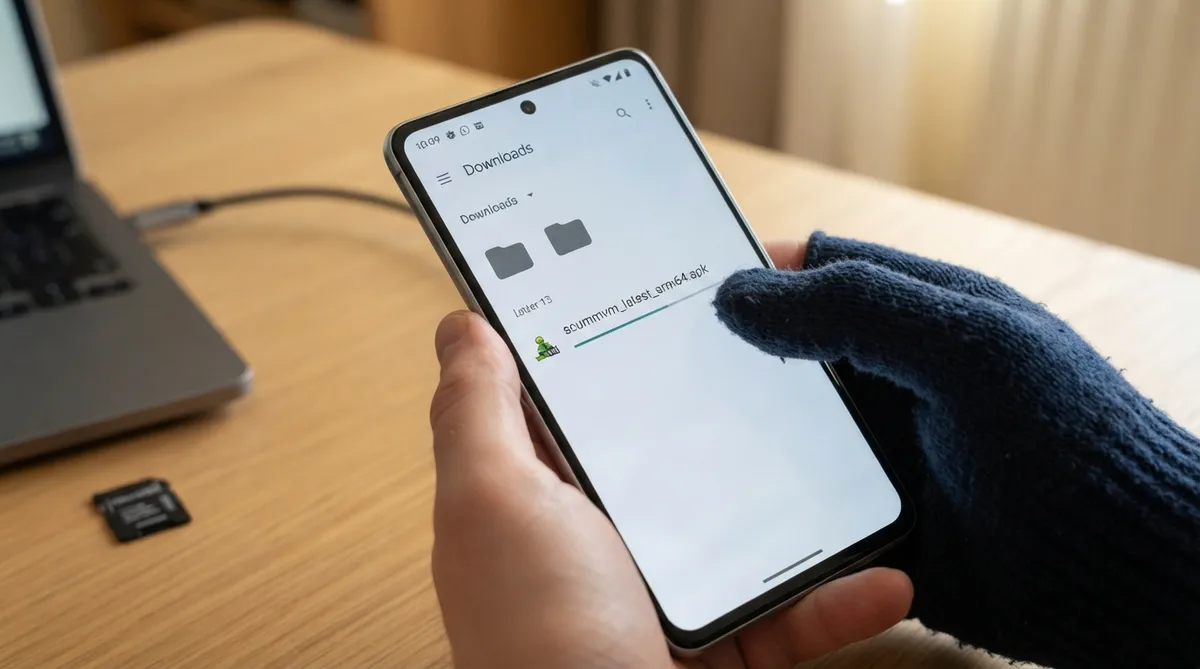
This guide summarizes the official ScummVM documentation for running the application on an Android device. It covers the documented minimum Android version, the two installation routes, transferring game files, configuring touch controls, and a documented recovery step for a rare permission issue.
What you need
- An Android device running Android 4.1 (Jelly Bean) or newer.
- The official documentation notes ScummVM has been tested to work up to Android 16.
Installing ScummVM
The official documentation describes two ways to install ScummVM on an Android device: from the Google Play Store, or by manually downloading and installing the APK package.
The latest supported version is available on the Google Play Store. Search for ScummVM on the Play Store and select Install.
For a manual install, open a web browser on the device and go to the ScummVM downloads page at https://www.scummvm.org/downloads. The recommended download section on that page suggests the correct .apk package; if it does not, scroll down to select the correct package.
To install a manually downloaded APK, the documentation says you must allow installation from unknown sources. On Android 7 or lower, go to Settings > Security > Device Administration and enable Unknown Sources. On Android 8 or higher, go to Settings > Apps and Notification and select Install Unknown Apps.
Getting game files onto the device
- Copy the files directly onto the microSD card, if the device has one.
- Use USB transfer from a computer: when connected, tap the Charging this device via USB notification, select Use USB for, then File Transfer; an Android File Transfer window opens.
- Download games, such as freeware games or those from digital distributors, directly to the device.
Starting with ScummVM for Android version 2.7.0, significant changes were made to the file access system to support modern Android versions. If you use the Storage Access Framework to point ScummVM at folders, the following permission notes apply.
To remove any folder permissions granted to ScummVM, go to Global Options > Backend.
Configuring touch controls
The touch control scheme is configured in the global settings. From the Launcher, go to Options > Backend > Choose the preferred touch mode. A touch mode can be set separately for three situations: ScummVM menus, 2D games, and 3D games.
- Direct mouse
- Touchpad emulation
- Gamepad emulation
By default, the touch screen is controlled with gestures: a one-finger tap acts as a left mouse button click, a one-finger tap plus movement as mouse movement, a tap-and-hold for more than 0.5 seconds as a right mouse button click, and a tap-and-hold for more than 1 second as a middle mouse button click. A double tap plus movement holds and drags the left mouse button, a two-finger tap acts as a right mouse button click, and a two-finger tap plus movement of the second finger holds and drags the right mouse button.
Fullscreen behavior
ScummVM for Android uses Immersive Sticky fullscreen mode, so the Android system bar is hidden until you swipe from an edge that has a system bar. The bars remain semi-transparent and disappear after a few seconds unless interacted with. The documentation notes that the swipe also registers in the game, so gameplay is not interrupted.
Reference table · Scroll horizontally to see all columns.
| Gesture | Action |
|---|---|
| One-finger tap | Left mouse button click |
| One-finger tap + movement | Mouse movement |
| Tap and hold >0.5s | Right mouse button click |
| Tap and hold >1s | Middle mouse button click |
| Double tap + movement | Left mouse button hold and drag |
| Two-finger tap | Right mouse button click |
| Two-finger tap + second-finger movement | Right mouse button hold and drag |
Reference table · Scroll horizontally to see all columns.
| Situation | Configurable touch mode |
|---|---|
| ScummVM menus | Direct mouse, touchpad emulation, or gamepad emulation |
| 2D games | Direct mouse, touchpad emulation, or gamepad emulation |
| 3D games | Direct mouse, touchpad emulation, or gamepad emulation |
Sources & references
Content responsibility: FrameTinker editorial desk. Source authors and software maintainers are credited separately below; this is not a claim of hands-on testing.
Published .
ScummVM: android — official gaming software documentation https://raw.githubusercontent.com/scummvm/scummvm/master/doc/docportal/other_platforms/android.rstRetrieved Oct 27, 2026Something doesn’t match your setup?
Suggest a correction