

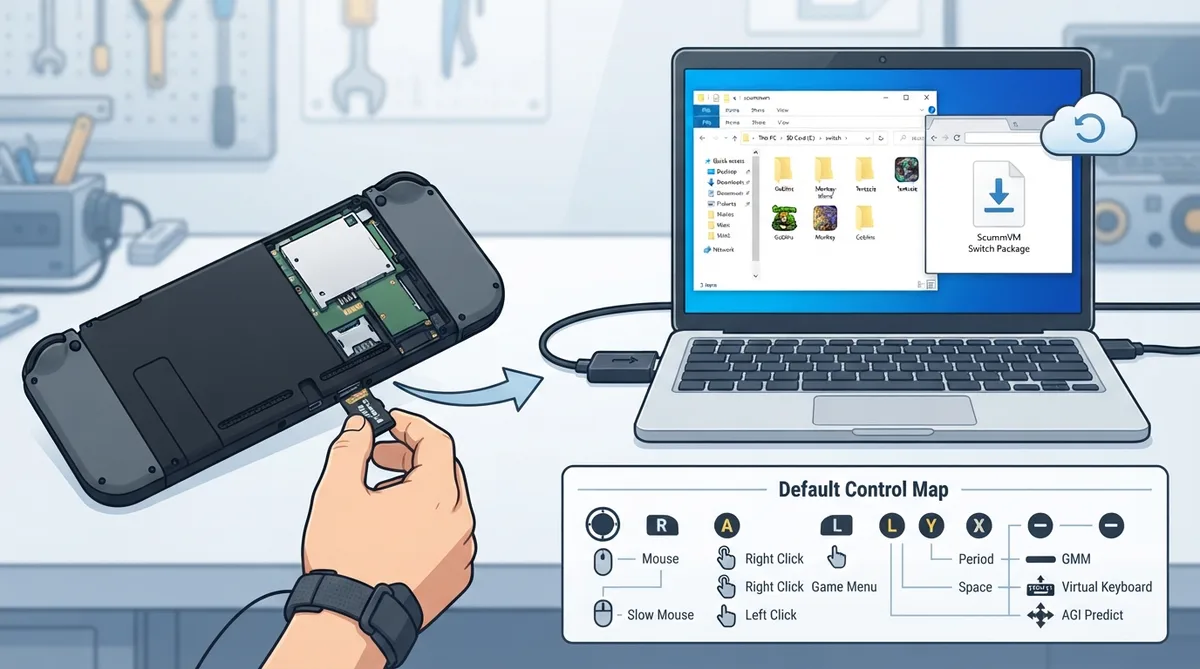
This guide summarizes the official ScummVM documentation for running ScummVM on a Nintendo Switch. You will need a homebrew-enabled Switch; enabling homebrew is outside the scope of the official documentation. The steps below cover downloading and extracting the package, copying files to the microSD card, placing game folders, and reviewing the documented controls, input options, save locations, and cloud functionality.
What you need
- - A homebrew-enabled Nintendo Switch console. The documentation does not explain how to enable homebrew.
- - The ScummVM Nintendo Switch package from the official ScummVM Downloads page.
- - A computer to download and extract the package.
- - The Switch's microSD card, accessible from your computer.
Installing ScummVM
- 1. Download the Nintendo Switch zip file from the ScummVM Downloads page.
- 2. On a computer, extract the files from the zip archive.
- 3. Copy the extracted `scummvm` folder to the Nintendo Switch microSD card, into the `/switch/` folder.
- 4. Copy the folders containing your game files into the `/switch/scummvm/` folder on the microSD card.
Default button controls
The default control map maps the left stick to the mouse pointer. Holding the R button while moving the left stick produces slow mouse movement. The B button is the left mouse button and the A button is the right mouse button.
- - Directional buttons: keypad cursor keys
- - Directional buttons + R button: diagonal keypad cursor keys
- - L button: game menu (F5)
- - R button: Shift
- - Y button: period
- - Y button + R button: space
- - X button: Escape
- - X button + R button: Return
- - Plus button: global main menu (GMM)
- - Minus button: toggle virtual keyboard
- - Minus button + R button: AGI predictive input dialog
Touch controls with Touchpad Mouse Mode off (default)
- - Short single-finger tap: move pointer to the finger position and perform a left mouse button click.
- - Short second-finger tap while holding one finger: move pointer to the first finger's position and perform a right mouse button click.
- - Single-finger drag: move the pointer directly with your finger.
- - Two-finger drag: move the pointer while the left mouse button is held down (drag and drop). The pointer directly follows the first finger, and the drag ends when the last finger is removed.
- - Three-finger drag: move the pointer while the right mouse button is held down (drag and drop). The pointer directly follows the first finger, and the drag ends when the last finger is removed.
Touch controls with Touchpad Mouse Mode on
- - Short single-finger tap: left mouse button click.
- - Short second-finger tap while holding one finger: right mouse button click.
- - Single-finger drag: move the pointer indirectly with your finger; pointer speed can be adjusted in the control settings.
- - Two-finger drag: move the pointer while the left mouse button is held down (drag and drop). Pointer motion is affected by the first finger, and the drag ends when the last finger is removed.
- - Three-finger drag: move the pointer while the right mouse button is held down (drag and drop). Pointer motion is affected by the first finger, and the drag ends when the last finger is removed.
USB keyboards and mice
Physical USB mice and keyboards work on the Switch and are supported by ScummVM. All keyboards are reported to work, but not all mice do. The documentation links to a mouse compatibility list hosted on a Google Sheet.
Save files and configuration
- - Saved games are stored at `/switch/scummvm/saves`.
- - The configuration file is located at `/switch/scummvm/scummvm.ini`.
Cloud functionality
ScummVM on the Nintendo Switch supports cloud functionality, as described in the documentation's Connect Cloud page.
Reference table · Scroll horizontally to see all columns.
| Button / touch | Action (Touchpad Mouse Mode off) | Action (Touchpad Mouse Mode on) |
|---|---|---|
| Left stick | Mouse | Mouse |
| Left stick + R button | Slow Mouse | Slow Mouse |
| B button | Left mouse button | Left mouse button |
| A button | Right mouse button | Right mouse button |
| Directional buttons | Keypad 'Cursor' keys | Keypad 'Cursor' keys |
| Directional buttons + R button | Diagonal keypad 'Cursor' keys | Diagonal keypad 'Cursor' keys |
| L button | Game menu (F5) | Game menu (F5) |
| R button | Shift | Shift |
| Y button | Period | Period |
| Y button + R button | Space | Space |
| X button | Escape | Escape |
| X button + R button | Return | Return |
| Plus button | Global main menu (GMM) | Global main menu (GMM) |
| Minus button | Toggle virtual keyboard | Toggle virtual keyboard |
| Minus button + R button | AGI predictive input dialog | AGI predictive input dialog |
| Short single-finger tap | Move pointer and left click | Left click |
| Short second-finger tap while holding one finger | Move pointer and right click | Right click |
| Single-finger drag | Move pointer directly | Move pointer indirectly; speed adjustable in control settings |
| Two-finger drag | Left-button drag; pointer follows first finger | Left-button drag; pointer motion affected by first finger |
| Three-finger drag | Right-button drag; pointer follows first finger | Right-button drag; pointer motion affected by first finger |
Reference table · Scroll horizontally to see all columns.
| Item | Path on microSD |
|---|---|
| ScummVM program folder | /switch/scummvm |
| Game folders | /switch/scummvm/ |
| Saved games | /switch/scummvm/saves |
| Configuration file | /switch/scummvm/scummvm.ini |
Sources & references
Content responsibility: FrameTinker editorial desk. Source authors and software maintainers are credited separately below; this is not a claim of hands-on testing.
Published .
ScummVM: nintendo switch — official gaming software documentation https://raw.githubusercontent.com/scummvm/scummvm/master/doc/docportal/other_platforms/nintendo_switch.rstRetrieved Oct 27, 2026Something doesn’t match your setup?
Suggest a correction