

ScummVM is a program that allows you to play classic graphic point-and-click adventure games, text adventure games, and RPGs, as long as you already have the game data files. It replaces the executable files that shipped with those games.
Prerequisites
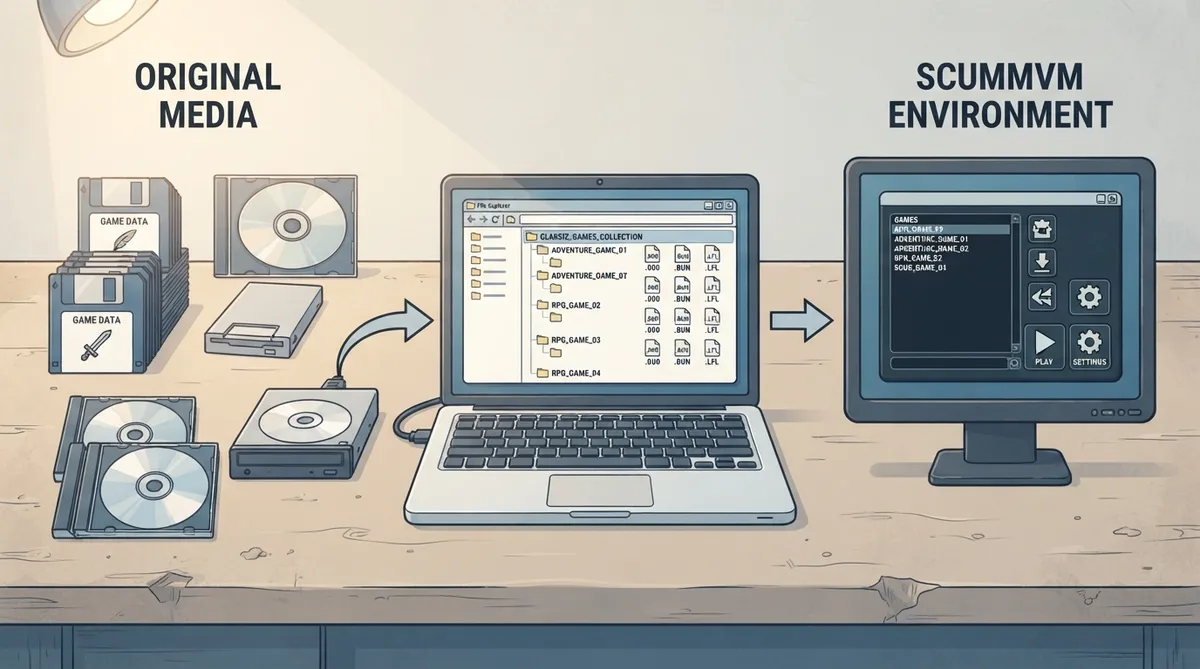
- Game data files: ScummVM requires the game data files, which are not included and must be supplied by the user from the original media.
- ScummVM itself: Download and install ScummVM from the official website before starting.
Setup steps
- 1. Download ScummVM from the official downloads page and install it.
- 2. Create a directory on your hard drive and copy the game data files from the original media into it. Repeat this for every game you want to play.
- 3. Start ScummVM, choose "Add game", select the directory that contains the game data files (do not select the data files themselves), and press Choose.
- 4. The Game Options dialog opens so you can configure various settings for the game. These can be reconfigured at any time; the default settings should be fine to start.
- 5. Select the game you want to play in the list and press Start. On later sessions, skip to this step unless you want to add more games.
If something goes wrong: reporting a bug
To report a bug, go to the ScummVM Issue Tracker and log in with your GitHub account. Before filing, make sure the bug is reproducible and still occurs in the latest daily build version. Also check the compatibility list for that game to confirm the issue is not already known. The project asks users not to report bugs for games that are not listed as completable on the Supported Games wiki page or on the compatibility list, because those games are already known to have bugs.
Official documentation
For everything you need to know about how to use ScummVM, see the official user documentation. The ScummVM wiki is the place to go for information about every game supported by ScummVM, and it also has a developer section.
Reference table · Scroll horizontally to see all columns.
| Step | Action | Notes |
|---|---|---|
| 1 | Download and install ScummVM | Use the official downloads page |
| 2 | Create a directory and copy game data files from the original media | Repeat for every game you want to play |
| 3 | Choose "Add game" and select the directory containing the data files | Select the directory, not the data files themselves |
| 4 | Configure in the Game Options dialog | Defaults should be fine; settings can be changed later |
| 5 | Select the game and press Start | On later sessions, skip to this step unless adding more games |
 View full image
 Sources & references
Published .
ScummVM — official gaming software documentation https://raw.githubusercontent.com/scummvm/scummvm/master/README.mdRetrieved Oct 8, 2026Something doesn’t match your setup?
Suggest a correction