

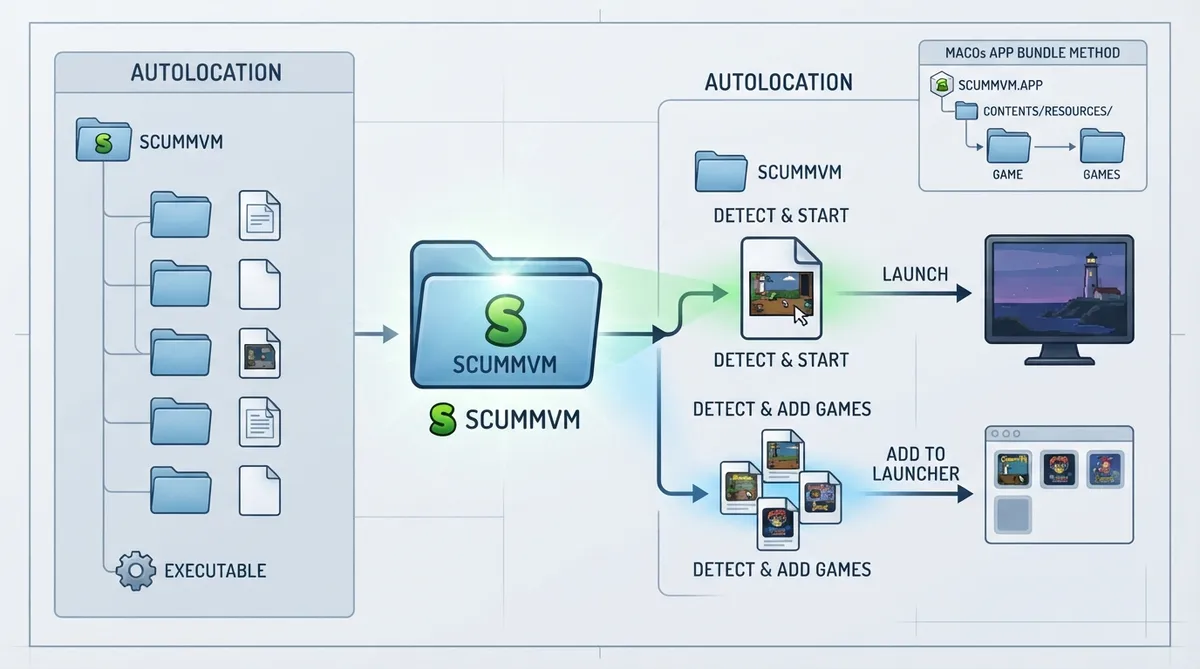
ScummVM's autostart feature lets the application automatically start or add games. According to the official documentation, the available features and how they behave depend on the system ScummVM is running on. This guide summarizes the documented methods and paths; the steps have not been hands-on tested.
General autostart on desktop systems
On most systems, such as Windows and Linux, ScummVM can detect and start a game located in the same folder as the ScummVM executable, provided the game is supported by ScummVM. This is described as the equivalent of using the --path and --auto-detect command-line options. The documentation notes that this also works on macOS when ScummVM is built as a command-line application rather than as a .app bundle.
Documented ways to trigger autostart
- - Rename the executable file to scummvm-auto.xxx, where .xxx is the file type extension, if applicable.
- - Create an empty file named scummvm-autorun in the same folder as both the executable and the chosen game. The file can be left empty or used to specify further command-line options, one option per line.
macOS app bundle
ScummVM can automatically detect and run a supported game included in the ScummVM.app bundle. The game files need to be in the ScummVM.app/Contents/Resources/game/ folder.
ScummVM can also automatically detect supported games in the bundle and add them to the launcher. Those games need to be in the ScummVM.app/Contents/Resources/games/ folder or in subfolders of that folder; for example, you can use one subfolder per game.
A scummvm-autorun file can specify command-line options, with one option per line. In this configuration the file should be in the ScummVM.app/Contents/Resources/ folder.
If a scummvm.ini file is present in the ScummVM.app/Contents/Resources/ folder, it is used as the initial config file when no ScummVM Preferences file exists yet. The documentation describes this as the equivalent of the --initial-cfg command-line option.
The bundle name specified in ScummVM.app/Contents/Info.plist is used for the default config file name. For example, with the default bundle name ScummVM, settings are saved to ~/Library/Preferences/ScummVM Preferences; changing the bundle name to MyGame makes the default config file ~/Library/Preferences/MyGame Preferences.
iOS app bundle
ScummVM can automatically detect and run a supported game included in the ScummVM.app bundle. The game files need to be in the ScummVM.app/game/ folder.
Supported games in the bundle can also be detected and added to the launcher. They need to be in the ScummVM.app/games/ folder or in subfolders of that folder, for example one subfolder per game.
A scummvm-autorun file can specify command-line options, one per line, and should be in the ScummVM.app/ folder.
If a scummvm.ini file is present in the ScummVM.app/ folder, it is used as the initial config file when no config file exists yet. The documentation describes this as the equivalent of the --initial-cfg command-line option.
Reference table · Scroll horizontally to see all columns.
| Platform / build | Game folder for direct start | Folder for adding games to launcher | Autorun file location | Initial config file location |
|---|---|---|---|---|
| Windows, Linux, macOS command-line build | Same folder as the ScummVM executable | Not specified in source | Same folder as executable and game | Not specified in source |
| macOS .app bundle | ScummVM.app/Contents/Resources/game/ | ScummVM.app/Contents/Resources/games/ (including subfolders) | ScummVM.app/Contents/Resources/ | ScummVM.app/Contents/Resources/ (scummvm.ini) |
| iOS .app bundle | ScummVM.app/game/ | ScummVM.app/games/ (including subfolders) | ScummVM.app/ | ScummVM.app/ (scummvm.ini) |
Sources & references
Content responsibility: FrameTinker editorial desk. Source authors and software maintainers are credited separately below; this is not a claim of hands-on testing.
Published .
ScummVM: autostart — official gaming software documentation https://raw.githubusercontent.com/scummvm/scummvm/master/doc/docportal/advanced_topics/autostart.rstRetrieved Oct 19, 2026Something doesn’t match your setup?
Suggest a correction