

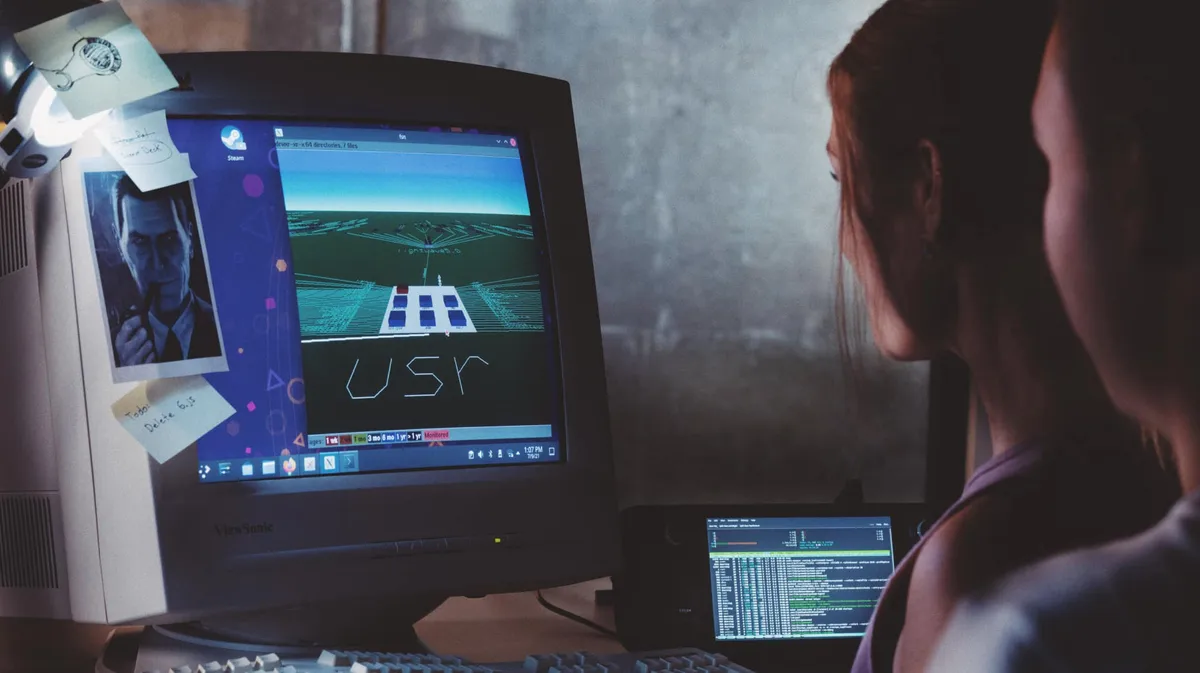
Steam Deck and Steam Machine provide a desktop environment alongside their default gaming interface. This guide covers switching between those interfaces, installing desktop apps, and making installed apps accessible from the Steam library.
Open desktop mode
- 1. Open the STEAM menu in the default gaming interface.
- 2. Choose Power.
- 3. Select Switch to Desktop to enter the desktop environment.
Desktop controls and input
- - For trackpad mouse input, pressing the right trackpad performs a primary click; pressing the left performs a secondary click.
- - With Steam running, press STEAM + X to open the on-screen keyboard.
- - On Steam Deck, desktop apps and games can access the device's inputs while Steam is running.
Install desktop apps
In desktop mode, open Discover Software Center from the taskbar and use it to install an available app. Discover installs apps as Flatpaks on the writable portion of the drive. Valve also documents direct Flatpak commands as an option for users familiar with the Linux command line.
Add an installed app to the gaming interface
- 1. While on the desktop, open the Steam client.
- 2. Select Add a Game in the lower-left corner.
- 3. Choose Add a Non-Steam Game and find the installed app in the list.
- 4. After adding it, look for the app under the Non-Steam tab in the Steam Deck or Steam Machine library.
Return to Gaming Mode
Select the Return to Gaming Mode link on the desktop to return to the standard Steam interface. Valve also lists logging off through the desktop's system menus as an alternative way back.
Sources & references
Content responsibility: FrameTinker editorial desk. Source authors and software maintainers are credited separately below; this is not a claim of hands-on testing.
Published .
Steam Deck and Steam Machine Desktop: FAQ — official gaming software documentation https://help.steampowered.com/en/faqs/view/671A-4453-E8D2-323CRetrieved Nov 13, 2026Something doesn’t match your setup?
Suggest a correction