

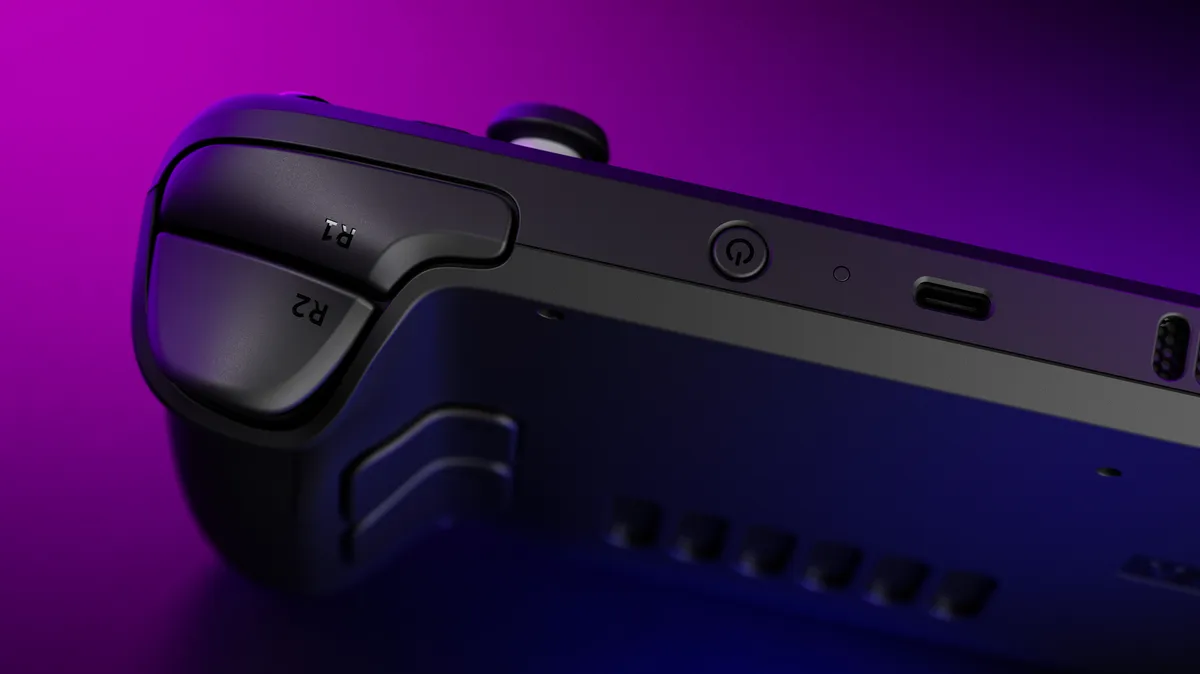
Valve’s Steam Deck Basic Use & Troubleshooting Guide covers both LCD and OLED models unless a procedure says otherwise. Start with updates and a normal restart before moving to the symptom-specific checks below.
Start with updates and a normal restart
- 1. Open Steam > Settings > System > Software Updates and install any available system updates.
- 2. Restart from the Software Updates section, or choose Steam > Power > Restart.
If the Deck is powered on but unresponsive
- 1. For Steam Deck LCD, hold the power button for 4 seconds. For Steam Deck OLED, hold it for 7 seconds. This is Valve’s force-restart procedure.
- 2. If it remains unresponsive, try a full 10-second hold on LCD or a full 16-second hold on OLED. Valve notes that continued unresponsiveness may indicate an OS-level issue.
If the LED flashes when you press power
Valve identifies this flashing LED as a depleted-battery indication. Connect the supplied power adapter directly to the Steam Deck, check that the LED is on, and let it charge for at least 15 minutes before trying to power it on.
Check controller inputs
For input problems, open Steam > Settings > Controller > Test Controller Inputs. Run through the tests to help identify input issues, then hold the B button to exit. This is a diagnostic check, not a documented guarantee of repair.
Sources & references
Content responsibility: FrameTinker editorial desk. Source authors and software maintainers are credited separately below; this is not a claim of hands-on testing.
Published .
Steam Deck - Basic Use & Troubleshooting Guide — official gaming software documentation https://help.steampowered.com/en/faqs/view/69E3-14AF-9764-4C28Retrieved Nov 12, 2026Something doesn’t match your setup?
Suggest a correction