

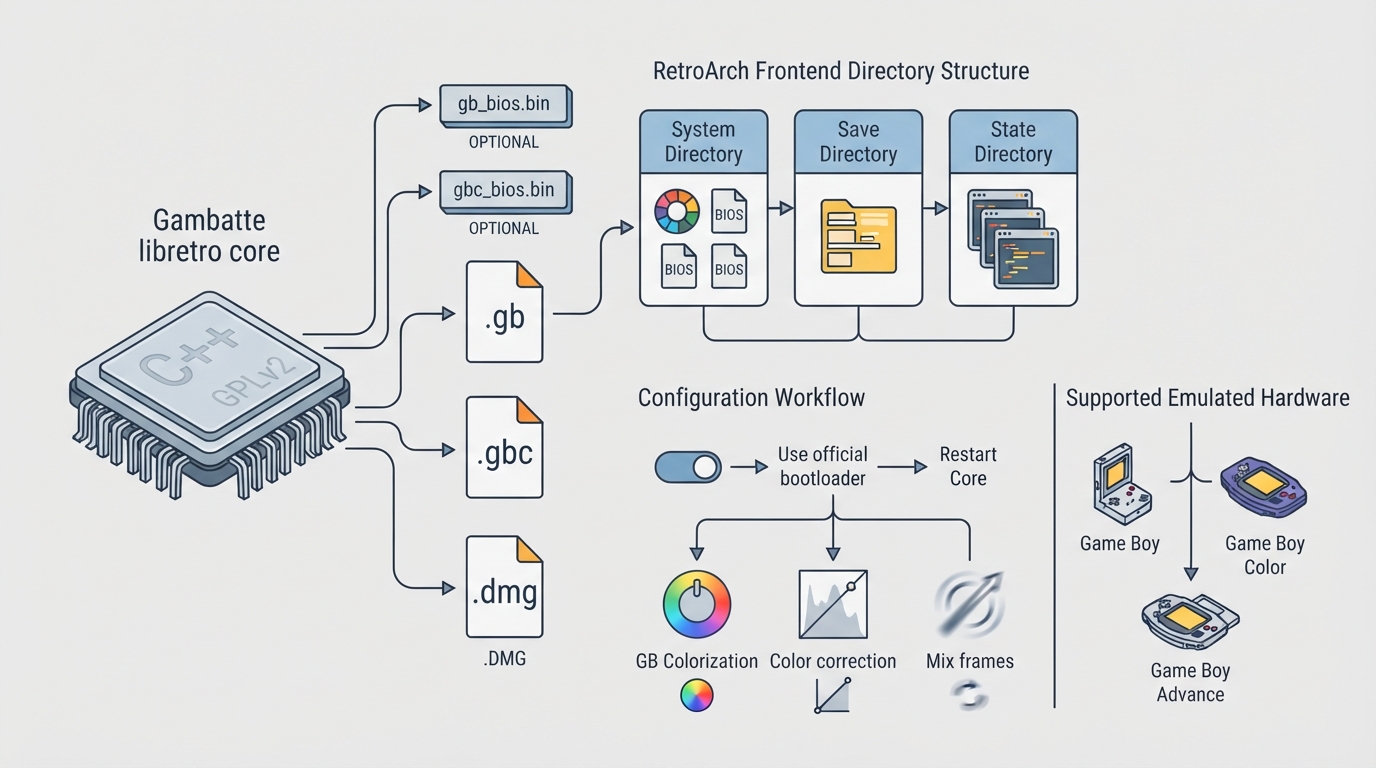
Gambatte is an accuracy-focused, open-source, cross-platform Game Boy Color emulator written in C++. It is based on hundreds of corner case hardware tests, as well as previous documentation and reverse engineering efforts. The libretro core was authored by Sinamas and is licensed under GPLv2. This guide summarizes the official core documentation so you can get the core running with your own lawfully obtained content in RetroArch.
What the Core Supports
Gambatte loads Game Boy, Game Boy Color and .dmg content. Frontend-level features such as Restart, Saves, States, Rewind, Core Options, Controls, Remapping and Rumble are marked as supported in the documentation. The documented unsupported frontend features include Netplay, Native Cheats, Multi-Mouse, Sensors, Camera, Location, Subsystem, Disk Control, Username, Language, Crop Overscan and LEDs.
Step 1: Know Which Files the Core Loads
Content that can be loaded by the Gambatte core uses the following file extensions: .gb, .gbc and .dmg. Use your own legally obtained files; this guide does not cover obtaining games.
Step 2: Optional BIOS Files
Two firmware files are documented: gb_bios.bin (Game Boy BIOS, optional) and gbc_bios.bin (Game Boy Color BIOS, optional). Both are described as optional, so the core can run without them. They belong in the frontend's system directory.
For these BIOS files to be used, the core option Use official bootloader must be enabled. This is a restart option, so the core has to be closed for a new setting to take effect on the next launch.
Step 3: Directory Paths for Saves, States and Palettes
The frontend's save directory holds cartridge battery saves with the .srm extension. The frontend's state directory holds savestates named *.state#. The frontend's system directory holds palettes/default.pal for a global custom palette and palettes/'content-name'.pal for a per-game custom palette.
Step 4: Choose the GB Colorization Setting
The GB Colorization core option enables colorization of Game Boy games using pre-defined or user-selected color palettes. Its documented values are disabled, auto, GBC, SGB, internal and custom, with disabled as the default. The auto mode picks a palette in this preference order: a game-specific Super Game Boy palette if defined and more colorful than the game-specific Game Boy Color palette; then a game-specific Game Boy Color palette if defined; then a game-specific Super Game Boy palette if defined; then the palette named by the Internal Palette option.
The internal setting uses the palette chosen in Internal Palette. The custom setting loads user-created palettes from the frontend's system directory, described in the next step. The default value of the Internal Palette option is GB - DMG.
Step 5: Install Custom Palettes
- Create a folder named palettes inside the frontend's system directory.|Place custom .pal palette files inside that palettes folder.|For a palette used by all Game Boy games, name the file default.pal.|For a game-specific palette, name the file after the ROM, in the documented pattern INTERNALROMNAME.pal, also described as "rom-name.pal".|If no specific palette is found for a ROM, the default palette is used.
To use custom palettes, the GB Colorization core option must be set to custom. During gameplay, the previous and next color palettes can be cycled with the L1 and R1 (shoulder) buttons respectively.
Step 6: Color Correction and LCD Appearance Options
The Color correction option adjusts output colors to match the LCD panel used in original Game Boy Color hardware. Its documented values are GBC only, always and disabled, with GBC only as the default. According to the documentation, setting it to always produces unexpected or suboptimal output when using GB or SGB internal palettes, because those are intended for display on a normal TV or monitor rather than a Game Boy Color LCD panel.
The Mix frames option simulates LCD ghosting by blending the current and previous frames. Its documented values are disabled, accurate and fast, with disabled as the default. The documentation notes that some games render transparency effects on alternate frames and rely on this blending to look correct, and that disabling it can produce rapid flickering with a risk of screen burn-in on certain panels.
Step 7: Emulated Hardware and Input
The Emulated hardware option selects between Game Boy, Game Boy Color and Game Boy Advance emulation, with Auto as the documented default. This is a restart option. The Allow Opposing Directions option, disabled by default, lets you press or hold opposing directions at the same time, which the documentation says may cause movement-based glitches in certain games.
Documented Compatibility Limits
The documentation lists a small set of titles that are documented to fail, each crashing on start due to an unemulated mapper. These cover mappers used by specific and less common cartridges, not the general Game Boy and Game Boy Color library. Treat this list as the documented limit rather than a general compatibility statement.
Checking Your Setup
- Confirm your content uses a .gb, .gbc or .dmg extension.|Confirm savestates and battery saves are landing in the directories you expect, so state and save files are not lost during upgrades.|Confirm custom .pal files sit inside a palettes folder in the system directory and match the documented naming pattern.|If you changed a restart option such as Emulated hardware or Use official bootloader, close and relaunch the core before judging the result.|If a game still does not start, check the documented compatibility list before assuming a configuration problem.
Reference table · Scroll horizontally to see all columns.
| File or item | Where it goes | Notes |
|---|---|---|
| .gb, .gbc, .dmg | Content location | Documented loadable content extensions. |
| gb_bios.bin | Frontend's system directory | Game Boy BIOS, listed as optional. |
| gbc_bios.bin | Frontend's system directory | Game Boy Color BIOS, listed as optional. |
| *.srm | Frontend's save directory | Cartridge battery save. |
| *.state# | Frontend's state directory | Savestate. |
| palettes/default.pal | Frontend's system directory | Global custom palette. |
| palettes/'content-name'.pal | Frontend's system directory | Per-game custom palette. |
Reference table · Scroll horizontally to see all columns.
| Game | Documented issue |
|---|---|
| Command Master | Crashes on start. Unemulated MBC7 mapper. |
| Game Boy Camera | Crashes on start. Unemulated Pocket Camera mapper. |
| Game de Hakken!! Tamagotchi - Osutchi to Mesutchi | Crashes on start. Unemulated TAMA5 mapper. |
| Kirby Tilt 'n' Tumble | Crashes on start. Unemulated MBC7 mapper. |
| Net de Get: Mini-Game @ 100 | Crashes on start. Unemulated MBC6 mapper. |
Sources & references
Content responsibility: FrameTinker editorial desk. Source authors and software maintainers are credited separately below; this is not a claim of hands-on testing.
Published .
RetroArch: gambatte — official gaming software documentation https://raw.githubusercontent.com/libretro/docs/master/docs/library/gambatte.mdRetrieved Oct 13, 2026Something doesn’t match your setup?
Suggest a correction