

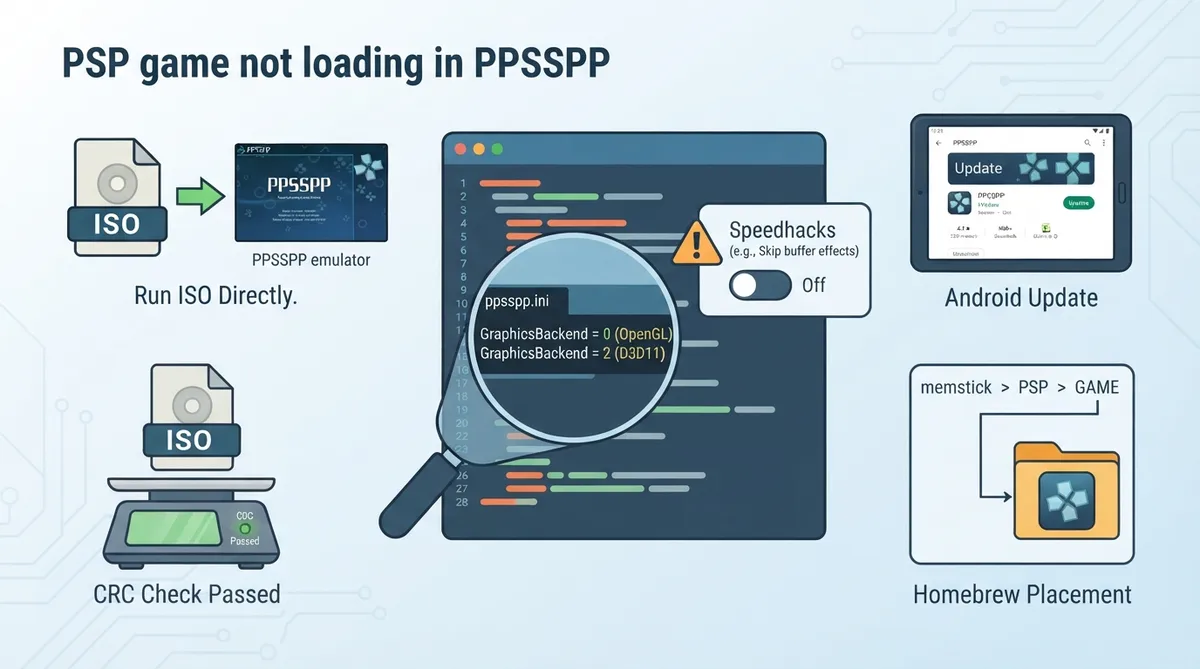
When a PSP game fails to load or displays only a black screen in PPSSPP, the official troubleshooting documentation recommends a short list of basic checks before anything more involved. This guide summarizes those documented steps and the platform-specific recovery options in the same order the source presents them.
Run the ISO directly instead of extracting it
The documentation's first recommendation is not to extract the ISO. Load the ISO file itself in PPSSPP rather than unpacking it into a folder of files. The source notes that some games can work when played from an extracted folder — which can be useful when working with game modifications — but many require a specific disc layout and will not work that way.
Verify the disc image with the CRC check
PPSSPP can calculate a CRC for a game to help you confirm that the ISO file is valid. In the emulator, right-click (or long-press) the game icon, then press "Calculate CRC" on the screen that appears. From PPSSPP 1.16 onward, the result includes a small green notice when your ISO file is known to be valid.
Turn off speedhacks that break graphics
Certain speedhacks can break rendering entirely in some games. The documentation specifically warns against using settings such as "Skip buffer effects," which can completely break graphics in some titles.
When PPSSPP itself won't start on Windows
- The documentation lists these recovery steps for PPSSPP failing to start:
- 1. Update your graphics drivers, if possible.
- 1. Install a new version of PPSSPP on top of the existing installation.
- 1. Open memstick/PSP/SYSTEM/ppsspp.ini and edit the GraphicsBackend setting to 0 or 2 — 0 for OpenGL, 2 for D3D11.
On Android, check for the latest version
For the Android situation the documentation covers, the stated advice is limited: make sure you are running the latest version by using Google Play's update functionality.
Homebrew must sit in the PSP/GAME directory
Homebrew has an additional placement requirement. Put it in the PSP/GAME directory inside your memstick folder rather than running it from somewhere else, because it may not find its data files otherwise.
Checklist at a glance
- - Load the ISO file directly; don't extract it.
- - Right-click or long-press the game icon and use "Calculate CRC" to check the image; PPSSPP 1.16 and later shows a green notice for a known-valid ISO.
- - Disable speedhacks such as "Skip buffer effects."
- - If PPSSPP won't start: update graphics drivers, install a new version over the old one, then set GraphicsBackend to 0 (OpenGL) or 2 (D3D11) in ppsspp.ini.
- - On Android, update to the latest version through Google Play.
- - Place homebrew in the PSP/GAME directory in your memstick folder.
Reference table · Scroll horizontally to see all columns.
| GraphicsBackend value | API |
|---|---|
| 0 | OpenGL |
| 2 | D3D11 |
Sources & references
Content responsibility: FrameTinker editorial desk. Source authors and software maintainers are credited separately below; this is not a claim of hands-on testing.
Published .
PPSSPP: game wont load — official gaming software documentation https://raw.githubusercontent.com/hrydgard/ppsspp-site/main/docs/troubleshooting/game-wont-load.mdRetrieved Oct 19, 2026Something doesn’t match your setup?
Suggest a correction