

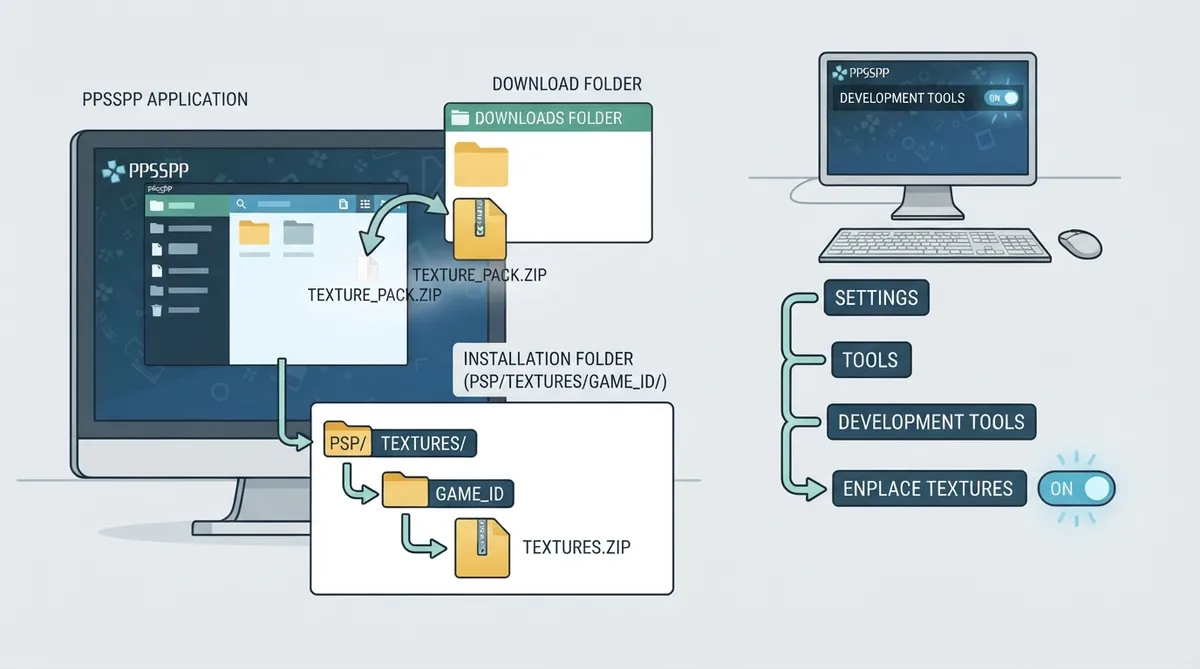
PPSSPP supports texture replacement packs, which are installed separately from the game itself and only take effect once the relevant developer option is enabled. The steps below follow the project's official documentation for using texture replacement packs.
Finding a pack for your game
According to the documentation, the best place to find packs is currently the Texture Replacement Packs forum on the PPSSPP forums. The same page also points readers who want to create their own packs to a separate texture replacement reference document.
Installing by opening the zip in PPSSPP
The documented installation method is to open the texture pack zip file directly in PPSSPP, the same way you would open a game. This is done from the games tab or with the Load... button.
PPSSPP then installs the pack in the correct location and unpacks it if necessary. The documentation notes that PPSSPP now supports reading directly from zip files when textures.ini is in the root directory of the zip.
Installing a zipped pack manually
Texture packs belong in PSP/TEXTURES, in subdirectories named after the game ID without hyphens. For a zipped pack, such as NPJH50505), rename the zip to textures.zip and place it in that folder.
- Manual install steps for a zipped pack:
- 1. Locate the PSP/TEXTURES directory.
- 2. Create a folder named with the game ID, without hyphens.
- 3. Rename the pack zip to textures.zip.
- 4. Place textures.zip inside that game ID folder.
Enabling texture replacement
Packs do not apply on their own: the documentation says to make sure the Replace textures setting is enabled, found under Settings > Tools > Development Tools > Replace textures.
The documentation covers finding, installing and enabling texture replacement packs. It does not describe expected visual results per game, performance effects, or troubleshooting steps for packs that fail to load.
Reference table · Scroll horizontally to see all columns.
| Method | What to do | Where the pack ends up |
|---|---|---|
| Automatic | Open the pack zip in PPSSPP from the games tab or Load... button | PPSSPP installs it in the correct location and unpacks if needed |
| Manual | Rename the zip to textures.zip and place it in a folder named after the game ID (no hyphens) inside PSP/TEXTURES | PSP/TEXTURES/<game ID>/textures.zip |
Sources & references
Content responsibility: FrameTinker editorial desk. Source authors and software maintainers are credited separately below; this is not a claim of hands-on testing.
Published .
PPSSPP: use texture replacement — official gaming software documentation https://raw.githubusercontent.com/hrydgard/ppsspp-site/main/docs/reference/use-texture-replacement.mdRetrieved Oct 19, 2026Something doesn’t match your setup?
Suggest a correction