

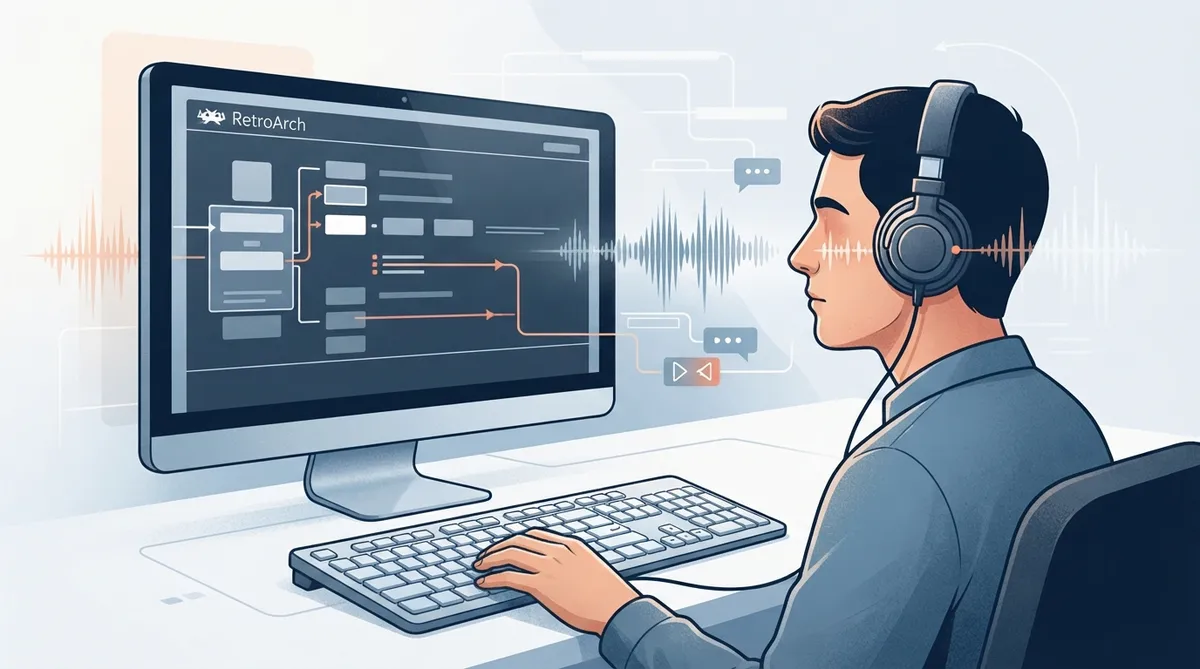
RetroArch's accessibility feature allows blind users to move through the RetroArch menus using the operating system narrator, which reads menu text aloud. Combined with the AI Service's Speech and Narrator modes, it can open up many games to blind players that previously could not play them. The supported platforms are Windows, macOS, and Linux.
Prerequisites
- A RetroArch installation on Windows, macOS, or Linux.
- A working operating system narrator for your platform: Microsoft Narrator on Windows, the "say" command on macOS, or the "espeak" command on Linux.
Enabling accessibility in RetroArch
Accessibility has been available in RetroArch since v1.8.2, but it is turned off by default. It can be enabled from inside the RetroArch menu, and the exact button sequence depends on whether you are using the XMB theme (the default before v1.8.5) or the Ozone theme (the default from v1.8.5 onward).
XMB theme (default before v1.8.5)
- Press right.
- Press up seven times.
- Press enter (or x on Linux).
- Press right.
Ozone theme (default from v1.8.5 onward)
- Press left.
- Press down.
- Press right.
- Press up seven times.
- Press enter (x on Linux).
- Press right.
Enabling accessibility with a launch flag
An alternative is to run the RetroArch executable with the --accessibility flag. This overrides the configuration setting and turns accessibility on. For blind users, the documented command is "retroarch, space, two dashes, accessibility", which in command form is:
retroarch --accessibilityNarrator support by platform
RetroArch uses the operating system narrator to speak text. On Windows this is Microsoft Narrator, on macOS it is the "say" command, and on Linux it is the "espeak" command. If the narrator is not speaking any text, you can try installing the additional voice packs for your system language.
Installing espeak on Ubuntu Linux
On Ubuntu Linux, espeak can be installed by running the following in a terminal window. Additional language voice packs are installed with the espeak-data package.
sudo apt-get install espeak
sudo apt-get install espeak-data
Using the AI Service with the narrator
The accessibility narrator can be combined with the AI Service's Speech and Narrator modes. For details on that integration, refer to the AI Service documentation page.
Reference table · Scroll horizontally to see all columns.
| Theme | Default version range | Menu button sequence | Confirm button on Linux |
|---|---|---|---|
| XMB | Before v1.8.5 | Right, up seven times, enter, right | x |
| Ozone | v1.8.5 and later | Left, down, right, up seven times, enter, right | x |
Reference table · Scroll horizontally to see all columns.
| Platform | Narrator used by RetroArch |
|---|---|
| Windows | Microsoft Narrator |
| macOS | "say" command |
| Linux | "espeak" command |
 View full image
 Sources & references
Published .
RetroArch: accessibility — official gaming software documentation https://raw.githubusercontent.com/libretro/docs/master/docs/guides/accessibility.mdRetrieved Oct 8, 2026Something doesn’t match your setup?
Suggest a correction