

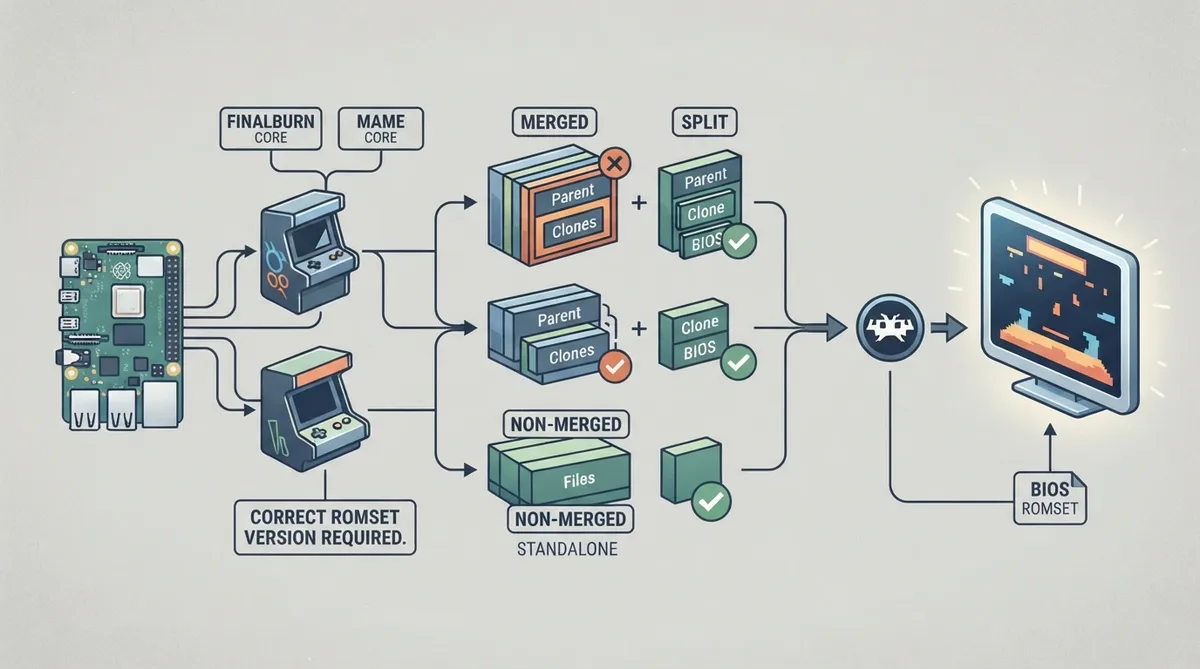
Arcade emulation needs a different planning approach than console emulation. Terminology can also differ from other kinds of emulation, so the official libretro documentation recommends working through three steps in order: understanding the terminology, choosing an arcade emulator that matches your system, then using the correct version romsets for that emulator.
The documentation warns against the common advice to keep changing cores until a game works. It gives several reasons: it is usually faster to acquire, verify, or rebuild romsets for a specific core than to test every romset against every core; an incomplete romset may not be playable in any core; your platform may be missing the only core where a given romset is playable; and some cores are not recommended in most cases. RetroArch playlists also do not let you assign a different core per item, so you may not want to split arcade games across several playlists.
Step 1: Understanding the terminology
Arcade machines had many manufacturers and generations since the first arcade machine in 1971, so what are called "arcade emulators" are actually multi-system emulators able to emulate thousands of different systems at various levels of faithfulness. They can also emulate consoles and computers.
Key terms
- Dump: the digital representation of one chip present on a game board or cartridge.
- Rom: one file containing a single dump, or several dumps concatenated together.
- Romset: literally a "rom set". An archive containing one or several individual roms. Arcade emulators expect this game format.
- Romset version: a specific romset can exist in different versions. When a chip was not fully dumped, emulator code sometimes included workarounds to keep a game playable; when a proper dump arrives later, ongoing emulators update their code to load the correct dump, which is why multiple romset versions exist.
- Samples: sometimes an emulator uses recorded sounds instead of emulating the sound from the actual board. This can happen because the chips were not dumped, the emulator does not emulate that sound board, or the emulator allows replacing the emulation with high-quality sound from another source.
- CHD: some arcade games need data from an internal hard drive, CD-ROM, laserdisk, or other media. Those media are packaged as CHD files. CHD files should be copied to subfolders named after the romset, inside the folder where the arcade romset has been installed.
Types of romsets
- Bios romset: contains bioses required to run an arcade system. For example, the neogeo romset contains the bioses required to run SNK's NeoGeo cartridge system.
- Parent romset: usually the romset dumped from the arcade cabinet revision believed to be the most recent, often a world or Europe version. Parent romsets might require a bios romset to work.
- Clone romset: either dumped from cabinet revisions believed to be older, or unofficial revisions such as bootlegs and hacks. Clone romsets might require a parent romset to work.
- Full non-merged romset: can be used standalone because the archive contains all files required to run that romset, including roms from its parent and bios romsets.
- Non-merged romset: can be used standalone because the archive contains all files required to run that game, including roms from its parent romset. A separate bios romset might still be needed.
- Split romset: a clone romset never contains roms present in its parent, and a parent romset never contains roms present in its bios romset.
- Merged romset: clones are merged into the parent romset zip, so more than one game is stored in the romset.
Step 2: Choose an arcade emulator to match your system
Two families of multi-system arcade emulators are available as libretro cores: FinalBurn and MAME. These emulators come in multiple versions so users can best match a core to their device. A few console emulators can alternatively emulate arcade hardware based on that console.
Criteria for choosing a core
- Integration within the libretro ecosystem: better integration enables more frontend features such as netplay, runahead, rewind, and retroachievements, and reduces the risk of bugs. It is tied to whether the core has a support team.
- Accuracy: more recent emulator versions should theoretically be more accurate, meaning graphics, sound, and gameplay are more likely to match the original cabinet. For vintaged MAME cores the situation is less predictable, since fixes are backported to some vintages and not others.
- Input lag: accuracy improvements can add or remove frames of input lag. FinalBurn Neo and MAME (current) are believed to have the lowest input lag on average, and FinalBurn Neo has virtually zero frames of input lag because it fully supports runahead and pre-emptive frames. MAME partially supports those features, with the runahead second instance recommended.
- Performance: more accurate emulation usually means more CPU load, so older versions often perform better at the cost of accuracy and are worth trying if you have performance issues with newer versions. The emulator framework also affects performance, notably on MAME.
- Supported games: arcade emulators keep adding support for new machines, so more recent versions support more games, though this can also affect performance of already emulated components.
- Emulator goal: MAME aims to emulate every existing machine, including non-gaming machines, as accurately as possible and to document them thoroughly. FinalBurn mainly aims to offer a comfortable end-user experience and can include optional features that did not exist on the original cabinet. MAME 2003-Plus has roughly the same goal as FinalBurn, and the two share a few contributors.
- Support team: most arcade cores have no real maintainer and exist as a frozen alternative. FinalBurn Neo and MAME 2003-Plus have a support team; MAME 2003-Plus is a hard fork not written by the MAME team. MAME (current) gets regular bumps and has a maintainer for its libretro integration.
Quick tour of the available cores
- FinalBurn Neo: tightest integration within the libretro ecosystem; mostly accurate and on a few games more accurate than MAME (current); uses the latest known good romsets; reasonably fast; has a support team; does not support 3D games and supports fewer 2D games than MAME.
- MAME 2003-Plus: originally forked from MAME 2003 but incorporates emulation fixes from recent MAME versions; quite fast, originally meant to run on a Pentium III at 733 MHz (Xbox OG); no fixed romsets and does not always use the latest known good romsets; has a support team; supports a few classics not yet supported in FinalBurn Neo.
- MAME (current): usually the slowest core and the highest memory consumer; has some dynamic recompilers for more demanding systems, which can dramatically increase performance on supported CPUs (x86_32, x86_64, and arm64 since 0.274); usually the most accurate; uses the latest known good romsets; widest range of emulated machines.
- FinalBurn Alpha 2012: has split cores for optimized memory usage on devices with very limited memory such as Wii and NDS; has fixed romsets; an older version of FinalBurn Neo, so it should be faster but less accurate, support fewer games, and have worse libretro integration; only considered an alternative on ultra low-power devices.
- MAME 2000: fastest arcade core; most inaccurate arcade core; fixed romsets; smallest list of supported games; only considered an alternative on ultra low-power devices.
- MAME 2003: slower than MAME 2000 and more accurate; fixed romsets; supports more games than MAME 2000; probably should not be used at all, since MAME 2003-Plus is just plain better.
- MAME 2010: slower and more accurate than MAME 2003; fixed romsets; supports more games; missing support for basic libretro API features such as savestates; probably should not be used at all, since most of its interesting additions were backported to MAME 2003-Plus.
- MAME 2015: slower and more accurate than MAME 2010; fixed romsets; supports more games; missing savestates; probably should not be used at all, since the performance gap with MAME (current) is usually small and can favor the latter.
- MAME 2016: slower and more accurate than MAME 2015; fixed romsets; supports more games; missing basic libretro API features such as rotation; probably should not be used at all, for the same performance-gap reasons as MAME 2015.
- Flycast: supports arcade hardware based on Sega Dreamcast (NAOMI, NAOMI 2, AtomisWave, and Sega System SP); the only working libretro core for those four systems.
- Kronos: supports arcade hardware based on Sega Saturn (ST-V). MAME can also emulate ST-V.
- DICE: supports machines without any type of CPU.
Step 3: Use the correct version romsets for that emulator
The recommended format for arcade romsets is zip, which has the fastest loading and the widest support. 7zip may or may not work. If you extract an arcade romset, it will not work. Because arcade emulators emulate thousands of machines, they use the archive's filename to identify which machine to run; if you rename an arcade romset, it will not work. Each file inside a romset is the dump of a chip with a specific purpose, and the emulator identifies each dump's role by its signature (CRC), with filenames sometimes used as a fallback to load bad or hacked dumps; if your romset does not contain the exact files the emulator requires, it will not work.
Optional: validating romsets with ClrMamePro
ClrMamePro is a tool to help validate your romsets against a given emulator. The documentation's tutorial is based on RetroPie's. It advises backing up your ROMs first: although ClrMamePro backs up files it removes under default settings, it is possible to mess up ROMs beyond repair when getting started with it.
- Back up your ROMs first.
- Download ClrMamePro from its official site.
- Acquire the DAT file for your target emulator.
- Run ClrMamePro. On the welcome screen, click OK, then click "Add DatFile...", search for and open the DAT file, accept the default profile location of PROFILES, and click OK. Select "NEW DATFILES" in the left pane, select the DAT file you added in the right panel, and click "Load / Update". When asked how to generate settings for the datfile, click "Default". If a warning appears, select "ok to all" and continue. In the main window, click "Settings", verify "ROM-Paths" is selected in the upper-left drop-down, click "Add...", create a folder for your romsets, select it, and click OK. Close the settings window with the X button.
- Rebuild a romset: in the main window, select "Rebuilder". The destination should already be filled in as the ROM path you defined. Use the browse button "..." to select your source path. Choose one of the three options -- Non-Merged, Merged, or Split. If you select Non-Merged, it is recommended to click the "Advanced" button and deselect "Separate BIOS sets" so romsets are also self-sufficient with BIOS. Click "Rebuild..." and wait; when finished, a window shows statistics for matching files found, files created, and files skipped -- click OK. Repeat for other source paths, leaving the destination the same, then close the Rebuilder.
- Scan a romset: in the main window, select "Scanner". Leave all settings at default and click "New Scan...". When the scan finishes, a Statistics window shows high-level information and a Scan Results window shows details about missing ROMs.
- Typically you cannot completely roll forward from an old ROM collection to a new version, because new versions often feature entirely new roms or dumps. The same is true for rolling back, although rollback sets exist that collect previously deleted ROMs from old versions.
- Be careful with the "Fix" settings in the Scanner window and the "Remove Matched Sourcefiles" setting in the Rebuilder window, since these settings remove and rename your ROMs.
- If ClrMamePro deletes any ROMs, backups should be available in C:\clrmamepro\backup as long as default settings were kept.
- If ClrMamePro reports problems reading your ROMs, you most likely have corrupt zip archives or a failing hard drive.
- To reset ClrMamePro's settings, delete the existing profiles and reload the DAT file, selecting "Default" settings for the new profile. Almost all settings are per-profile.
RetroArch playlist scanner support
The documentation states that a custom scan with a DAT file is the recommended method for setting up arcade playlists in RetroArch, and points to a guide written for creating FBNeo playlists that can be adapted for MAME usage.
Reference table · Scroll horizontally to see all columns.
| Emulator | Required ROM Version |
|---|---|
| DICE | DICE 0.3.0 |
| FB Neo | FBNeo (latest version) |
| FB Alpha 2012 | FBA 0.2.97.24 |
| MAME 2000 | MAME 0.37b5 |
| MAME 2003 | MAME 0.78 |
| MAME 2003-Plus | MAME 2003-Plus (latest version) |
| MAME 2010 | MAME 0.139 |
| MAME 2015 | MAME 0.160 |
| MAME 2016 | MAME 0.174 |
| MAME (latest version) | MAME (latest version) |
 View full image
 Sources & references
Published .
RetroArch: arcade getting started — official gaming software documentation https://raw.githubusercontent.com/libretro/docs/master/docs/guides/arcade-getting-started.mdRetrieved Oct 8, 2026Something doesn’t match your setup?
Suggest a correction