

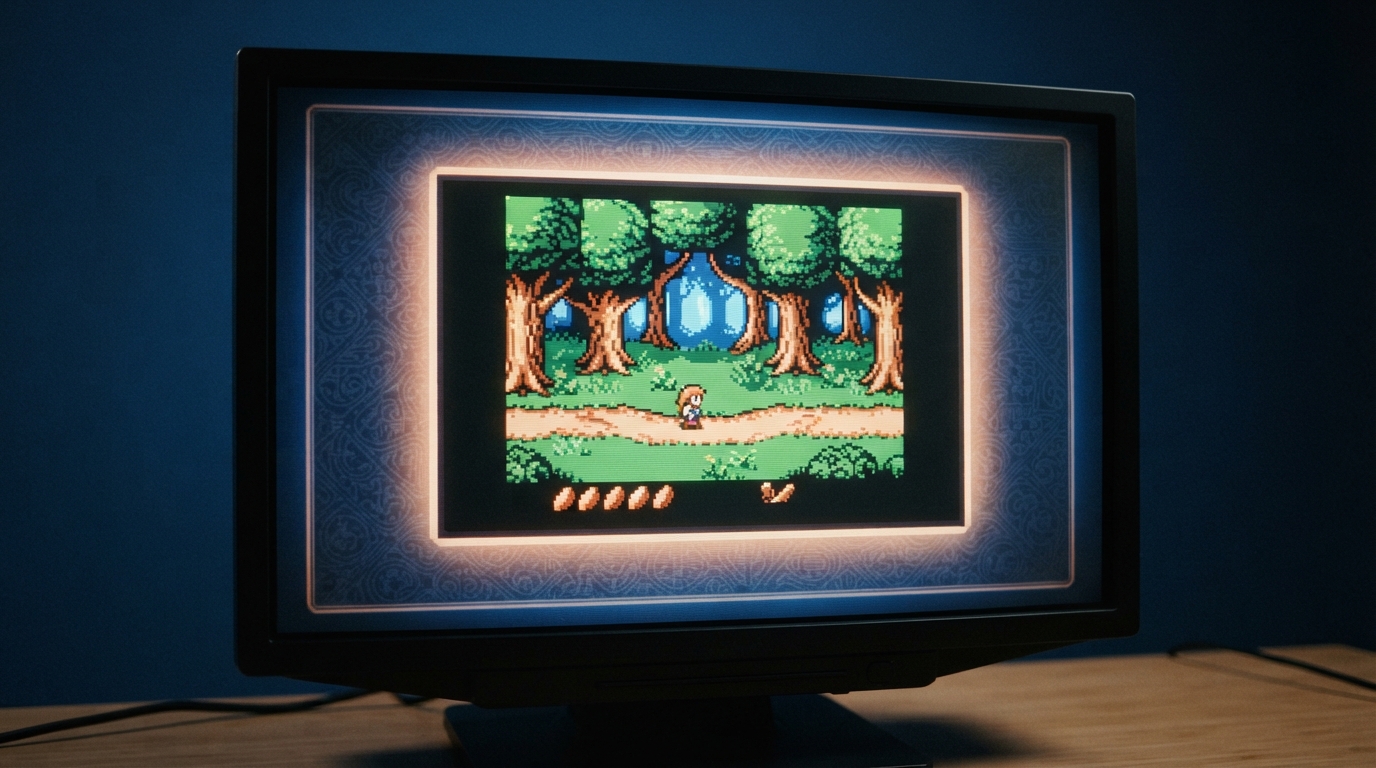
RetroArch's border shaders apply a border image or effect with a transparent window, so the game content shows through the middle. This guide summarizes the official shader documentation for the border family: what each shader is for and which settings the documentation says to adjust so the border has room to fill the screen.
What border shaders do
These shaders apply a border image or effect with a transparent window to show content through. They are typically intended to draw to the entire screen area, so you may need to change your aspect ratio settings to give them more space to fill.
Give the border room to fill the screen
- 1. Set your aspect ratio to match your monitor's physical aspect, so the shader has more screen area to fill.
Documented defaults and options
- Most border shaders default to integer scaling. They also include an option for "integer overscale," which scales to the next highest integer; the documentation describes this as useful for 5x scale on 1080p monitors. An option for scanline and pixel anti-aliasing effects is also available.
Individual border shaders
Ambient Glow: puts a glow effect shining out behind the image. The glow color is based on the average color on the screen, and the color changes gradually to prevent strobing.
BigBlur: fills the area outside the viewport with an enlarged, blurred copy of the viewport. The documentation compares this to the effect used for vertical or portrait cell phone videos shown on TV.
Effect Border IQ: fills the border with live, animated effects based on shadertoys from Inigo Quilez. The active effect can be toggled by a runtime parameter.
ImgBorder: places an image file on top of the screen, commonly used for TV bezels.
WideScreen Border Dark: puts darkened columns, also called pillarboxing, on widescreen images, leaving an area of user-configurable aspect ratio at normal brightness. The documentation notes this can be useful for cores that produce a widescreen image, such as bsnes-hd-beta and Genesis Plus GX Wide, when some games only allow interaction with the original, approximately 4:3, viewable area.
Game Boy Player, SGB and SGBA: presets located inside their respective subdirectories. These shaders reproduce the borders associated with their respective hardware.
Scaling note for hardware border presets
The Game Boy Player, SGB and SGBA presets are intended to run at 1x scale and then scale up to fit the screen, often with the addition of a CRT shader on top.
These shaders are one part of RetroArch's shader system. The exact menu path for loading them and the available runtime parameters are not described in the border documentation summarized here, so check RetroArch's shader interface for the current options on your build.
Reference table · Scroll horizontally to see all columns.
| Shader | Documented purpose |
|---|---|
| Ambient Glow | Glow effect behind the image; color based on average screen color, changing gradually to prevent strobing |
| BigBlur | Fills the area outside the viewport with an enlarged, blurred copy of the viewport |
| Effect Border IQ | Fills the border with live, animated effects based on shadertoys from Inigo Quilez; toggled by a runtime parameter |
| ImgBorder | Places an image file on top of the screen, commonly used for TV bezels |
| WideScreen Border Dark | Darkened columns (pillarboxing) on widescreen images, with a user-configurable aspect ratio area at normal brightness |
| Game Boy Player, SGB, SGBA | Reproduce the borders associated with their respective hardware; presets in their own subdirectories |
Sources & references
Content responsibility: FrameTinker editorial desk. Source authors and software maintainers are credited separately below; this is not a claim of hands-on testing.
Published .
RetroArch: border — official gaming software documentation https://raw.githubusercontent.com/libretro/docs/master/docs/shader/border.mdRetrieved Oct 14, 2026Something doesn’t match your setup?
Suggest a correction