

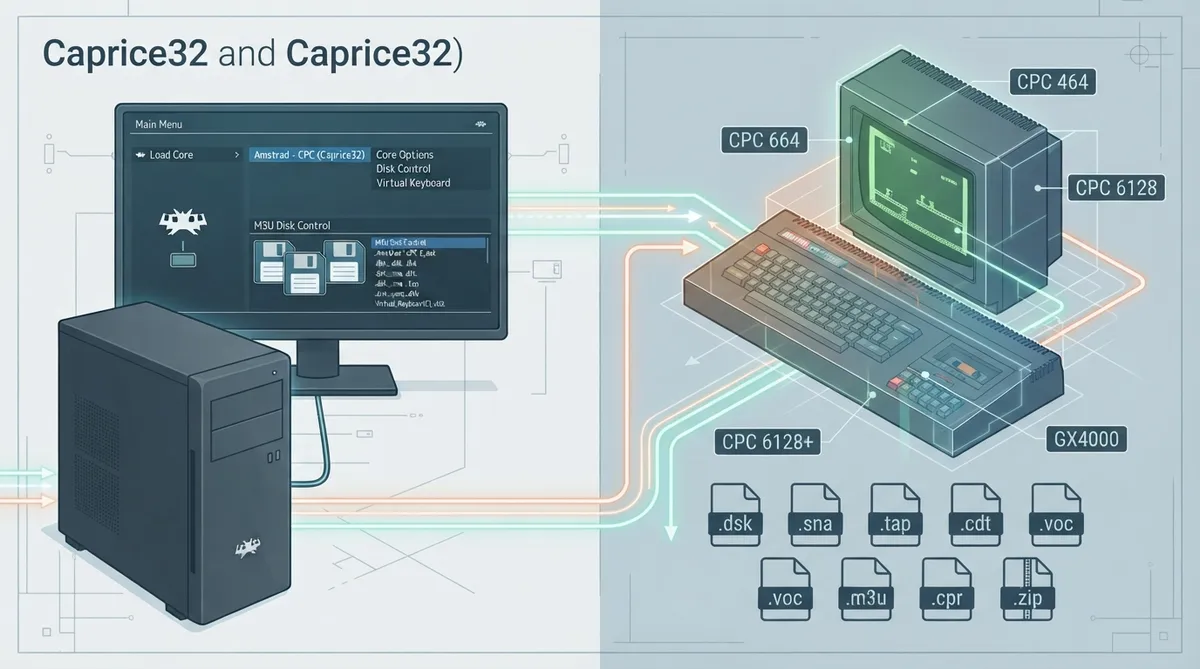
Caprice32 is an emulator of the Amstrad CPC 8-bit home computer series, distributed as a libretro core for RetroArch. It runs on Linux and Windows, and its documentation states that it faithfully imitates the CPC464, CPC664, CPC6128, CPC6128+, and GX4000 models. This guide summarizes the documented configuration options and usage steps for the core.
Supported Content and Databases
The Caprice32 core can load content with the following file extensions: .dsk, .sna, .tap, .cdt, .voc, .m3u, .cpr, and .zip. The associated RetroArch database is the Amstrad - CPC database (TOSEC).
Supported and Unsupported Frontend Features
The core respects the following frontend-level features: Restart, Screenshots, Saves, States, Rewind, Netplay, Core Options, Memory Monitoring, Controls, Remapping, and Disk Control.
The following features are not supported: RetroArch Cheats, Native Cheats, Multi-Mouse, Rumble, Sensors, Camera, Location, Subsystem, Softpatching, Username, Language, Crop Overscan, and LEDs.
Virtual Keyboard and Basic Usage
The core includes a virtual keyboard GUI that can be accessed through SELECT (as configured by the cap32_combokey option) or the F9 key. The mouse cursor can be controlled with the RetroPad D-Pad, and button A presses a key.
Controller Device Types
- For User 1 and User 2, the core supports these device types in the controls menu:
- - None — does not disable input; the documentation notes there is no reason to switch to this.
- - RetroPad — joypad; the documentation advises switching to Amstrad Joystick for joypad input.
- - Amstrad Joystick — joypad; use this for joypad input.
- - Amstrad Keyboard — keyboard; keyboard input is always active and has keymapper support.
- A Mouse device type lets the mouse cursor in the Virtual Keyboard GUI be controlled with mouse inputs.
Combo Key Shortcuts
The documentation presents the following combos as useful for loading games and selecting options in game menus.
Combo            Amstrad Writes
Select + B       CAT
Select + Y       |CPM
Select + Start   SHOW V-KEYBOARD
Select + Up      [1], [Y]
Select + Down    [2], [N]
Select + Left    [4], [S]
Select + Right   [3], [J]
Select + A       RUN"DISK RUN"DISC
Select + X       |TAPE RUN"
Core Options
Option                          Default
Autorun                         enabled
Combo Key                       select
Internal resolution             384x272
Model (Restart)                 6128
Ram size (Restart)              128
Status Bar                      onloading
Floppy Sound                    enabled
Monitor Type                    color
Monitor Intensity               5
CPC Language (Restart)          english
User 1 Joystick Configuration   joystick
User 2 Joystick Configuration   joystick
Monitor Type and Intensity
The Monitor Type option chooses between a color display and a monochrome display (green or white). Monitor Intensity controls the screen cathode tube intensity, ranging from 5 to 15. The documentation's intensity example screenshots were captured with the Monitor Type option set to color.
M3U Files and Disk Control
For multi-disk games, you can use an M3U file to specify each disk of the game and change them from the RetroArch Disk Control interface. A M3U file is a simple text file with one disk per line. Paths can be absolute or relative to the location of the M3U file.
Alive (F) - Disk 1A.dsk
Alive (F) - Disk 1B.dsk- When a game asks for a disk change, you can change the current disk in the RetroArch Disk Control menu:
- 1. Eject the current disk with Disk Cycle Tray Status.
- 2. Select the right disk index.
- 3. Insert the new disk with Disk Cycle Tray Status.
Specifying a Launch Command in the M3U File
The Autorun option usually guesses which command must be executed to launch a game, but the documentation notes problems with CPM disks and unusual catalogs. You can specify a command for the CPC to execute when the emulator launches by adding a comment in the M3U file.
#COMMAND:<YOUR_COMMAND_HERE>#COMMAND:|CPM
Jack the Nipper II... In Coconut Capers (E).dskOfficial Resources
- - Official Caprice32 GitHub Repository
- - Libretro Caprice32 Core Info File
- - Libretro Caprice32 GitHub Repository
- - Report Libretro Caprice32 Core Issues
Reference table · Scroll horizontally to see all columns.
| RetroPad Input | Amstrad Joystick (default joystick config) |
|---|---|
| B | FIRE1 |
| A | FIRE2 |
| L | CTRL |
| R | INTRO |
| L2 | F1 |
| R2 | F2 |
| Up / Down / Left / Right | JOY UP / JOY DOWN / JOY LEFT / JOY RIGHT |
| Select | COMBO (see combos) |
Reference table · Scroll horizontally to see all columns.
| RetroPad Input | QAOP General Keyboard Config |
|---|---|
| B | B |
| Y | Y |
| Start | K (to select Keyboard in games) |
| Up / Down / Left / Right | Q / A / O / P |
| A | SPACE |
| X | N |
| L | CTRL |
| R | INTRO |
| L2 / R2 | F1 / F2 |
| Select | COMBO (see combos) |
Reference table · Scroll horizontally to see all columns.
| RetroPad Input | Incentive Games Config |
|---|---|
| B | SPACE |
| Y | W |
| Start | F |
| Up / Down / Left / Right | CURSOR UP / CURSOR DOWN / CURSOR LEFT / CURSOR RIGHT |
| A | A |
| X | C |
| L | P |
| R | L |
| L2 | R |
| R2 | U |
| Select | COMBO (see combos) |
Reference table · Scroll horizontally to see all columns.
| RetroKeyboard Special Input | Amstrad Function |
|---|---|
| Keypad 0–9 | CPC_KEY_F0–F9 |
| Keypad Period | CPC_KEY_FDOT |
| Keypad Enter | CPC_KEY_SMALL_ENTER |
| Delete | CPC_KEY_CLR |
| Insert | Change cursor / joystick emulation |
| Home | Play tape |
| End | Stop tape |
| Page Up | Tape rewind |
| F9 | Show virtual keyboard |
| F10 | Main GUI |
| Right Alt / Left Alt | CPC_KEY_COPY |
| Right Shift | CPC_KEY_FIRE2 (joystick emulation) |
| Right Control | CPC_KEY_FIRE1 (joystick emulation) |
Sources & references
Content responsibility: FrameTinker editorial desk. Source authors and software maintainers are credited separately below; this is not a claim of hands-on testing.
Published .
RetroArch: caprice32 — official gaming software documentation https://raw.githubusercontent.com/libretro/docs/master/docs/library/caprice32.mdRetrieved Oct 12, 2026Something doesn’t match your setup?
Suggest a correction