

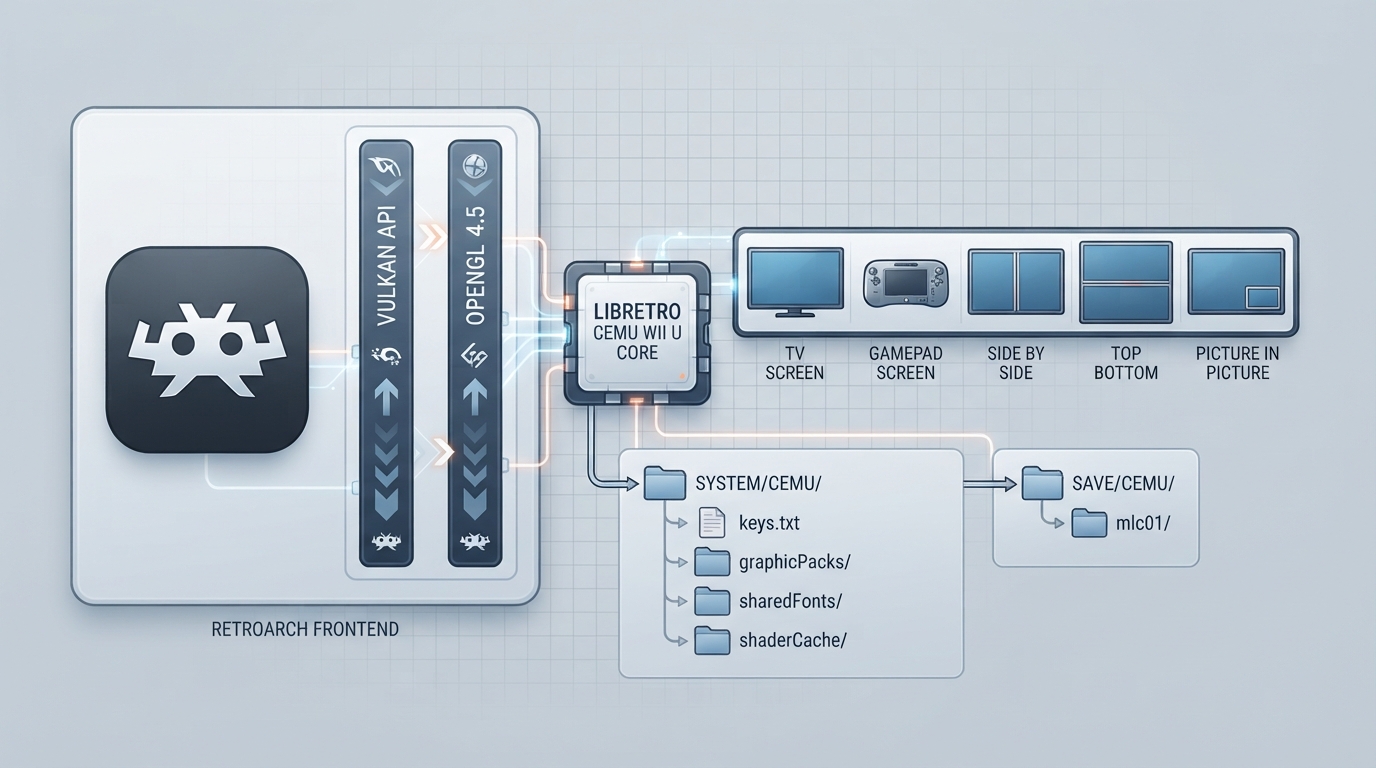
Cemu is a Wii U emulator that renders through the frontend's hardware context, either Vulkan (sharing RetroArch's instance, device and queue) or the OpenGL 4.5 core profile. It can display the Wii U GamePad screen alongside the TV screen in several layouts and switch between them with a button combination. This guide summarizes the official libretro documentation page for the core.
Scope of this guide
Everything below comes from the official documentation page for the libretro Cemu core. The instructions have not been hands-on tested by this author, so treat them as a source summary rather than a verified walkthrough. The requirements of standalone Cemu otherwise apply, and Wii U emulation is demanding on the CPU.
Platforms, requirements and licensing
The core is built for Windows x64, Linux x86_64 and arm64, macOS x86_64 and arm64, and Android arm64-v8a and x86_64. A 64-bit CPU and a GPU with Vulkan or OpenGL 4.5 support are required. The core cannot run without a hardware context: if the frontend cannot provide one, loading content fails.
On Linux under Wayland, use the Vulkan graphics API: the OpenGL path renders a black screen there. On Android, Cemu has no GLES renderer, so the core always uses Vulkan. The core is authored by the Cemu Project and WizzardSK and licensed under MPLv2.
Set up the Cemu folders
Everything the core reads and writes lives in a Cemu folder in RetroArch's system directory, except the emulated Wii U storage (MLC), which is in the save directory.
retroarch/
├── saves/
│   └── Cemu/
│       └── mlc01/            (Wii U storage: saves, updates, DLC)
└── system/
    └── Cemu/
        ├── keys.txt          (disc keys)
        ├── graphicPacks/     (optional)
        ├── resources/
        │   └── sharedFonts/  (optional)
        ├── shaderCache/
        ├── settings.xml
        └── log.txt
keys.txt holds the keys that encrypted disc images (.wud, .wux) need, in the same format as standalone Cemu's, and is placed in system/Cemu/. mlc01/ is the emulated Wii U storage: game saves go there, and installed updates and DLC are found there, as in standalone Cemu; it is created on the first run. graphicPacks/ takes Cemu graphic packs, and packs marked default = 1 (such as crash fixes for specific games) are enabled automatically. resources/sharedFonts/ takes the Wii U system fonts (CafeStd.ttf, CafeCn.ttf, CafeKr.ttf, CafeTw.ttf) for games that need them, if the system font title is not installed in mlc01/. shaderCache/ is where compiled shaders are kept between runs.
Load Wii U content
Content that can be loaded by the Cemu core uses these file extensions: .wud, .wux, .wua, .iso, .rpx, .elf and .tmd. A .tmd loads a title stored as a folder of .app files: point the core at its title.tmd.
RetroArch has no Wii U database yet, so a regular scan does not recognize Wii U games. Load them with Load Content, or build a playlist with Import Content > Manual Scan.
Configure the two-screen layouts
A Wii U game draws to two screens, the TV and the GamePad. The Screen core options set up to five layouts: the TV screen, the GamePad screen, side by side, top and bottom, or picture in picture. Next Screen Layout names the button combination that steps through them while a game runs, and GamePad Position swaps which side (or which corner) the GamePad screen takes.
The mouse or a touch screen acts as the GamePad's touch screen. In the layouts that show both screens, only touches inside the GamePad's part of the picture register.
Supported and unsupported features
Save states are not supported and cannot be: Cemu has no way of serializing the emulated system's state. Rewind, Netplay, RetroArch Cheats, Native Cheats, Rumble, Sensors, Camera, Subsystem, Softpatching and Disk Control are also not supported, while Restart, Screenshots, Saves, Core Options, Controls and Remapping are.
Set controller device types
What each port emulates is set with RetroArch's device type (Controls > Port N Controls > Device Type). Port 1 is always the Wii U GamePad, and it can also drive a Wii Remote — held upright or sideways — for games that want one alongside the GamePad. Ports 2-4 can be a Wii Remote, a Wii Remote held sideways, a Wii U Pro Controller or a Classic Controller, or nothing (the default).
The Cemu core exposes settings in several categories: Video, Shaders, Screen, System, Add-ons, Logging and Convert to WUA. The defaults listed in the supplement below are the bolded values in the documentation. The Convert to WUA options appear when a game is loaded and there is somewhere to write the result: they convert the loaded game to a single .wua archive while it keeps running.
If loading fails
If content will not load, first confirm the frontend can provide a hardware context, since the core cannot run without one. On Linux under Wayland the OpenGL path renders a black screen, so switch the graphics API to Vulkan; on Android the core always uses Vulkan.
Reference table · Scroll horizontally to see all columns.
| Video option | Values (default in bold) |
|---|---|
| Upscale Filter | **Linear**, Bicubic, Bicubic Hermite, Nearest |
| Show Game FPS | **OFF**, ON |
| Downscale Filter | **Linear**, Bicubic, Bicubic Hermite, Nearest |
| Internal Resolution | 640x360, 960x540, **1280x720**, 1920x1080, 2560x1440, 3840x2160 |
| Fullscreen Scaling | **Keep Aspect**, Stretch |
| Reduce BC1 Texture Memory | **OFF**, ON |
| Graphics API (restart) | **OpenGL**, Vulkan |
Reference table · Scroll horizontally to see all columns.
| Shader option | Values (default in bold) |
|---|---|
| Async Shader Compile | **ON**, OFF |
| GX2DrawDone Sync | **ON**, OFF |
| Precompiled Shaders | **Auto**, ON, OFF |
| Accurate Shader Multiplication | **ON**, OFF |
Reference table · Scroll horizontally to see all columns.
| Screen option | Values (default in bold) |
|---|---|
| # of Screen Layouts | 1, **2**, 3, 4, 5 |
| Layout 1 | **Default Screen**, GamePad Screen, Side by Side, Top Bottom, Picture in Picture |
| Layout 2 | Default Screen, **GamePad Screen**, Side by Side, Top Bottom, Picture in Picture |
| Layout 3 | Default Screen, GamePad Screen, **Side by Side**, Top Bottom, Picture in Picture |
| Layout 4 | Default Screen, GamePad Screen, Side by Side, **Top Bottom**, Picture in Picture |
| Layout 5 | Default Screen, GamePad Screen, Side by Side, Top Bottom, **Picture in Picture** |
| Next Screen Layout | OFF, **L + R + L2 + R2 + L3 + R3**, Select + L3, Select + R3, Tab |
| GamePad Position | **Normal**, Swapped |
Reference table · Scroll horizontally to see all columns.
| System option | Values (default in bold) |
|---|---|
| CPU Mode (restart) | **Auto**, Singlecore Interpreter, Singlecore Recompiler, Multicore Recompiler, Multicore Interpreter |
| Console Language | **English**, Japanese, French, German, Italian, Spanish, Chinese, Korean, Dutch, Portuguese, Russian, Taiwanese |
| Thread Quantum | 20000, **45000**, 60000, 80000, 100000 |
Reference table · Scroll horizontally to see all columns.
| Add-on option | Values (default in bold) |
|---|---|
| Emulate Skylander Portal | **OFF**, ON |
| Emulate Infinity Base | **OFF**, ON |
| Emulate Dimensions Toypad | **OFF**, ON |
Reference table · Scroll horizontally to see all columns.
| Logging option | Values (default in bold) |
|---|---|
| Write Cemu Log to log.txt | **ON**, OFF |
| Log File Access (debugging) | **OFF**, ON |
| Log Thread Synchronisation (debugging) | **OFF**, ON |
| Log System API Calls (debugging) | **OFF**, ON |
| Log Texture Memory (debugging) | **OFF**, ON |
| Log Controller API Calls (debugging) | **OFF**, ON |
| Log Audio Pacing (debugging) | **OFF**, ON |
Reference table · Scroll horizontally to see all columns.
| Convert to WUA option | Values |
|---|---|
| Output Directory | filled in at run time |
| Start Conversion to WUA | **OFF**, ON |
Sources & references
Content responsibility: FrameTinker editorial desk. Source authors and software maintainers are credited separately below; this is not a claim of hands-on testing.
Published .
RetroArch: cemu — official gaming software documentation https://raw.githubusercontent.com/libretro/docs/master/docs/library/cemu.mdRetrieved Oct 12, 2026Something doesn’t match your setup?
Suggest a correction