

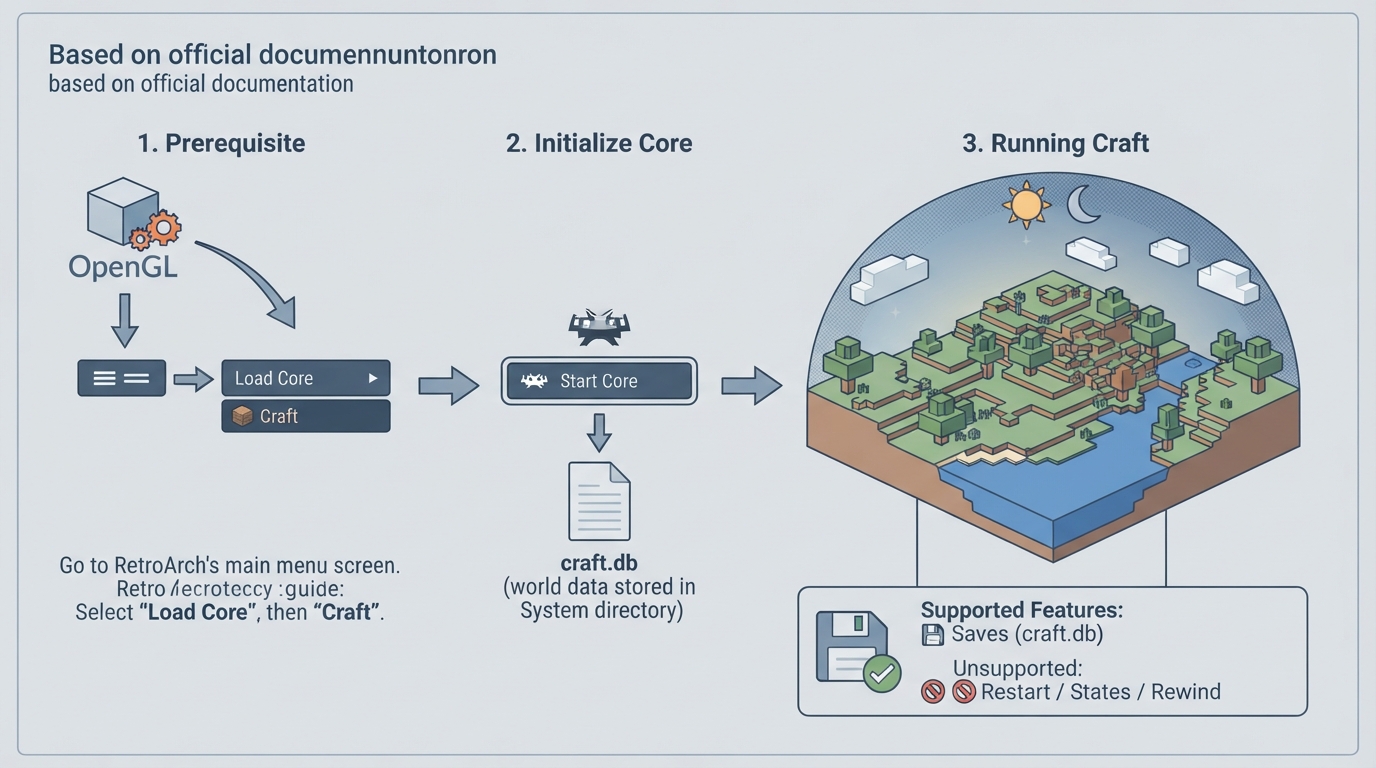
This guide summarizes the official libretro documentation for the RetroArch Craft core. Craft is described as a simple Minecraft clone written in C using modern OpenGL shaders. The instructions below are a source summary, not a hands-on tested walkthrough.
Prerequisites
- OpenGL or OpenGL ES is required to use the Craft core.
Load the Craft core
- 1. Go to RetroArch's main menu screen.
- 2. Select 'Load Core', then 'Craft'.
- 3. Select 'Start Core'.
- The content should now start running.
World data
The Craft core saves and loads world data in the frontend's System directory. The file is named craft.db and contains world data.
Core options
The following options can be adjusted from the core options menu. Options marked with (restart) require the core to be closed for the new setting to apply on next launch.
- Resolution (restart) [craft_resolution]: default 640x480, with many other resolutions available up to 16000x9000.
- Show info text [craft_show_info_text]: default disabled; can be enabled to show game information in the upper left corner.
- Jumping Flash mode: default Off; enabling allows infinite jumping while the camera faces downwards.
- Field of view [craft_field_of_view]: 65 to 150 in increments of 5; default 65.
- Draw distance [craft_draw_distance]: 1 to 32 in increments of 1; default 10.
- Inverted aim [craft_inverted_aim]: default disabled; inverts up and down crosshair aiming for the RetroPad and RetroMouse.
- Right analog sensitivity [craft_analog_sensitivity]: 0.0150 to 0.0500 in increments of 0.0025; default 0.0150.
- Analog deadzone size [craft_deadzone_radius]: 0.010 to 0.200 in increments of 0.005; default 0.010.
Frontend-level features
Supported frontend features for the Craft core include Saves, Core Options, and Controls. Unsupported features include Restart, States, Rewind, and Netplay.
Input mappings
Craft supports gamepad input, including analog stick support with configurable analog sensitivity and deadzones, plus preliminary mouse and keyboard support. Default input mappings are shown below.
See the structured table below for a compact summary of default RetroPad, keyboard, and mouse mappings.
External links
- Official Craft Website: https://www.michaelfogleman.com/projects/craft/
- Official Craft GitHub Repository: https://github.com/fogleman/Craft
- Libretro Craft Core info file: https://github.com/libretro/libretro-super/blob/master/dist/info/craft_libretro.info
- Libretro Craft GitHub Repository: https://github.com/libretro/craft
- Report Libretro Craft Core Issues: https://github.com/libretro/Craft/issues
Reference table · Scroll horizontally to see all columns.
| RetroPad Input | Craft Action |
|---|---|
| B | Jump |
| Y | Destroy block |
| Select | Zoom out |
| D-Pad Up | Move forwards |
| D-Pad Down | Move backwards |
| D-Pad Left | Move crosshair left |
| D-Pad Right | Move crosshair right |
| A | Next block |
| X | Place block |
| L1 | Move left |
| R1 | Move right |
| L2 | Move crosshair up |
| R2 | Move crosshair down |
| Left Stick X | Move left/right |
| Left Stick Y | Move up/down |
| Right Stick X | Move crosshair left/right |
| Right Stick Y | Move crosshair up/down |
Reference table · Scroll horizontally to see all columns.
| Input | Craft Action |
|---|---|
| Keyboard Up | Move forwards |
| Keyboard Down | Move backwards |
| Keyboard Right | Move crosshair left |
| Keyboard Left | Move crosshair right |
| Keyboard Right Shift | Zoom out |
| Mouse Cursor | Move crosshair |
| Mouse 1 | Destroy block |
| Mouse 2 | Place block |
| Mouse 3 | Copy block |
| Wheel Up | Previous block |
| Wheel Down | Next block |
Sources & references
Content responsibility: FrameTinker editorial desk. Source authors and software maintainers are credited separately below; this is not a claim of hands-on testing.
Published .
RetroArch: craft — official gaming software documentation https://raw.githubusercontent.com/libretro/docs/master/docs/library/craft.mdRetrieved Oct 12, 2026Something doesn’t match your setup?
Suggest a correction