

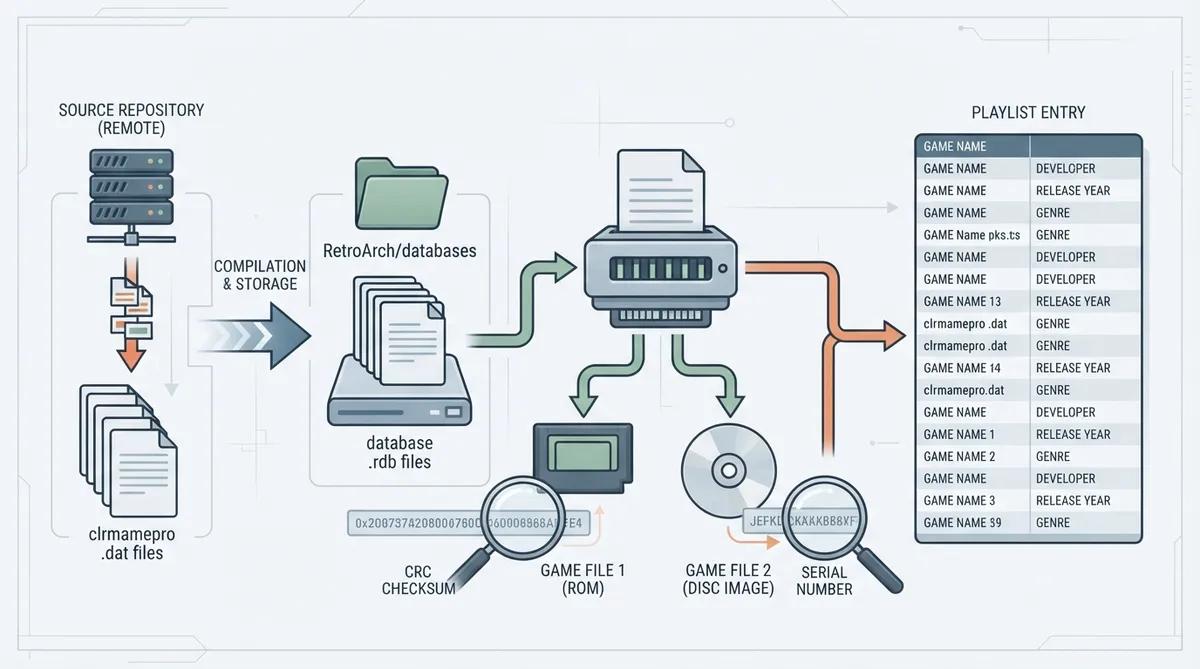
RetroArch keeps a local set of database files that its import scanner and playlist tools consult when identifying game files. This guide summarizes the official RetroArch databases documentation: where those files live, how they are built, what keys are used for matching, and what options exist when something is wrong.
What the databases are and where they live
- RetroArch uses .rdb database files, stored locally by default in the RetroArch/databases folder.
- Those .rdb files are compiled from clrmamepro-format .dat files hosted in the libretro database repository.
- The repository readme documents the sources and functioning of the repository in more detail.
Terminology: what "Game Name" means
Throughout the documentation, Game Name refers to the name shown in the RetroArch interface and in playlists, not the filename of the file on disk. It is used interchangeably with playlist item label, playlist entry, content name, and game title.
What the database is used for
- Validation: accept or reject files during an Import Scanner / Playlist Generator run based on whether the file's checksum (or other matching key) matches a known verified dump in the database.
- Game Naming: assign a definitive, uniform display name to each game regardless of its filename, taken from the name field of the database entry for that file's key.
- Category search ("Explore"): find games by criteria such as developer, release year, and genre.
- Per-game information view: an in-app informational screen for each game (Game > Information > Database Entry).
How the import scanner uses the database
- Compute a CRC checksum of the file(s), or scan for the in-game serial number. CRC and serial number are the keys used to match a game file to the database.
- Search for that CRC or serial in the information of the local .rdb files (default location RetroArch/databases). If the key is not found in the databases, the file is not added to a playlist in strict mode.
- Assign the Game Name specified as name within the database entry for that key. The assigned Game Name appears in the playlist instead of the filename.
- All other metadata collated in the .rdb entry for that CRC or serial can be viewed under Information > Database Entry and through "Explore".
Which key is used for matching
- CRC checksum for systems with smaller file sizes, such as games released before disc-based consoles.
- Serial number for larger files such as disc-based games, to avoid computing checksums on large files. The serial is not metadata: it is encoded within the game's binary data and is scanned as a byte array by RetroArch where applicable.
- Databases also include cryptographic hashes such as SHA1 for informational purposes, but only the CRC checksum or serial is used for matching.
Strict versus loose validation
A strict scan is a validation process, not just a way to add every file to a playlist: part of its function is to reject files whose checksum or internal serial does not exist in the database. Such files do not appear in the playlist under strict mode. Changing the Database Check parameter to Loose allows those files to be added to the playlist anyway.
Databases and thumbnails
Thumbnails are not assigned or retrieved based on checksum, serial, or game database matching. They are instead handled by a separate matching process described in the thumbnails documentation. One visible consequence is that a thumbnail may not appear in RetroArch when the Game Name shown in the interface does not match a filename in the thumbnail repository, and there is currently no automatic process that applies database game name changes to thumbnail repository filenames.
Updating your local databases
- If a database error has already been fixed upstream but not yet reflected in your installation, open Main Menu > Online Updater > Update databases.
- This applies recent fixes and corrections to your RetroArch installation.
Common problems and documented responses
- Files missed during an import scan (strict scan does not add them): either contribute data for the missing games to the database, or use the Loose option, which accepts all files according to the chosen settings.
- Wrong game name or incorrect information: investigate which .dat file holds the erroneous information and contribute a correction; an upstream change in the responsible database group's system may be required, and ad hoc database coverage on GitHub is also possible.
- Outdated local files: update your databases through Main Menu > Online Updater > Update databases.
Investigating a database issue
- Learn the factors that might be causing the problem: the multifaceted .dat system (multiple .dat files may hold data for the same game), which key field RetroArch uses to identify your file, and precedence rules within the repository's .dat files.
- Verify data on both sides: confirm your file's key (compute the CRC checksum or check the encoded serial number with a hex editor, whichever applies) and inspect the libretro databases on GitHub for the .dat that may hold incorrect data.
- Check upstream data: if an upstream database group such as No-Intro, Redump, or GameTDB is responsible for the .dat at issue, check whether their current information is correct or incorrect.
Contributing a correction or addition
- Create an account on github.com and log in.
- Fork the libretro database repository (copying it into your own working area on GitHub).
- Make your changes inside your fork: for example, create a new .dat, or add a game entry or correction to an existing one. Follow the header specifications and principles in the database repository readme, and follow the formats used by existing .dat files.
- Commit (save) your changes in your fork.
- Use the Pull Request button (or Contribute > Open Pull Request) to propose your changes to the libretro team, who review the contribution and either accept it or explain required changes or why it is not acceptable.
Fix the .dat or edit a different one
The documentation describes two methods for adding coverage for a single game or a narrow set of games through a pull request. Method A fixes the .dat at issue, but that is only possible if the .dat does not originate from an upstream import and will not receive subtractive sync overwrites in the future; otherwise the fix would be deleted by the next bulk import sync. Method B edits a different .dat, leaving the erroneous one intact but moot. That is only advisable when the correction and the error use different keys, or when the edited database has precedence over the erroneous one; if neither condition is met, the attempted correction would be overruled when the .rdb is compiled.
When to use the issue tracker instead
- Search the libretro database issue tracker for existing issues that may already cover your problem before opening a new one.
- Open a Database Issue if a large-scale problem affects many entries or entire .dat files, or if upstream data is correct but libretro or RetroArch does not reflect it and at least four weeks have passed since the upstream update.
- Open a RetroArch Issue if the scanning behavior or validation is at fault while the databases appear correct and match your file's CRC and serial.
Reference table · Scroll horizontally to see all columns.
| Key used for matching | Applies to |
|---|---|
| CRC checksum | Systems with smaller file sizes, e.g. games before disc-based consoles |
| Serial number | Larger files such as disc-based games; encoded in the game's binary data |
Sources & references
Published .
RetroArch: databases — official gaming software documentation https://raw.githubusercontent.com/libretro/docs/master/docs/guides/databases.mdRetrieved Oct 8, 2026Something doesn’t match your setup?
Suggest a correction