

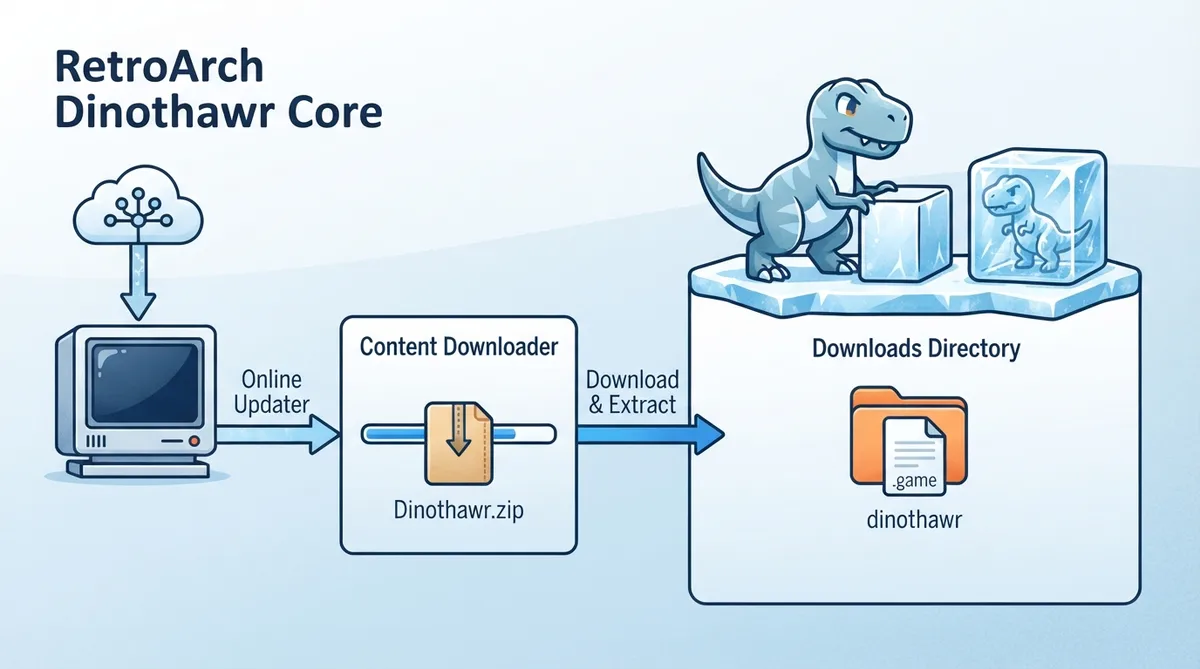
Dinothawr is a block pushing puzzle game set on slippery surfaces. The player controls a dinosaur whose friends are trapped in ice, and the goal is to solve puzzles to free them. The game runs through a dedicated Libretro core in RetroArch, which means it needs its own data files before it can start. This guide summarizes the official Libretro documentation for the Dinothawr core, covering setup, loadable content, supported features, core options, and controls.
Prerequisites
- - A working RetroArch installation with access to the main menu
- - An internet connection for the Online Updater content download
- - No separate Dinothawr game file is needed beyond what the Content Downloader provides
Obtaining the Dinothawr data files
- 1. Open RetroArch's main menu screen.
- 2. Select 'Online Updater'.
- 3. Select 'Content Downloader'.
- 4. Select 'Dinothawr'.
- 5. Select 'Dinothawr.zip'. This should download and extract the file to RetroArch's Downloads directory.
Loading the game
- 1. Go back to RetroArch's main menu screen.
- 2. Select 'Load Content'.
- 3. Select 'Downloads'.
- 4. Select the 'dinothawr' directory.
- 5. Select 'dinothawr.game'.
- 6. If you are asked which core to select, choose 'Dinothawr'. The content should now start running.
Supported content extensions
The Dinothawr core loads content with the .game file extension. The core is also associated with a RetroArch database file for Dinothawr.
Supported and unsupported features
The official feature table lists Restart, Screenshots, Saves, Core Options, Controls, Remapping as supported. It marks States, Rewind, Netplay, Memory Monitoring (achievements), RetroArch Cheats, Native Cheats, Multi-Mouse, Rumble, Sensors, Camera, Location, Subsystem, Softpatching, Disk Control, Username, Language, Crop Overscan, LEDs as unsupported. Sensors are therefore not a supported feature of this core in the cited documentation.
Save data location
The Dinothawr core saves and loads to and from the frontend's Save directory, where it uses a file named dinothawr.srm for save data.
Core options
The Dinothawr core exposes one core option that can be tweaked from the core options menu: 'Timer as FPS reference' [dino_timer]. Its default setting is enabled, with disabled as the alternative. The documentation marks settings with (Restart) as requiring the core to be closed before the new setting takes effect on next launch; this particular option is not marked that way.
Controllers and remapping
In the controls menu, User 1 device types include None, RetroPad, and RetroPad w/Analog. The default is RetroPad. The documentation notes that the None type does not disable input, and describes RetroPad as the option to stay on. The documented User 1 remap descriptors map to the following RetroPad inputs: Push to the B button, D-Pad Up, Down, Left, and Right to the respective D-Pad directions, Menu to the A button, and Reset to the X button.
Related links
No hands-on verification of the setup steps has been performed for this article.
Sources & references
Content responsibility: FrameTinker editorial desk. Source authors and software maintainers are credited separately below; this is not a claim of hands-on testing.
Published .
RetroArch: dinothawr — official gaming software documentation https://raw.githubusercontent.com/libretro/docs/master/docs/library/dinothawr.mdRetrieved Oct 12, 2026Something doesn’t match your setup?
Suggest a correction